# User Auth with the ArcGIS Maps SDK for JavaScript
> Sign users in from a browser app with OAuth 2.0 and PKCE. Register OAuth credentials with a redirect URL, then let IdentityManager handle sign-in, sign-out and tokens.
Interactive version: http://www.rauljimenez.info/arcgis-tutorials/arcgis-js-sdk-user-auth/
## About this demo
In this demo, we will build a small browser app that signs a user in with OAuth 2.0 using the [ArcGIS Maps SDK for JavaScript](https://developers.arcgis.com/javascript/latest/).
Check prerequisites
You will need an ArcGIS Location Platform, ArcGIS Online, or ArcGIS Enterprise account that can create developer credentials. In ArcGIS Online and ArcGIS Enterprise, that means a user type of Creator or higher.
## How OAuth works
These slides show the OAuth 2.0 flow end to end. Keep them in mind: each piece maps to a later step, such as the Client ID, the redirect URL (`oauth-callback.html`), and the tokens the SDK stores for you.
What is PKCE and why does this app use it?
The SDK uses the authorization-code flow with PKCE (Proof Key for Code Exchange). Before sign-in, the app generates a random secret (the code verifier) and sends only its hash (the code challenge) to ArcGIS. When the authorization code comes back, the app sends the original verifier to exchange it for tokens.
Browser apps cannot keep a client secret, so PKCE proves that the app redeeming the code is the same one that started the flow. An intercepted authorization code is useless without the verifier.
[Embedded page](https://www.rauljimenez.info/oauth-workflow-arcgis)
## Load the SDK
First, load the ArcGIS Maps SDK for JavaScript. The SDK also loads the Calcite components used by the header and sign-in button, so this app does not need a bundler or package install step.
```html title="code/index.html" region="cdn"
```
## Build the UI
Next, let's add the visible parts of the app:
- A Calcite navigation bar
- One sign-in button
- A status message
```html title="code/index.html" region="ui"
Sign in
You are not signed in yet.
```
## App settings
The OAuth flow needs two app settings:
- **Client ID**, which identifies this application (We will get it after creating the OAuth credential. More on step: Create the Developer Credential.) For now, we will leave a placeholder.
- **Portal URL**, only needed when users sign in through an ArcGIS Enterprise portal.
```javascript title="code/main.js" region="config"
const clientId = "YOUR_CLIENT_ID";
const portalUrl = "https://www.arcgis.com"; // default to: https://www.arcgis.com
```
## Import authentication modules
- `OAuthInfo` describes how this app should authenticate: which Client ID to use, which portal to use, whether sign-in opens in a popup, and which callback page receives the OAuth response.
- `IdentityManager` uses that OAuth configuration. It manages the sign-in flow, stores the credential after authentication, and can destroy it when the user signs out.
```javascript title="code/main.js" region="imports"
const [OAuthInfo, esriId] = await $arcgis.import([
"@arcgis/core/identity/OAuthInfo.js",
"@arcgis/core/identity/IdentityManager.js",
]);
```
## Register OAuthInfo within IdentityManager
`IdentityManager.registerOAuthInfos()` receives an array (Why does registerOAuthInfos() accept an array? Because one application can register OAuth settings for more than one portal or authentication context.
This demo only needs one, but the SDK identity system can manage credentials for many secured ArcGIS resources.) of OAuthInfo objects.
For this demo, the important properties are:
- `appId`: the Client ID from the developer credential.
- `portalUrl`: the portal where the app is registered.
- `popup: true`: opens the ArcGIS sign-in screen in a popup.
- `popupCallbackUrl`: sets the callback page used as the OAuth redirect URI. After sign-in, ArcGIS redirects the popup back to this page with the OAuth response.
- `authNamespace`: keeps this app's sign-in state separate from other apps on the same domain.
- `expiration`: sets how long the session should last. With the default authorization-code flow with PKCE, it applies to the refresh token.
How does the popup callback fit into the flow?
When the user signs in, ArcGIS redirects the popup to the callback URL registered in the developer credential. The callback page passes the OAuth response back to the original app window, and the SDK uses it to finish the sign-in flow.
```javascript title="code/main.js" region="oauth"
// Registering: IdentityManager.registerOAuthInfos([])
esriId.registerOAuthInfos([
new OAuthInfo({
appId: clientId,
portalUrl,
popup: true,
popupCallbackUrl: "oauth-callback.html",
authNamespace: "interactive-code-scroll-oauth-demo",
// Refresh token duration in mins. Default: 2 weeks. Max: 90 days, unless your org sets a lower limit.
// expiration: 20160, // Access tokens remain short-lived
})
]);
```
## Add the callback page
When the user finishes signing in, ArcGIS redirects the popup back to `oauth-callback.html`.
The URL usually looks like this:
`https:////oauth-callback.html?code=&state=&...`
This page must be hosted at the same URL that you register as the redirect URL in your ArcGIS developer credential.
What does the callback receive?
The SDK uses the OAuth authorization-code flow with PKCE when the portal supports it, so the callback normally receives `code` and `state` in the query string. The same callback also supports older implicit-flow responses, where ArcGIS returns values in the URL hash instead.
The callback script passes the OAuth response back to the original app window, where the SDK completes the sign-in flow and closes the popup.
```html title="code/oauth-callback.html" region="handler"
function loadHandler() {
// window.opener returns a reference to the app window that opened this popup.
if (opener) {
if (location.hash) {
// Older implicit-flow responses return token values in the URL hash.
try {
// Access the ArcGIS Maps SDK identity manager from the window that opened this popup.
var esriId = opener.require("esri/kernel").id;
} catch (e) {
console.warn("Identity manager is not available in the opener window");
}
if (esriId) {
// Pass the OAuth response hash back to the ArcGIS identity manager so it can finish sign-in.
esriId.setOAuthResponseHash(location.hash);
} else {
// Notify the opener so the app can handle the hash itself.
opener.dispatchEvent(new CustomEvent("arcgis:auth:hash", { detail: location.hash }));
}
} else if (location.search) {
// Authorization-code responses, including PKCE, return code/state in the query string.
var searchParams = new URLSearchParams(location.search);
if (searchParams.has("code") || searchParams.has("error")) {
// Forward authorization-code or error responses returned in the query string to the opener.
// E.g. and error could be produced if the user cancel the authorization
opener.dispatchEvent(new CustomEvent("arcgis:auth:location:search", { detail: location.search }));
}
}
}
close();
}
```
## Create the Developer Credential
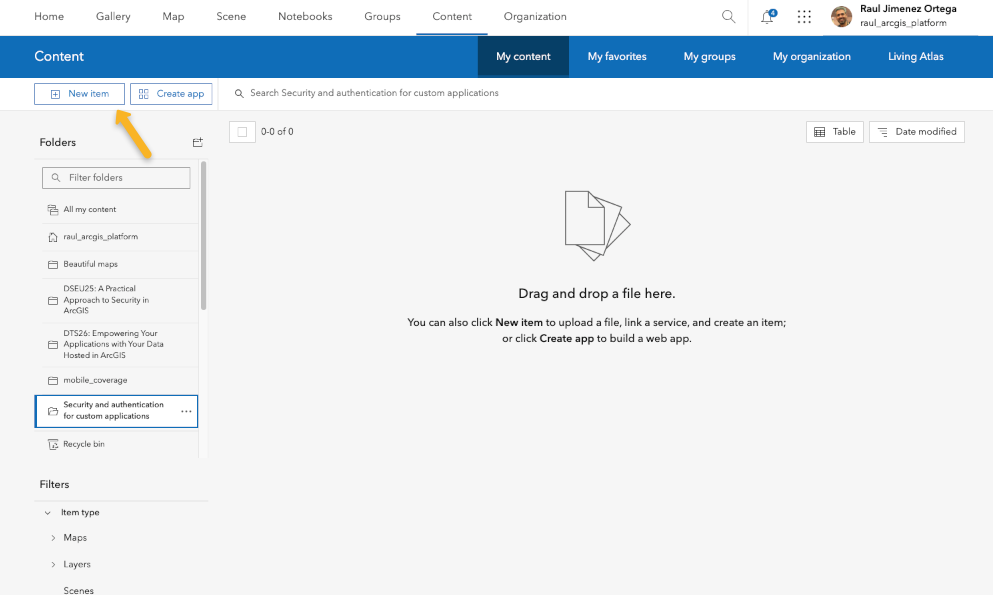
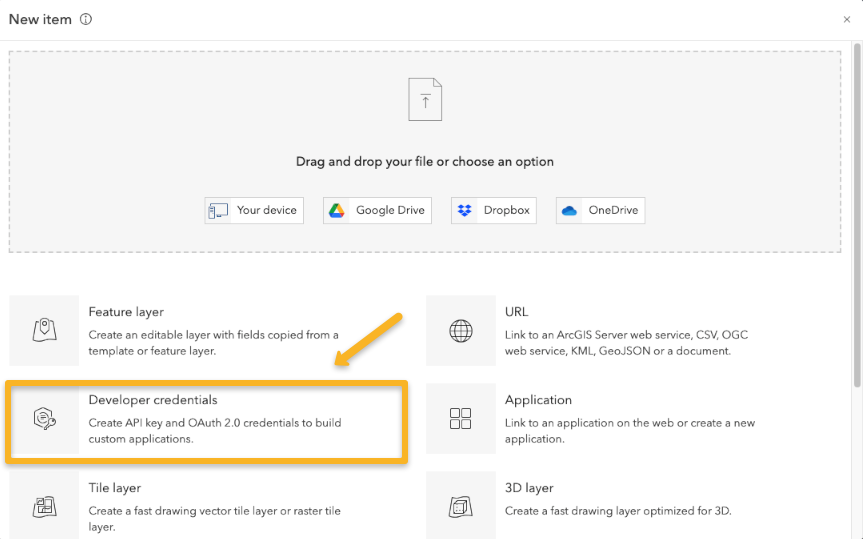
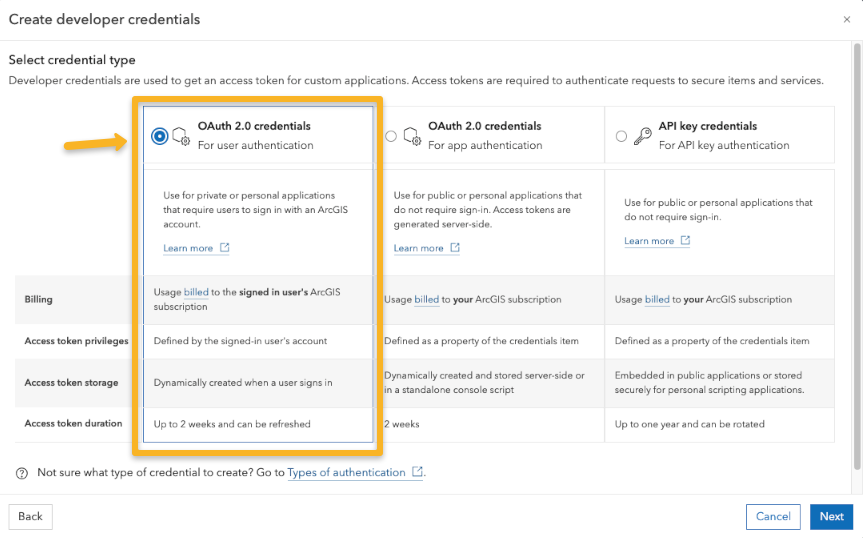
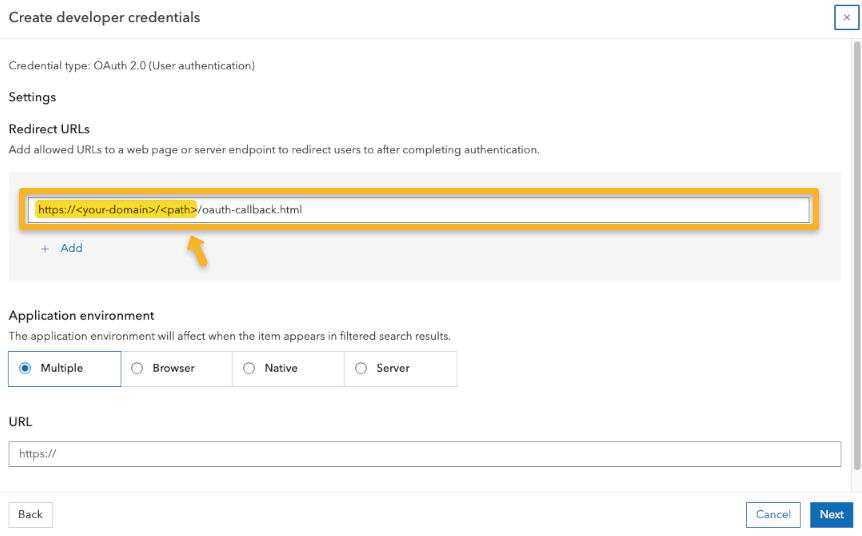
Now that the app points to `oauth-callback.html`, create the developer credential in [the ArcGIS portal](https://developers.arcgis.com/documentation/glossary/arcgis-portal/):
1. Click **Content** > **My content** > **New item**
2. Click **Developer credentials**
3. Select **OAuth 2.0 credentials (_For user authentication_)**
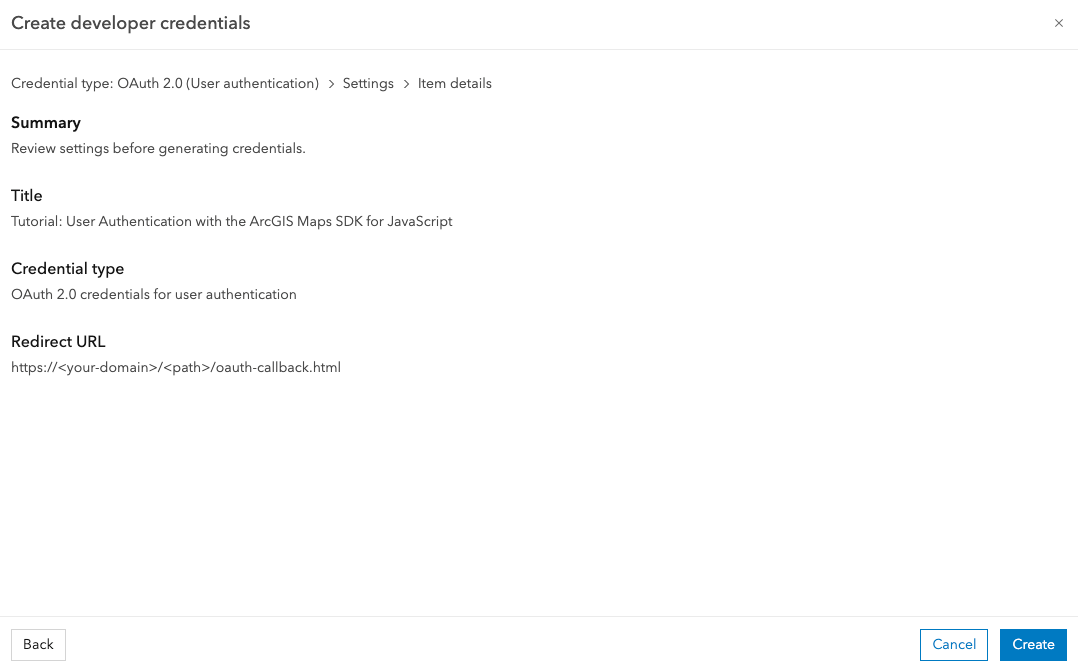
4. Add the redirect URL for your app
- Local development: `http://localhost:/preview/oauth-callback.html`
- Published site: `https:////oauth-callback.html`
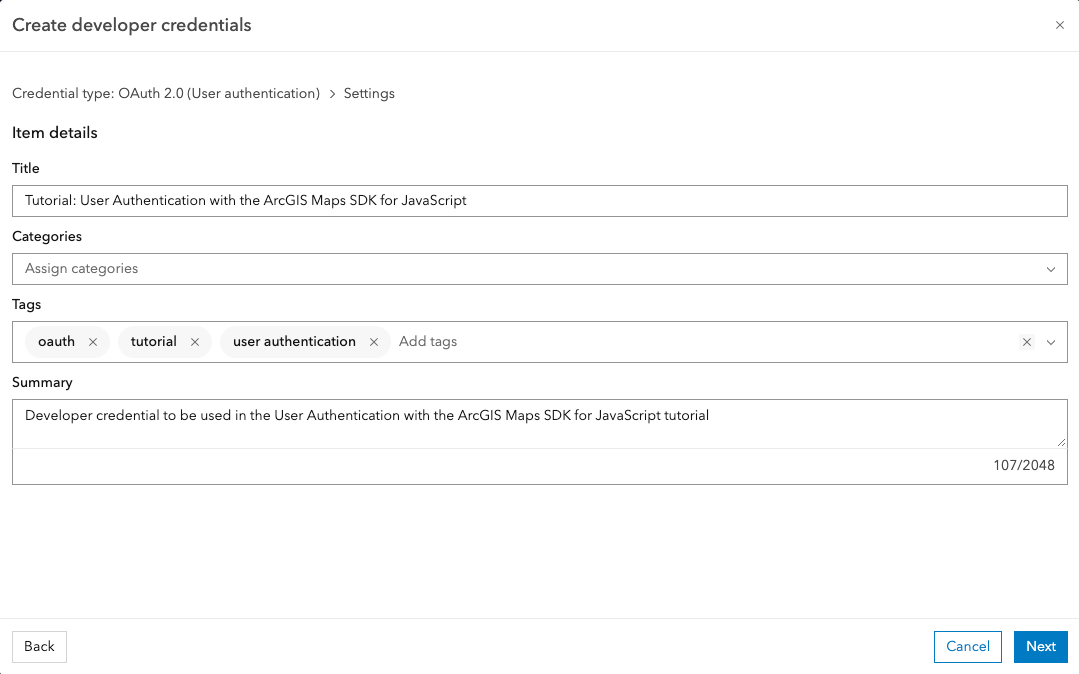
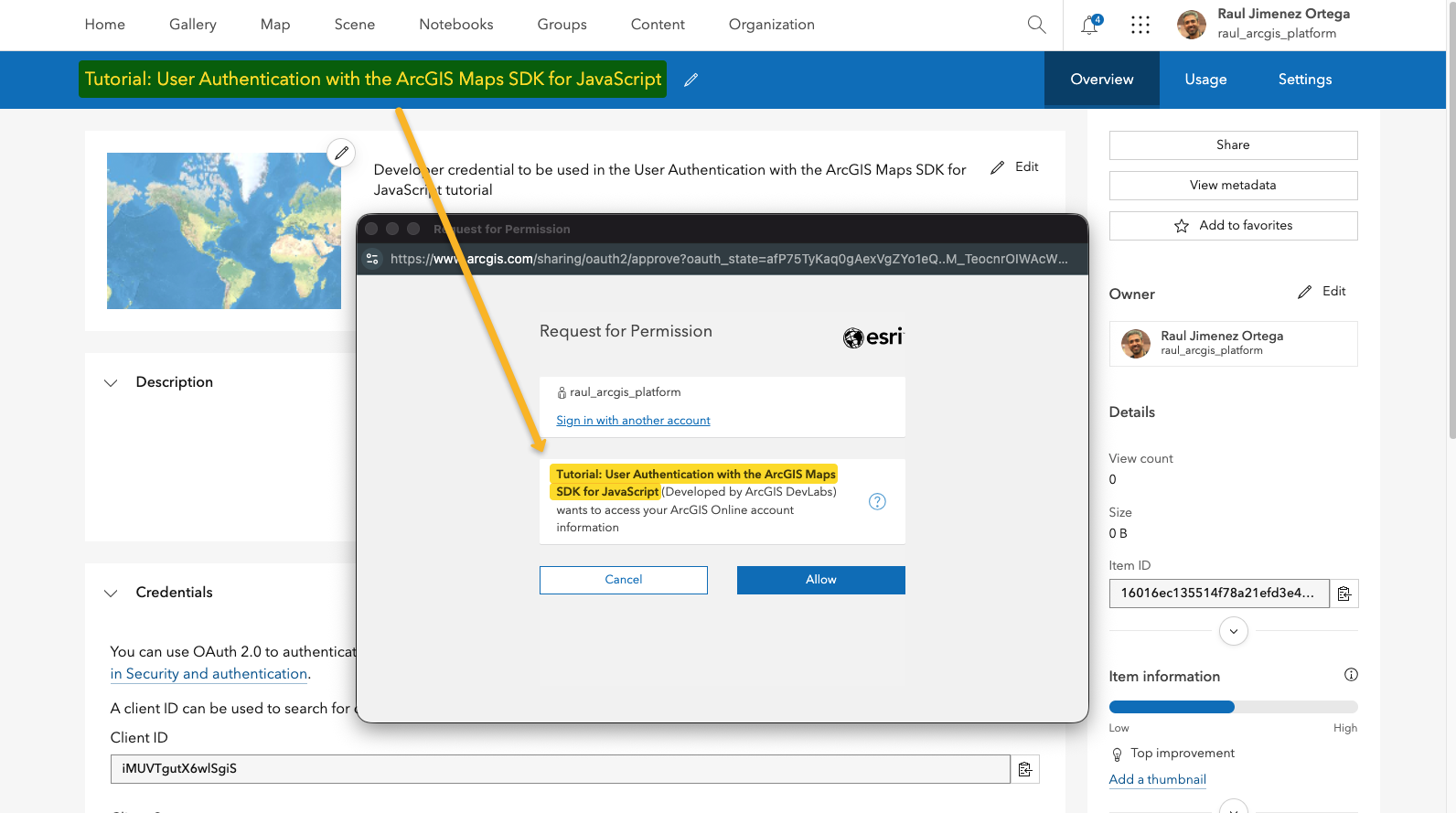
5. Fill the item info. The item's `title` is shown in the OAuth modal.
6. Review and accept
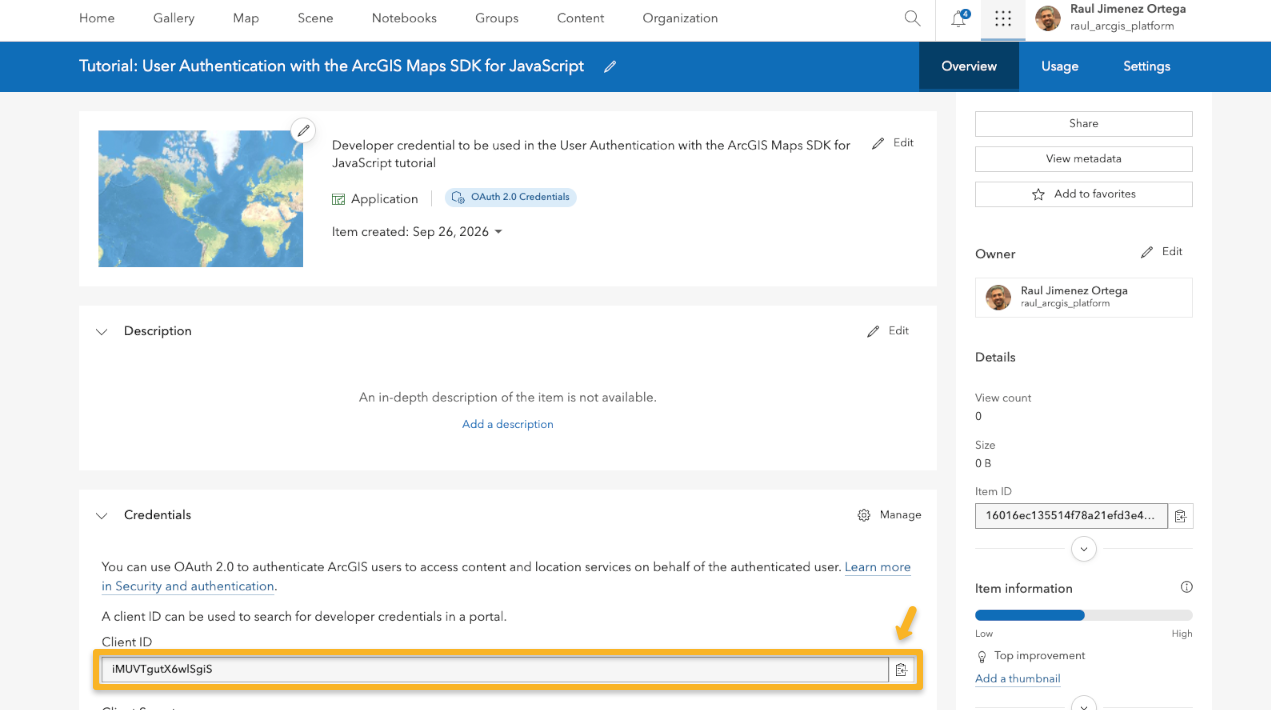
7. Copy the **Client ID**
## Set clientId and portalUrl
Paste the Client ID from the developer credential:
- **Set your Client ID:** (`clientId`)
Authenticating against ArcGIS Enterprise?
If you created the developer credential in ArcGIS Enterprise, set the Portal URL:
- **Portal URL** (`portalUrl`)
```javascript title="code/main.js" region="config"
const clientId = "YOUR_CLIENT_ID";
const portalUrl = "https://www.arcgis.com"; // default to: https://www.arcgis.com
```
## Check whether the user is signed in
When the app starts, use `IdentityManager.checkSignInStatus()` so the UI reflects an existing session.
The URL ends in `/sharing` because the ArcGIS sharing endpoint is the secured resource that identifies the portal session.
- If the SDK already has a valid credential for that resource, the app changes the button to **Sign out** and shows the username.
- If not, the rejected promise keeps the app in the signed-out state.
```javascript title="code/main.js" region="auth-state"
const signInButton = document.querySelector("#sign-in");
const userStatus = document.querySelector("#user-status");
const sharingUrl = `${portalUrl}/sharing`;
let signedIn = false;
function showSignedIn(credential) {
signedIn = true;
signInButton.textContent = "Sign out";
userStatus.textContent = `Signed in as ${credential.userId}.`;
}
function showSignedOut() {
signedIn = false;
signInButton.textContent = "Sign in";
userStatus.textContent = "You are not signed in yet.";
}
try {
const credential = await esriId.checkSignInStatus(sharingUrl);
showSignedIn(credential);
} catch {
showSignedOut();
}
```
## Wire Sign in and Sign out
Use `IdentityManager.getCredential()` when the user presses **Sign in**, and `IdentityManager.destroyCredentials()` when the user presses **Sign out**.
When sign-in succeeds, the SDK stores the credential and the app updates the status message. Pressing the button again destroys the stored credential and returns the app to its signed-out state.
Why set oAuthPopupConfirmation to false?
`oAuthPopupConfirmation: false` skips the SDK confirmation dialog and opens the ArcGIS sign-in popup directly when the user presses **Sign in**.
```javascript title="code/main.js" region="sign-in"
signInButton.addEventListener("click", async () => {
if (signedIn) {
esriId.destroyCredentials();
// Set visible text when the user is NOT signed in
showSignedOut();
return;
}
const credential = await esriId.getCredential(sharingUrl, {
oAuthPopupConfirmation: false,
});
// Set visible text when the user is signed in
showSignedIn(credential);
});
```
## Try the app
Now you should be able to:
- Sign in and see your username after the popup closes
- Refresh the browser and keep seeing your username1
- Sign out and stop seeing your username
> If the browser blocks the popup, open the Preview in a new tab and press **Sign in** there.
(1) How long does the user stay signed in?
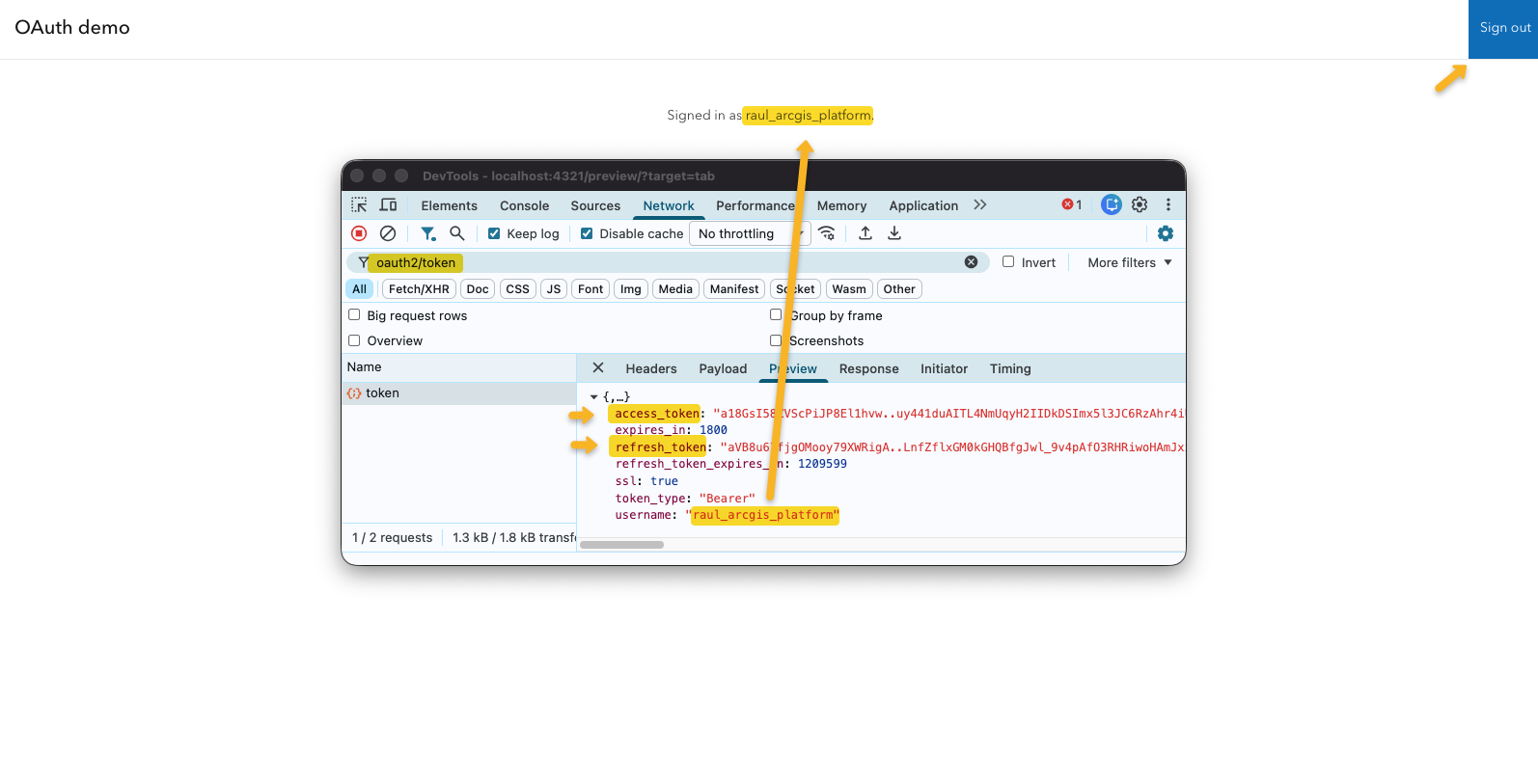
With the default authorization-code flow with PKCE, ArcGIS returns a short-lived `access_token` and a longer-lived `refresh_token`. The access token authorizes requests to ArcGIS services; it usually expires quickly. The refresh token lets the SDK ask ArcGIS for a new access token without showing the sign-in popup again.
In practice, the access token often lasts about 30 minutes, as shown by `expires_in: 1800` in the token response. The app does not usually change that value. Short-lived access tokens limit the impact if one is exposed, while the longer-lived refresh token preserves the user session by renewing access tokens behind the scenes.
In this app, the ArcGIS Maps SDK for JavaScript stores and manages those tokens through `IdentityManager`. On page load, `checkSignInStatus()` checks whether a valid saved credential can still be used. If the refresh token has expired, or the user signs out, the user must sign in again.
Because this is a browser-only app, the SDK keeps the token information in browser storage when the user chooses to stay signed in. That is normal for this kind of public client, but it also means the app must be protected like any authenticated single-page app: use HTTPS, prevent XSS, avoid logging tokens, keep third-party scripts under control, and call `destroyCredentials()` on sign out so OAuth tokens are revoked.
For apps that need stricter control over long-lived credentials, use a backend OAuth flow instead. In that architecture, the server stores the refresh token securely and the browser only receives the app session or short-lived tokens it needs.
## Troubleshooting
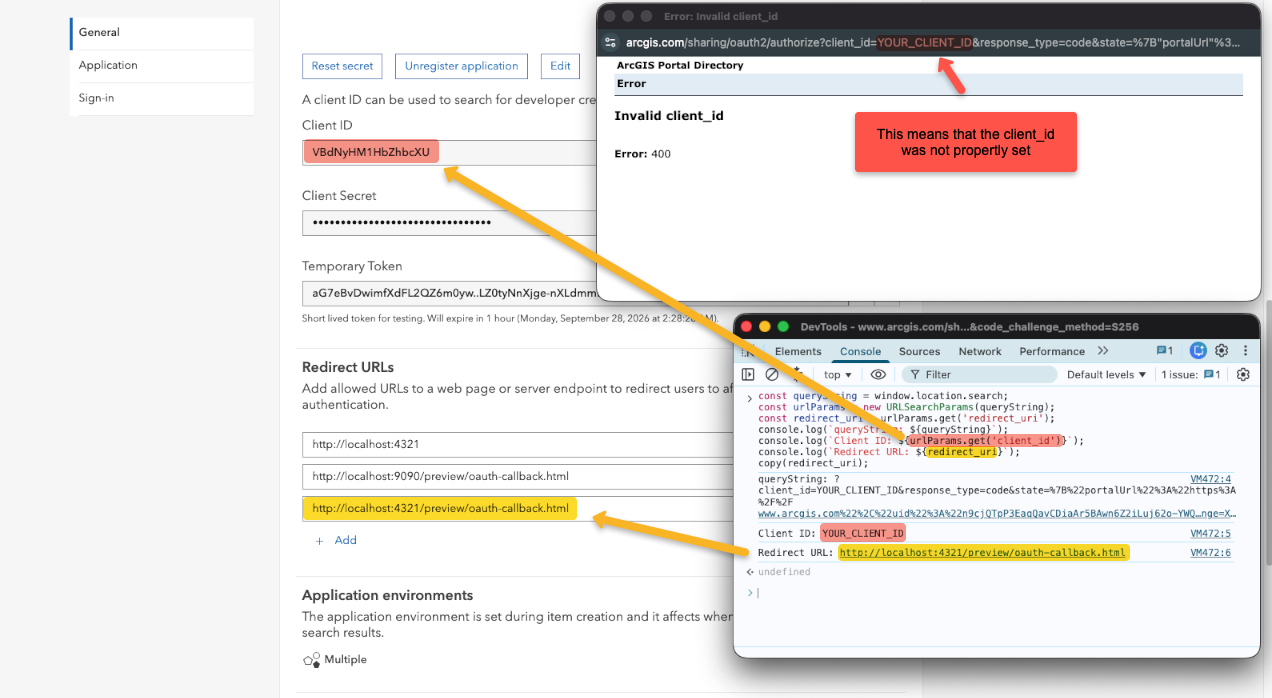
The most common error is a mismatch between the app settings and the developer credential. Double-check:
- The developer credential item page:
- Client ID matches the value in the app
- Redirect URL matches exactly: protocol, hostname, port, base path, and filename
- The SDK properties use the same Client ID, callback URL, and portal URL
- The credential was created in the same portal where users are signing in
Quickly grab the Client ID and redirect URL from the popup
```js
const queryString = window.location.search;
const urlParams = new URLSearchParams(queryString);
const redirect_uri = urlParams.get("redirect_uri");
console.log(`Client ID: ${urlParams.get("client_id")}`);
console.log(`Redirect URL: ${redirect_uri}`);
copy(redirect_uri);
```
## Final code
### code/index.html
```html title="code/index.html"
OAuth with ArcGIS Maps SDK for JavaScriptSign in
You are not signed in yet.
```
### code/main.js
```javascript title="code/main.js"
const clientId = "YOUR_CLIENT_ID";
const portalUrl = "https://www.arcgis.com"; // default to: https://www.arcgis.com
const [OAuthInfo, esriId] = await $arcgis.import([
"@arcgis/core/identity/OAuthInfo.js",
"@arcgis/core/identity/IdentityManager.js",
]);
// Registering: IdentityManager.registerOAuthInfos([])
esriId.registerOAuthInfos([
new OAuthInfo({
appId: clientId,
portalUrl,
popup: true,
popupCallbackUrl: "oauth-callback.html",
authNamespace: "interactive-code-scroll-oauth-demo",
// Refresh token duration in mins. Default: 2 weeks. Max: 90 days, unless your org sets a lower limit.
// expiration: 20160, // Access tokens remain short-lived
})
]);
const signInButton = document.querySelector("#sign-in");
const userStatus = document.querySelector("#user-status");
const sharingUrl = `${portalUrl}/sharing`;
let signedIn = false;
function showSignedIn(credential) {
signedIn = true;
signInButton.textContent = "Sign out";
userStatus.textContent = `Signed in as ${credential.userId}.`;
}
function showSignedOut() {
signedIn = false;
signInButton.textContent = "Sign in";
userStatus.textContent = "You are not signed in yet.";
}
try {
const credential = await esriId.checkSignInStatus(sharingUrl);
showSignedIn(credential);
} catch {
showSignedOut();
}
signInButton.addEventListener("click", async () => {
if (signedIn) {
esriId.destroyCredentials();
// Set visible text when the user is NOT signed in
showSignedOut();
return;
}
const credential = await esriId.getCredential(sharingUrl, {
oAuthPopupConfirmation: false,
});
// Set visible text when the user is signed in
showSignedIn(credential);
});
```
### code/oauth-callback.html
```html title="code/oauth-callback.html"
```
### code/style.css
```css title="code/style.css"
html,
body {
margin: 0;
height: 100%;
}
body {
font-family: var(--calcite-sans-family);
}
calcite-shell {
min-height: 100%;
}
#user-status {
text-align: center;
}
```