
About this demo
You will build the basics of Credential Console: a browser app to organize API keys by customer, using only ArcGIS REST JS.
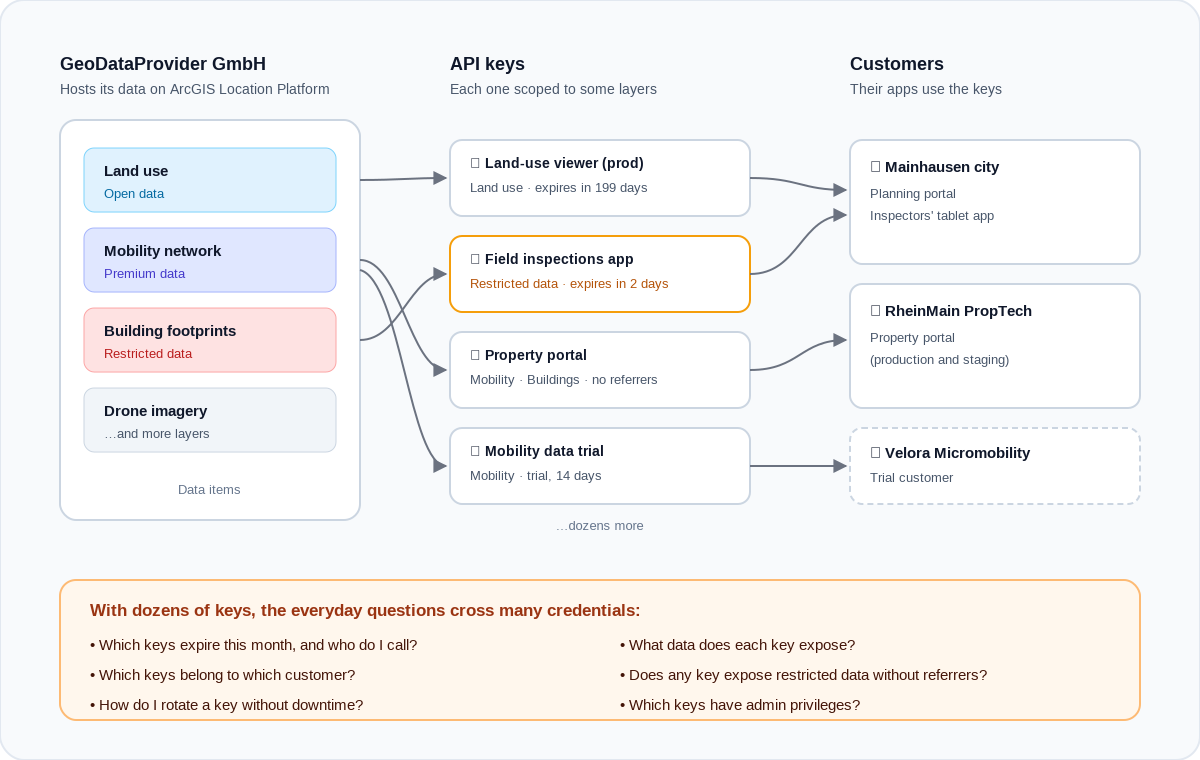
The use case is fictional. GeoDataProvider GmbH sells urban data hosted on ArcGIS Location Platform to customers who don’t use ArcGIS (a city, a property portal, a micromobility startup on a trial…). They use that data in their own apps, and each customer app gets API keys scoped to the layers it paid for.
With a handful of keys this is doable. With dozens, the provider needs answers that span many credentials: what expires this month, what each key has access to, which keys belong to which customer.
What ArcGIS gives you today
You can already manage all of this through different ArcGIS tools and interfaces:
- Portal > My content lists and filters credentials, and lets you create them.
- ArcGIS Location Platform adds an enhanced search experience and more credential info, like usage reports.
- The item page overview of a credential lets you edit its metadata and tags, shows the privileges of the API key, and lets you share it with groups.
- The item page settings of a credential let you:
- Edit its privileges: ArcGIS services and item access.
- Manage its two API keys (shown partially) and its referrers.
- Portal > Groups lists, searches and filters your groups, and lets you create new ones.
- The group page lets you edit the group’s details and shows the items shared with it.
But every organization works in its own way (by customer, by team, by contract), and no general-purpose UI can fit every workflow perfectly. Because everything is available through the ArcGIS REST APIs, you can build a UI that fits yours.
The end goal
This is the dashboard GeoDataProvider is looking for: one place to organize credentials by customer, audit them and rotate API keys, with fewer pages and far fewer clicks.
It is built only with ArcGIS REST JS in the browser. Try it: it runs here with fictional data.
- Projects on the left are ArcGIS groups.
- Each credential is an ArcGIS item, shared with its project and carefully tagged.
What does it add to what ArcGIS gives you today?
- Situation overview: API keys, OAuth apps, tokens expiring soon and critical issues.
- Advanced search: by customer name, tag, client ID, partial key…
- Needs triage: credentials not assigned to any project yet.
- Tags grouped by family in the UI.
- Items assigned to each key grouped by tier.
- Customizable audit warnings.
- Bulk actions: add items to groups (projects), tag, revoke API keys, delete.
- Custom properties per credential: owner, contact, deployment…
And anything else the ArcGIS REST APIs let you do.
Find the source code on GitHub.
The MVP
In this demo we will build a minimal, barebones UI using ArcGIS REST JS to:
- Add OAuth sign-in
- Search groups and credentials
- Display and manage groups
- Display credentials
- Manage API keys
- Add items (credentials) to groups
Everything it touches is either a A collection of items (and users) shared together. Here, one per customer project. or an Any piece of content in ArcGIS: a map, a layer, a file… and also a developer credential..
An API key is just an item with privileges and two keys.
At the top, you can see You can open the index anytime. Use the icon at the bottom of this sidebar.. The “Output” panel runs the finished MVP.
Load ArcGIS REST JS
ArcGIS REST JS is a lightweight, modular JavaScript library for using the ArcGIS REST APIs in your browser and Node applications.
This MVP is a plain HTML page: no bundler and no build step, so the code on screen is all there is.
A CDN is great for a demo. In production you will likely install the packages from npm and use a bundler (Vite, webpack…): the code in the next steps doesn’t change. See other ways to install ArcGIS REST JS.
ArcGIS REST JS is split into small packages, so you only load what you use. This app needs:
arcgis-rest-request: for sign-in and plain requests.arcgis-rest-portal: to manage items, groups and users.arcgis-rest-developer-credentials: to create, update and rotate API keys.
The import map lets the code use their npm names, loaded from a CDN.
The “Output” panel runs the finished MVP: sign in and try it with your account. Each of the next steps explains the ArcGIS REST JS code behind one part.
Import what you use
main.js imports by npm name; the import map resolves each name to its CDN URL. With a bundler, the same lines work after npm install.
The functions are grouped by what they manage: sign-in, the user, projects (groups), credentials (items) and the API keys inside them.
What does REST JS do for you?
Each function wraps the REST API so you don’t write fetch by hand:
- Adds the token and
f=jsonto every request, and encodes the parameters. - Throws an error you can
catch. The REST API often answers HTTP 200 with the error inside the JSON. See Error handling. - Some functions make more than one request:
ArcGISIdentityManagerruns the whole OAuth flow and refreshes the token;shareItemWithGroupchecks your role in the group before sharing. SearchQueryBuildersends nothing: it only builds the query text.
To see it in action, open your browser’s developer tools, go to the Network tab, filter by www and check the REST API requests that ArcGIS REST JS sends.
How much does it weigh?
Named imports pay off with a bundler: tree shaking drops every function you don’t import.
requestalone: ~10 KB (min + gzip).- The 16 imports this app uses: ~15.5 KB.
- The three packages in full: ~21.6 KB.
Measured with esbuild, REST JS 4.11.0. The CDN in this demo serves whole packages, so the savings only show up once you bundle.
Start sign-in
When the user clicks the sign-in button, the app opens a popup where they sign in to The ArcGIS authentication server that signs users in and issues tokens. Here it is an ArcGIS Location Platform account. The same flow works with ArcGIS Online and ArcGIS Enterprise: set the portal option to point REST JS at it. that holds their account. With a valid access token, the app can manage their groups and API keys.
ArcGISIdentityManager.beginOAuth2() opens the ArcGIS sign-in page in a popup and returns a Holds the user’s access token (30 minutes) and refresh token (2 weeks by default), and refreshes the access token for you. once the popup finishes signing in. Its options, oauthOptions, live in config.js.
- OAuth 2.0 with Proof Key for Code Exchange: a one-time secret created in the browser replaces the client secret. needs no backend and no client secret.
- The session is what every REST JS call receives as
authentication. serialize()saves the session to It holds the token and the refresh token. Any script on the page can read browser storage, so one XSS steals the session.sessionStorageat least clears it when the tab closes; avoidlocalStorage., so a reload keeps you signed in.
Try it in the Preview: press Sign in with ArcGIS, then Cancel. REST JS throws an ArcGISAccessDeniedError, and the app checks error.name against ErrorTypes.
Which errors can REST JS throw?
ArcGISRequestError: the base error. It carries the REST APIcode, theurland the rawresponse.ArcGISAuthError: invalid or expired token (codes 498/499).retry()sends the request again with a new session.ArcGISTokenRequestError: getting or refreshing a token failed.ArcGISAccessDeniedError: the user cancelled sign-in.
Compare error.name with ErrorTypes, as in Error handling.
Note: never log the whole error. Its
optionscan hold credentials, like the password of a username/password session. Logerror.messageinstead.
Configure OAuth
The portal must also know your app: create a developer credential (OAuth 2.0 credentials > For user authentication) with the right redirect URL and paste the Client ID here.
portal: where users sign in. The default works for ArcGIS Location Platform and ArcGIS Online; for ArcGIS Enterprise, use your portal’s REST endpoint:https://<host>/<webadaptor>/sharing/rest.redirectUri: the page the portal sends the popup back to. Register this exact URL in the credential.popup(default true): sign in without leaving the app.
See all OAuth 2.0 options.
main.js (beginOAuth2) and callback.html (completeOAuth2) import the same options, so both ends of the flow agree.
When the popup opens, the portal reads the client ID and the redirect URL from the popup’s address bar. If the redirect URL isn’t registered in the developer credential of that client ID, the portal refuses to show the sign-in form.
Finish sign-in
After sign-in, the portal sends the short-lived authorization code to your redirect URI: callback.html.
ArcGISIdentityManager.completeOAuth2() reads that authorization code from the URL, swaps it for a token, hands the session to the window that opened the popup and closes the popup.
Note: It takes the same options as
beginOAuth2(): both import them fromconfig.js.
Get user info
getSelf() is the first authenticated request: it returns the signed-in user and their organization in one call.
The app swaps Sign in for the user’s full name and username.
Most REST JS functions return the plain JSON of the REST API. The console.log shows it once: explore it in the Console tab.
Try it in the Preview: press Sign in with ArcGIS.
Why “most”?
Some functions add to the REST API response:
searchGroups()andsearchItems()addnextPage()to fetch the next page of results.getApiKey()andcreateApiKey()merge the item and the credential into one object.
Search groups
In the app, a project is a group tagged project. SearchQueryBuilder builds the query from code: tags:project AND owner:<you>.
searchGroups() returns the matches, and the Projects column lists them.
Why not write the query string by hand?
For a fixed query like this one, a string works. The builder pays off when:
- Values have spaces:
match("my project")becomestags:"my project". By hand,tags:my projectonly matchesmy. - Filters are optional: add each one inside an
ifinstead of joining strings. - Dates:
.from(date).to(date)turnsDateobjects into a[start TO end]range.
const q = new SearchQueryBuilder().match(session.username).in("owner");
if (tag) q.and().match(tag).in("tags");
if (since) q.and().from(since).to(new Date()).in("modified");
// owner:<you> AND tags:"my project" AND modified:[1767222000000 TO 1780264800000]- Groups and operators:
startGroup()/endGroup()add parentheses, andor()andnot()work likeand().not()replacesand():.and().not()logs a warning and drops theNOT.
new SearchQueryBuilder()
  .match(session.username).in("owner")
  .and().startGroup()
    .match("project").in("tags").or().match("demo").in("tags")
  .endGroup()
  .not().match("archived").in("tags");
// owner:<you> AND (tags:project OR tags:demo) NOT tags:archived- Reuse:
clone()copies a base query, so you can add filters to the copy without changing the original.
Create a group
createGroup() takes the group’s title, tags and access, and returns the new group.
The search index takes a few seconds to see new groups, so the app adds it to the list itself instead of searching again.
Update a group
updateGroup() only needs the group’s id and the fields that change. Rename a project in the Preview, then check Groups in your portal.
Halfway there
Sign-in and projects are done: the same few functions search, create and update any group.
Next, the credentials.
Search credentials
Credentials are items, so they are found like any other item: searchItems() with a SearchQueryBuilder query, here filtered to the credential type.
- Every developer credential is an item of type
Application. - API keys also carry the
APITokenType keywords describe the type and should logically apply to all items of that type.. like the one you sign in with, don’t.
Note:
searchItems()also finds any content you own: maps, layers, documents, etc.
What if an option is missing?
The REST API sometimes supports a parameter that the function doesn’t declare. Pass it in params: every REST JS function sends it as is.
const response = await searchItems({
  q,
  authentication: session,
  params: { bbox: "-10,35,5,44" }, // supported by the REST API, not declared by searchItems()
});
Don’t pass it at the top level: searchItems({ q, bbox: "..." }) drops bbox without an error.
If REST JS has no function for an endpoint, call request() directly. It still adds the token and f=json, and throws on errors.
More than 100 API keys?
num returns 100 results at most. When there are more, the response includes nextPage(): it repeats the search from where the last page ended.
let response = await searchItems({ q, num: 100, authentication: session });
const results = [...response.results];
while (response.nextPage) {
  response = await response.nextPage();
  results.push(...response.results);
}
nextPage() reuses the same options (q, num, authentication), so every page sees the same items. searchGroups() works the same way.
Read an API key
The item says what a credential is; the credential itself (privileges, referrers, which key slots are active) lives in the registered app. getApiKey() reads both and merges them into one object.
Sometimes REST JS returns more than the REST API reference documents. isPersonalAPIToken is in the response, but not in the Registered App reference. Log the response and explore it.
The app also shows when each active key expires. The dates come from the item in the response, read directly rather than from the search index, so they are up to date.
Try it in the Preview: press the Info icon of an API key and open the Console tab.
No function for what you want? Use request()
Some data of special items lives in a REST endpoint that no REST JS function wraps. The expiration date of each API key is one: the item’s apiToken1ExpirationDate and apiToken2ExpirationDate fields can be -1 or out of date in search results.
request(), from arcgis-rest-request, calls any endpoint with the same session: it adds the token and f=json, encodes the parameters (dates included) and throws on errors.
import { request } from "@esri/arcgis-rest-request";

const DAY = 24 * 60 * 60 * 1000;
// Every API key of the organization expiring in this window, both slots, in one request
const { items = [] } = await request(`${session.portal}/portals/self/apiTokens`, {
  authentication: session,
  params: {
    num: 100,
    startExpirationDate: new Date(Date.now() - 365 * DAY),
    endExpirationDate: new Date(Date.now() + 400 * DAY),
  },
});
// [{ itemId, apiToken: 1 | 2, expirationDate, title, owner, ... }]
Create an API key
createApiKey(), from arcgis-rest-developer-credentials, creates the credential item with its What the key can do: use services such as basemaps or geocoding, and access specific items., optional The websites allowed to use the key, e.g. https://*.customer.com. Avoid paths: browsers may strip them. and expiration, and can generate its first API key.
The response is the only time the key can be read: the app shows it once so you can copy it, and keeps only the item. Never log it or store it in the browser.
Every key expires: here, in 30 days (one year at most).
Update the item
An API key is an item, so its title, tags and summary change with the generic updateItem(). Only send the fields that change.
These fields are safe to edit: they don’t affect the API keys.
Update privileges and referrers
What a key can do (privileges) and where it can be used from (referrers) are not item fields: they change with updateApiKey(). Each list replaces the previous one, so send it whole.
Careful: changing privileges or referrers invalidates the existing keys. Customers need new ones.
Rotate an API key
Each credential has two key slots, so keys rotate without downtime. getApiKey() tells which slot is in use, then:
updateApiKey()generates a new key in the free slot.- The customer switches to the new key.
invalidateApiKey()revokes the old one.
Clean up
removeItem() deletes an item, and removeGroup() deletes a group. Deleting a group keeps its items in your content, so remove items first if you want both gone.
Congratulations, you are done!
With a handful of REST JS functions you have the skeleton of Credential Console: sign-in, groups as projects, and API keys as items you create, update, rotate and organize.
The full app adds audits, usage and more on top of the same calls.
Questions?
- About this demo/tutorial: use the issues on this repo.
- For general questions about ArcGIS REST JS: use its forum at Esri Community.