
 Python
 ArcGIS REST JS
What you will do
You will use the ArcGIS Online portal (the steps are the same in ArcGIS Location Platform and ArcGIS Enterprise) to:
- Create an item to hold OAuth 2.0 credentials for app authentication, with the privileges and item access a backend script needs.
- Copy its client ID and client secret, and exchange them for an access token.
Check prerequisites
You will need an ArcGIS Online, ArcGIS Location Platform, or ArcGIS Enterprise account that can create developer credentials. In ArcGIS Online and ArcGIS Enterprise, that means a user type of Creator or higher with the Generate API keys and Assign privileges to OAuth 2.0 applications privileges. Without them, the menus in this tutorial don’t appear.
Unlike an API key, OAuth credentials hold no token. They hold a client_id and a client_secret that your script exchanges for a short-lived token each time it needs one.
The secret is as sensitive as a password, so these credentials belong in server-side code only: a backend script, a scheduled job, a proxy.
Start the wizard
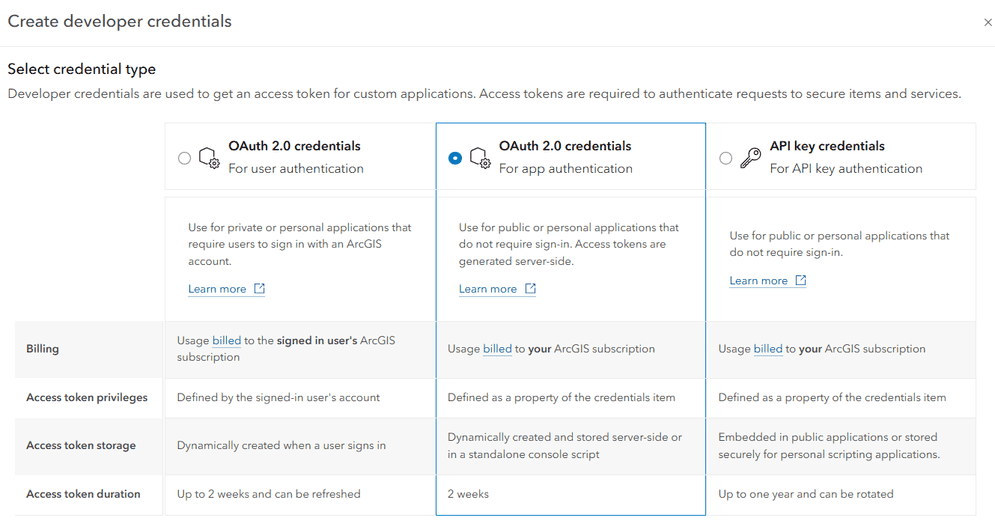
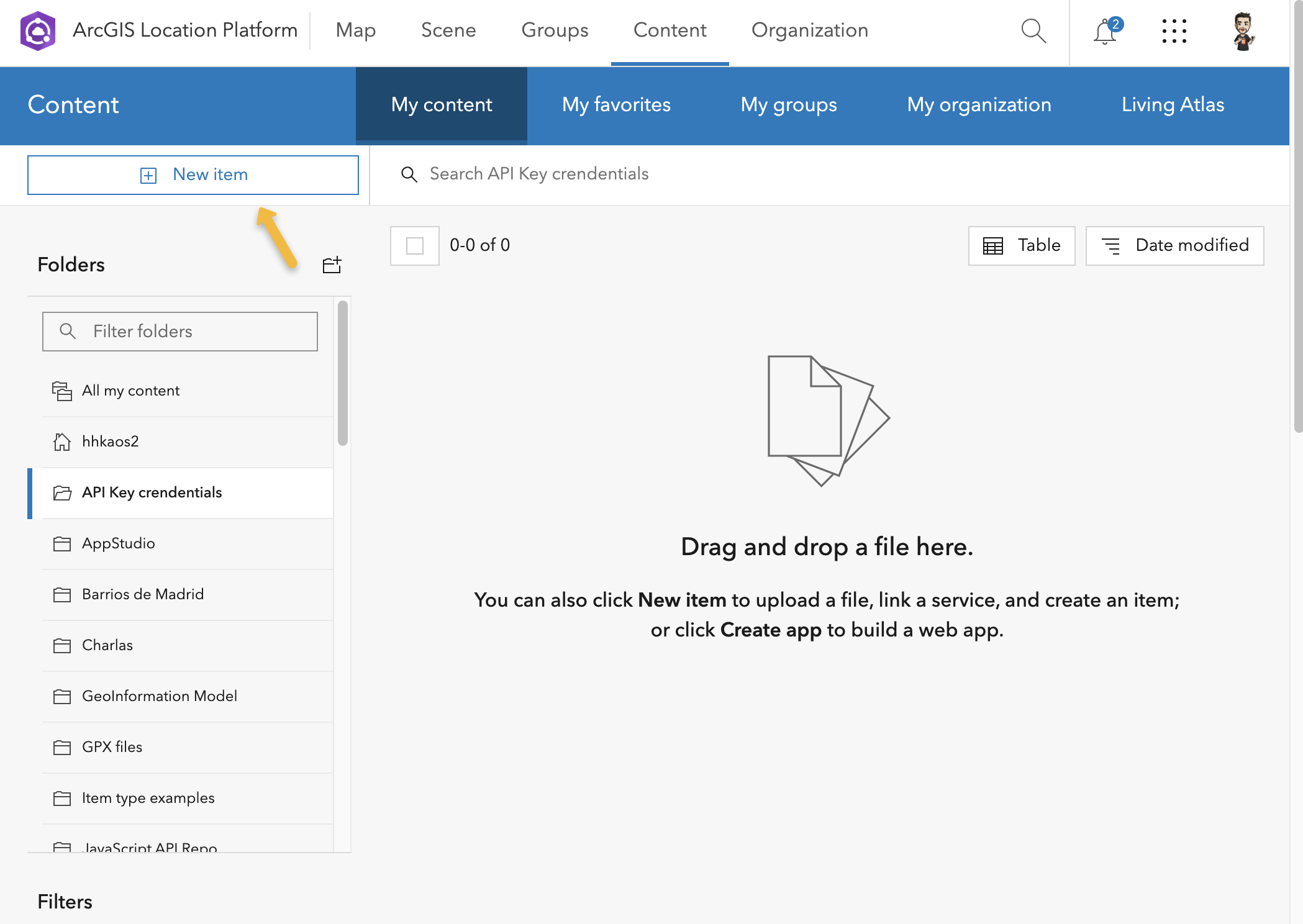
Sign in to your portal and go to Content › My content › New item and choose:
- Developer credentials
- OAuth 2.0 credentials and click Next.
Like API key credentials, this creates an Application item: type=Application in addItem.
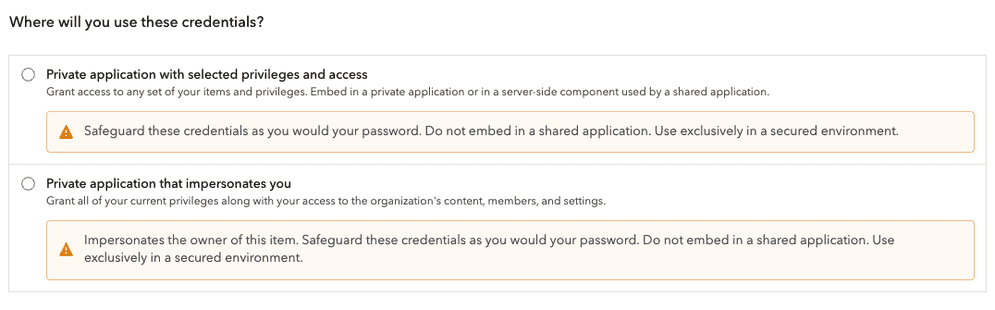
Choose where you will use the credentials
Select Private application with selected privileges and access. Tokens from these credentials can do only what you grant on the next two screens.
Avoid Private application that impersonates you: its tokens carry all your privileges and your access to the organization’s content, members and settings. A leaked secret would expose all of it.
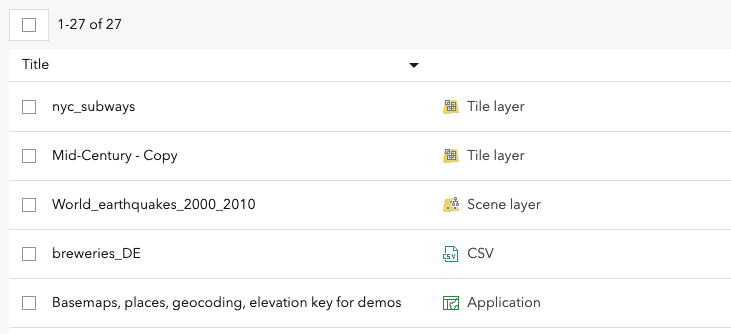
Grant access to items
Select Grant access to specific items and pick up to 100 items the script reads or writes, such as the hosted feature layer it updates. Pick only those: a token reaches nothing else unless it is public.
Each selected item adds portal:app:access:item:<itemId> to privileges in oauth2/registerApp, the same privilege API keys use.
Choose the privileges
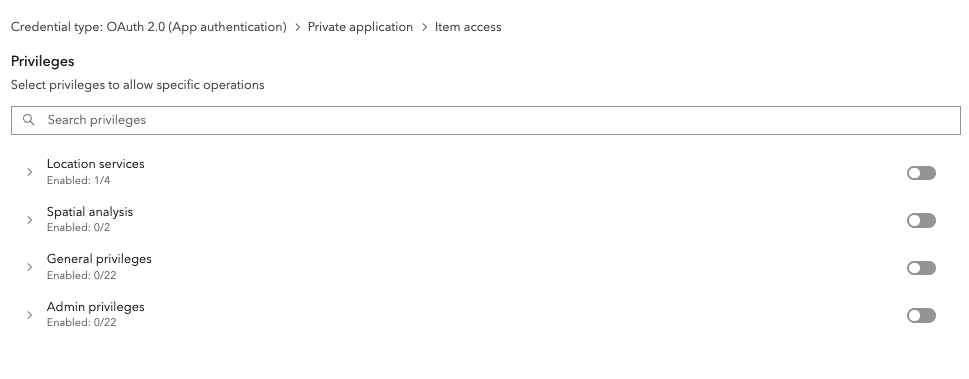
Enable only what the script calls. For example, Geocoding (premium:user:geocode) to geocode addresses, or Routing (premium:user:networkanalysis) to solve routes. Private applications also list General privileges and Admin privileges, such as portal:admin:viewItems; grant those only if the script truly needs them.
Each toggle adds one string to privileges in oauth2/registerApp. The privileges reference explains each one.
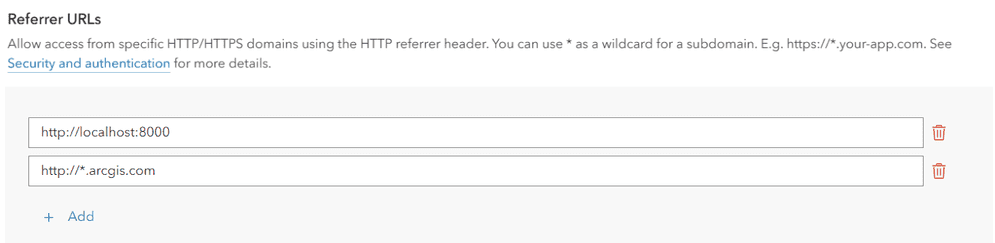
Referrer URLs: leave them empty for a backend script
Referrer URLs are the domains allowed to use the token, such as https://myapp.example.com.
Referrers are checked against the HTTP Referer header, which browsers set and scripts don’t. A backend script can send any Referer it wants, so referrers don’t protect it. For a script, leave the list empty and protect the client secret instead: keep it in a secrets store or an environment variable, never in the repository.
Set referrers only if the tokens your server creates end up in a browser app, for example a proxy that hands tokens to a web map. Then list that app’s domains.
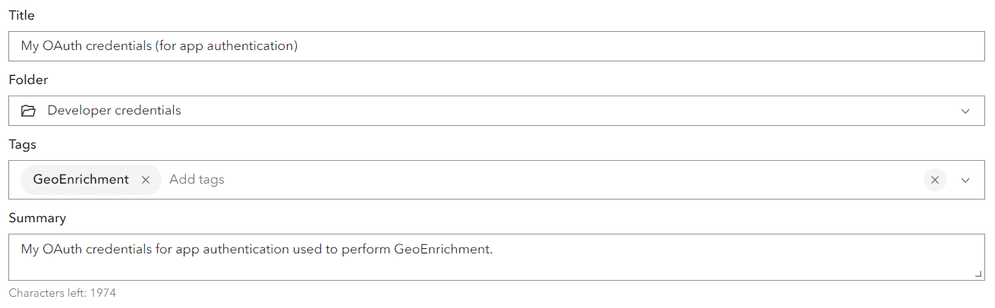
Describe and create the item
Give the item a Title, a Folder, Tags and a Summary. They are the title, tags and snippet of addItem. Review the summary and click Create.
That click sends addItem, then oauth2/registerApp. There is no token to generate: the credentials are ready.
Copy the client ID and client secret
On the item page, under Credentials, copy the Client ID and the Client secret. They come from the registerApp response, as client_id and client_secret.
Unlike an API key, the secret stays visible on the item page to you. Keep it out of code, logs and screenshots.

Get an access token
Your script sends the credentials to the token endpoint with the client credentials grant:
curl https://www.arcgis.com/sharing/rest/oauth2/token \
  -d client_id=$CLIENT_ID \
  -d client_secret=$CLIENT_SECRET \
  -d grant_type=client_credentials \
  -d expiration=120 \
  -d f=json
The response’s access_token carries the privileges and item access you granted. It is valid for expiration minutes: 120 by default, up to 20160 (two weeks). Request a new one when it expires instead of storing it.
Change privileges and item access later
From the item page, Settings lets you add or remove privileges and items at any time. The client ID and secret don’t change, and the next token your script requests picks up the new privileges.
You have a client ID and secret. Use them from a backend script:
- Python with
requests-oauthlib. - ArcGIS REST JS in Node.js.