Before you start
In this tutorial you will build a small browser app that signs a user in with OAuth 2.0. The app uses the ArcGIS Maps SDK for JavaScript, a popup-based OAuth flow.
Check prerequisites
You need an ArcGIS Location Platform, ArcGIS Online, or ArcGIS Enterprise account that can create
developer credentials. In ArcGIS Online, that usually means a user type of Creator or higher.
Load the SDK
Start with a plain HTML page and load the ArcGIS Maps SDK for JavaScript from the CDN.
The SDK module bootstraps the ArcGIS runtime and the Calcite components used by the header and sign-in button, so this tutorial does not need a bundler or a package install step.
Build the UI
Now we build a simple app with a Calcite navigation bar, one sign-in button, and a status message.
Create the Developer Credential
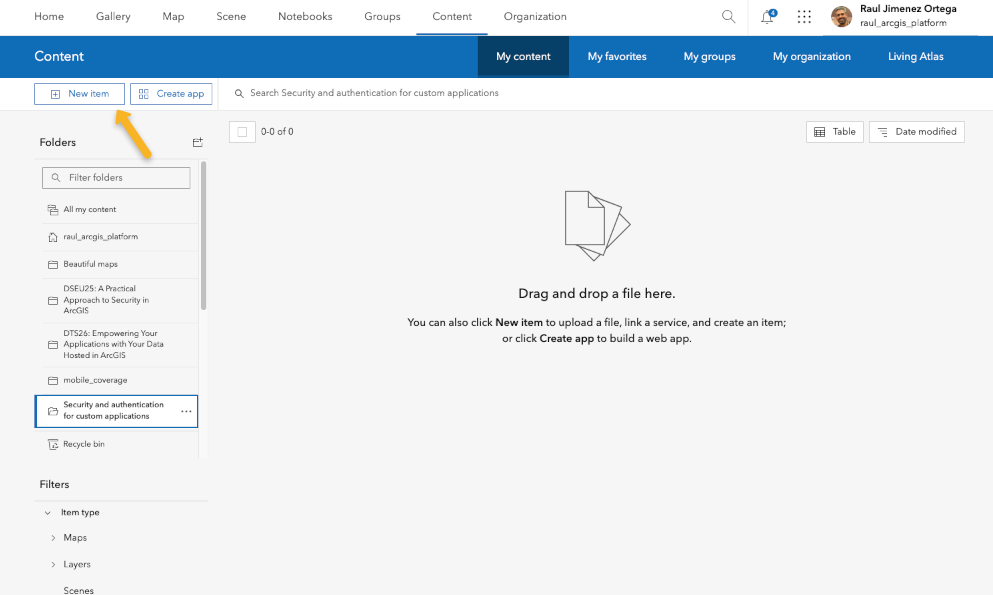
Next step is to go to your ArcGIS portal to create the developer credential:
- Click Content > My content > New item
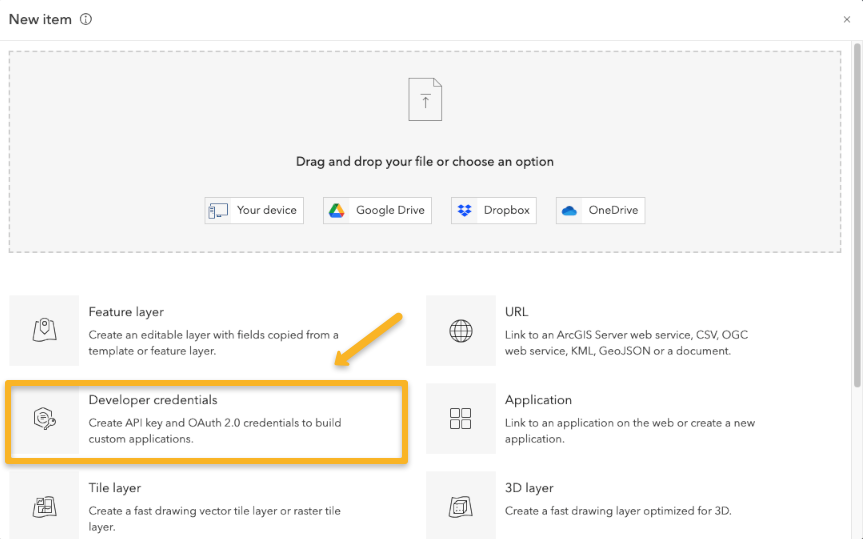
- Click Developer credentials*
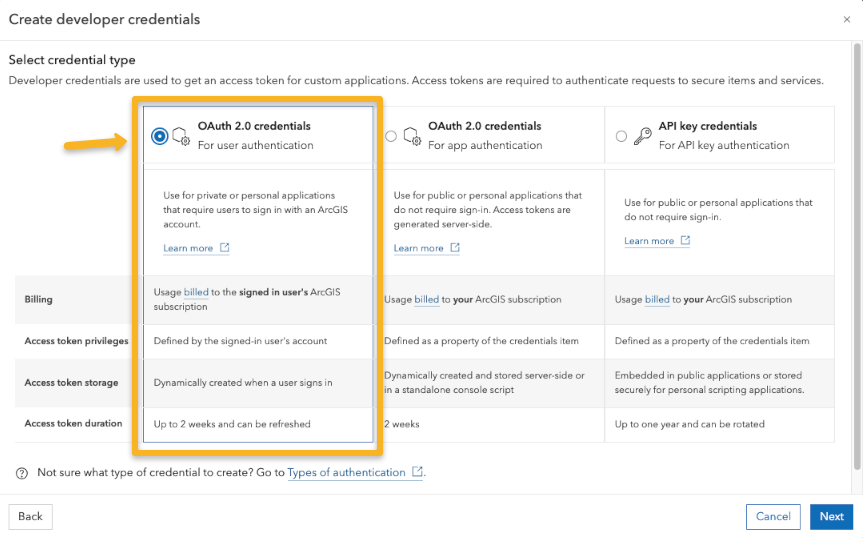
- Select OAuth 2.0 credentials (For user authentication) and click Next
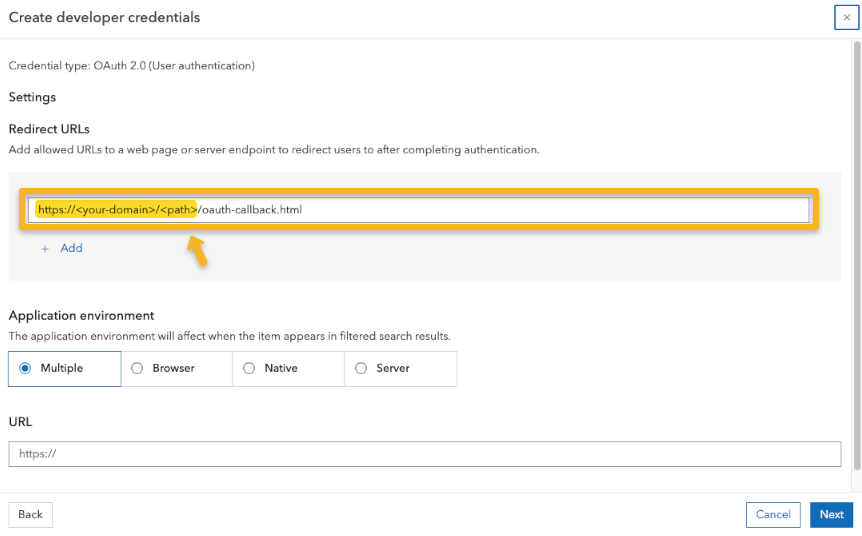
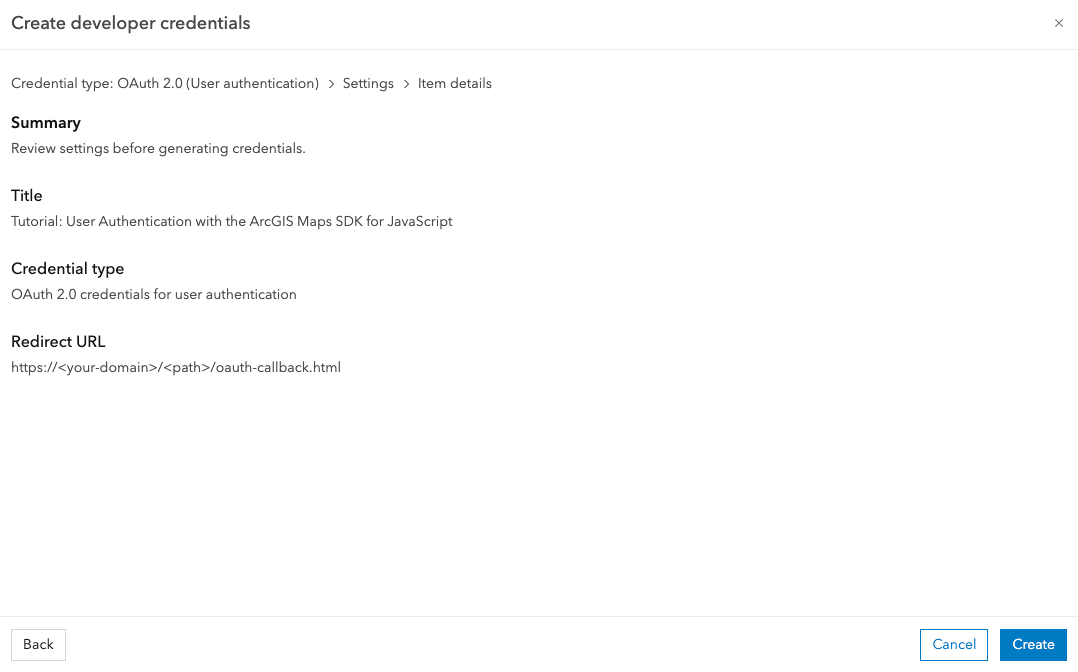
- Set the proper redirect URL:
- Local development:
http://localhost:<port>/preview/oauth-callback.html - Published site:
https://<your-site>/<base-path>/preview/oauth-callback.html
- Local development:
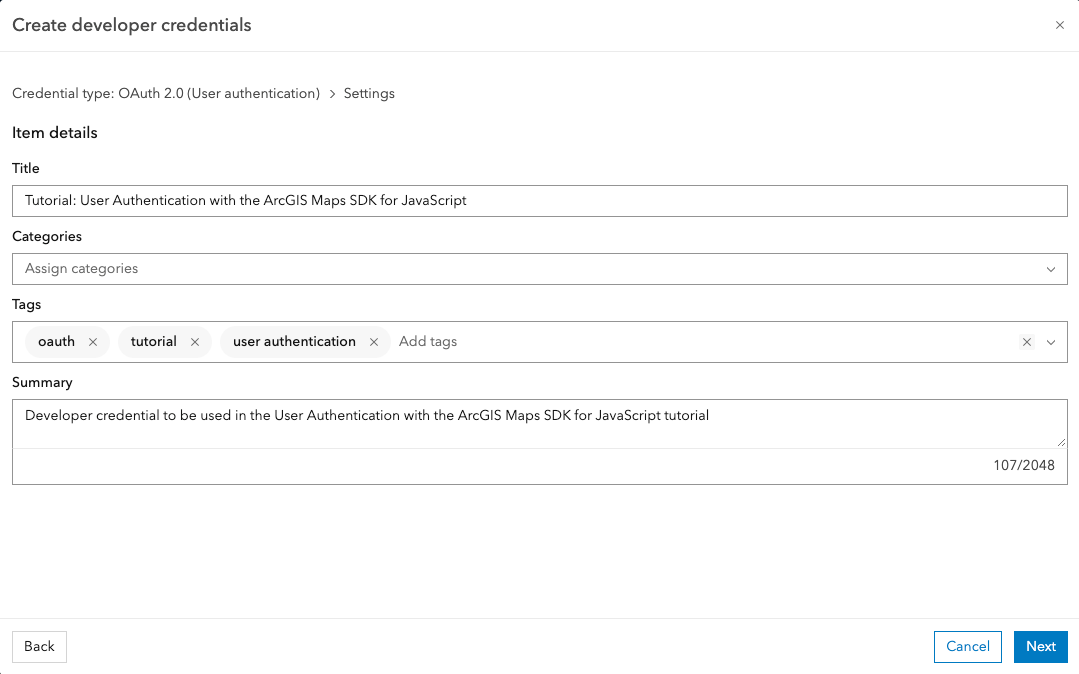
- Fill the item info
- Review and accept
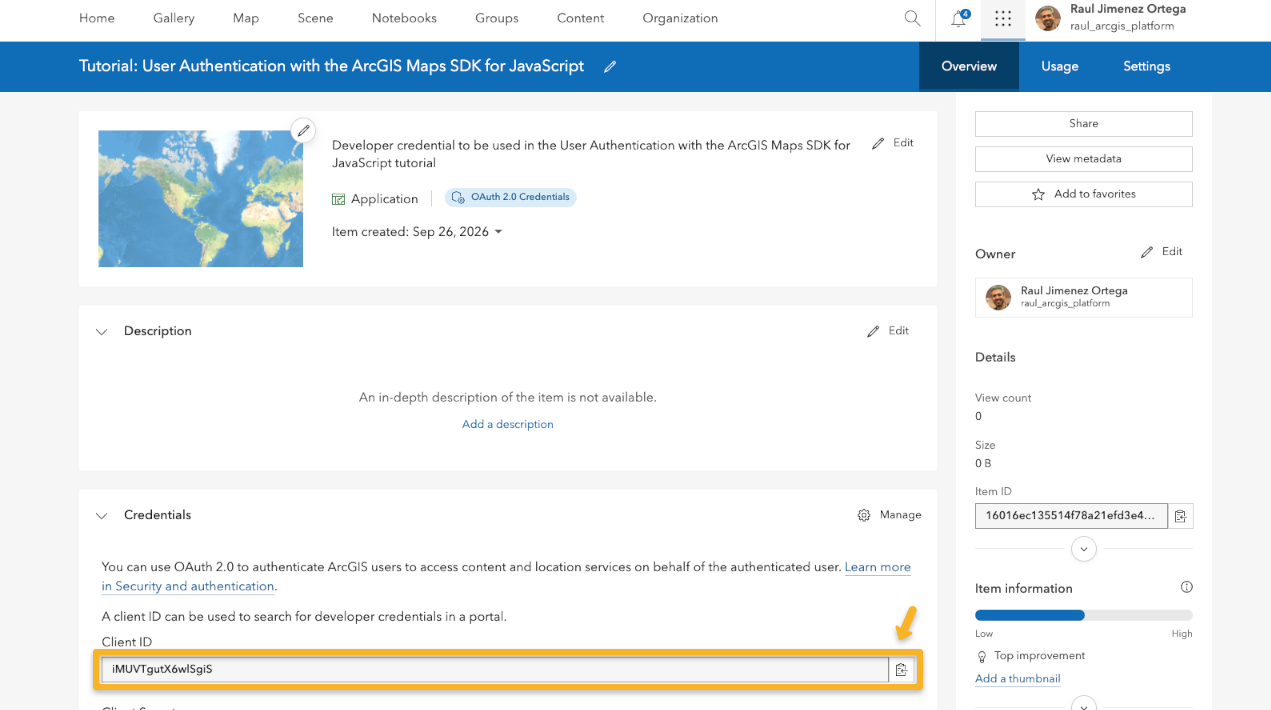
- Copy the Client ID
Configure the app
Paste the Client ID from your OAuth credentials.
The Portal URL defaults to ArcGIS Online. Keep it as https://www.arcgis.com for ArcGIS Online
or ArcGIS Location Platform accounts. Change it only if your organization signs in through an
ArcGIS Enterprise portal.
These values update the code and the Preview immediately. Persisted values are stored only in this browser.
Register OAuth information
Import OAuthInfo and IdentityManager, then register one OAuthInfo object.
appId is the Client ID from your OAuth credentials. portalUrl tells the SDK which portal should
authenticate the user. popup: true is important for this tutorial: it opens the ArcGIS sign-in
screen in a popup, so authentication can start from the embedded Preview iframe instead of trying to
load the sign-in page inside the iframe.
The callback file is named explicitly with popupCallbackUrl. That makes the relationship between
the registered redirect URL and this project visible in the code. authNamespace keeps this demo’s
stored sign-in state separate from other apps on the same domain.
Add the callback page
After sign-in succeeds, ArcGIS redirects the popup to oauth-callback.html.
The callback page passes the OAuth response back to the original app window and closes the popup.
This file is part of your tutorial code, so it is shown here, included in downloads, and published
next to the Preview page as preview/oauth-callback.html.
If OAuth fails with a redirect URL error, the registered URL and the URL in the browser do not match exactly. Check the protocol, hostname, port, base path, and filename.
Sign in and out
Wire the button to IdentityManager.getCredential() and IdentityManager.destroyCredentials().
The URL ends in /sharing because the ArcGIS sharing endpoint is the secured resource that starts
the portal sign-in flow. When sign-in succeeds, the SDK stores the credential in memory and the app
changes the button to Sign out. Pressing it again destroys the stored credential and returns the
app to its signed-out state for this page session.
Try it in the Preview. If the browser blocks the popup, open the Preview in a new tab and press Sign in there.
Style the page
Finish with just enough CSS to center the status message.
The app inherits light or dark mode from the tutorial page through calcite-mode-auto, so the same
downloaded files work in both the embedded Preview and a standalone tab.