
Authoring Reference
Everything you write to build a tutorial: the files, the frontmatter, the MDX components and the markers in your code. New here? Start with the Quick start, then read How a tutorial works below; the rest of the page is reference you can jump into from the table of contents.
Two complete examples live in the repository: examples/oauth-pkce (a web app with a live Preview) and examples/rest-geocode (REST calls in cURL, Python and JavaScript with a Result pane). npm create interactive-code-scroll@latest writes a working starting point for every setup on this page (Create a Project).
How a tutorial works
Section titled “How a tutorial works”A tutorial is two things side by side: explanations you write in MDX, and a real, runnable project. Each explanation block is a step. A step points at a region of a code file, and as the reader scrolls, the code panel shows that file and highlights the region.
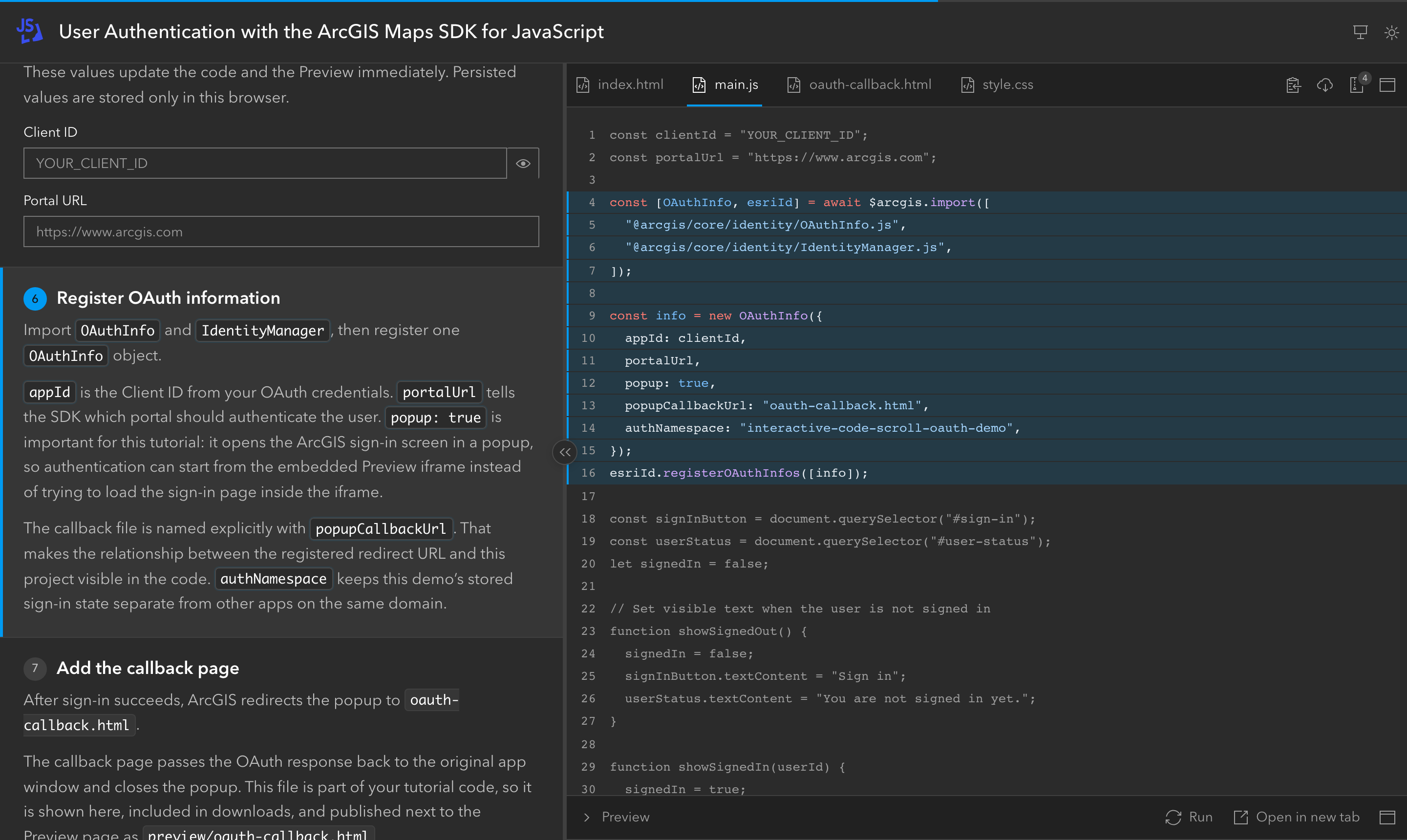
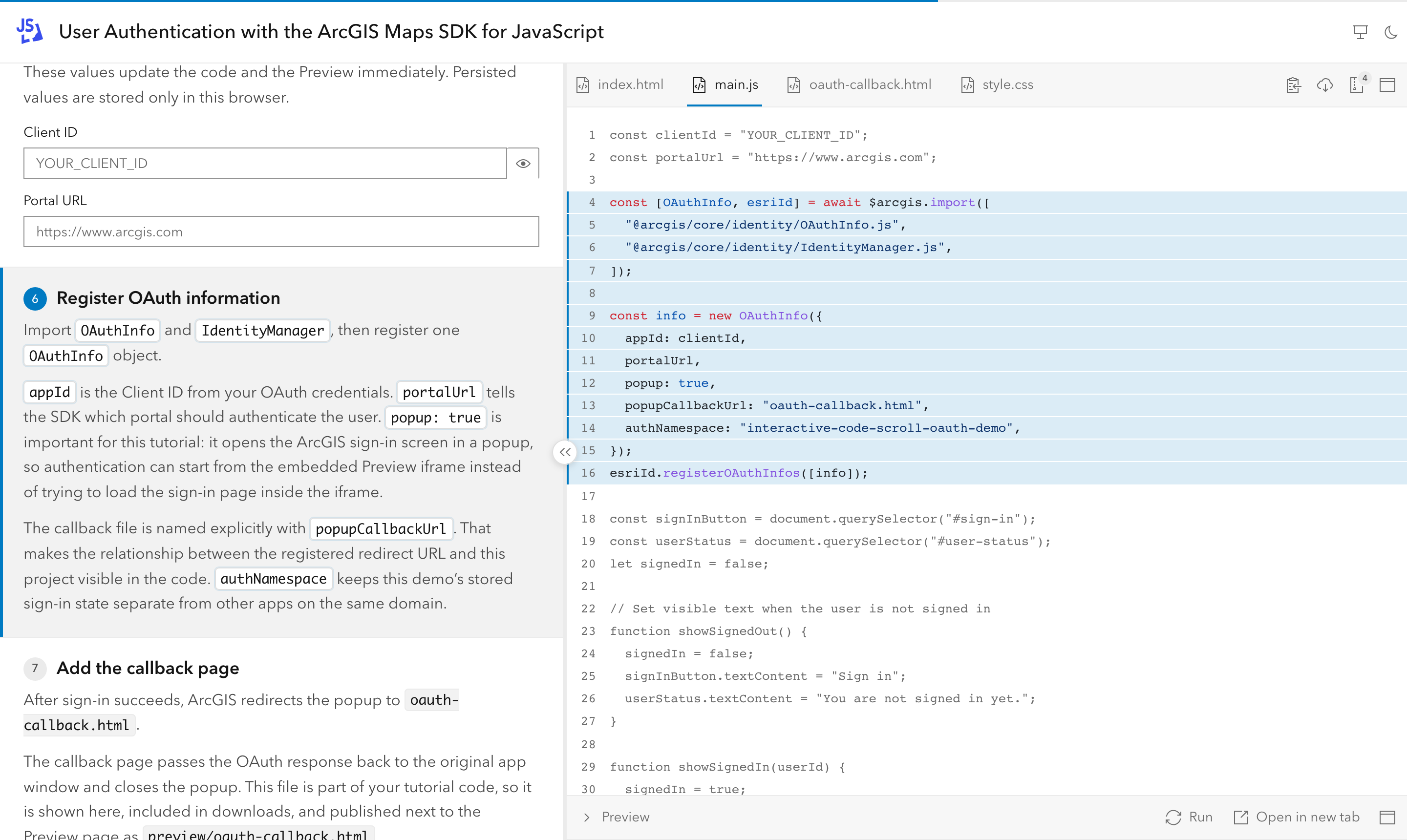
The smallest tutorial is one MDX file with one step, and one code file with one region. Start with the explanation:
---title: Hello, page---
<Step id="heading" file="index.html" region="heading">
## Add a heading
The `<h1>` is the first thing readers see.
</Step>
The step points at index.html and at its heading region, which the code file marks with two comments:
<!doctype html><html lang="en"> <body> <!-- #region heading --> <h1>Hello</h1> <!-- #endregion heading --> </body></html>That is all. When the reader reaches the step:
- The code panel follows the step. It shows
code/index.htmland highlights the lines between#region headingand#endregion heading. The markers are comments, so the file stays valid HTML and never shows them to the reader. See<Step>and Regions. - The Preview runs the code. Because
code/has anindex.html, the tutorial is web code: the page runs it in a live Preview under the code panel. No setting is needed; thepreviewfield only changes how it is shown. Code that cannot run in the browser (a script, a REST call, a native app) shows its result in the Result pane instead.
From there, a tutorial grows with more steps and files, and with:
- Editable values: mark a string with
@varand add a<VarField>; what the reader types replaces it in the code, the Preview and the downloads (Variables). - Images instead of code for a step, such as setup screenshots (Step examples).
- Results and requests for code that runs outside the browser (Result Pane, HTTP Requests).
- Several languages for the same steps (Code Variants).
Terms used on this page:
- Web code: a tutorial, or a code variant, whose folder has an
index.html. It gets the Preview; anything else gets the Result pane. - Text-only step: a step with no
file,regionorimages. It keeps the file on screen and clears the highlight. - Captured output: a file under
output/with the result the code produces (JSON, terminal text or an image), shown instead of running it. - Code variant: the same steps in another programming language, picked with a switcher in the code header.
Choose your setup
Section titled “Choose your setup”| You are teaching | Use | Read |
|---|---|---|
| A web app (HTML/JS, a browser SDK) | code/index.html; the Preview runs it |
Preview |
| A script, a CLI or a native app | Captured results in output/, shown with output= |
Result Pane |
| A REST API | .http files in requests/; readers press Run request |
HTTP Requests |
| The same steps in several languages (cURL, Python, Node.js…) | Code variants: one folder per language under code/ |
Code Variants |
| Several languages with different explanations | One tutorial per language, linked as siblings | Sibling tutorials |
| Several tutorials on one site | A tutorials/ folder with an index page |
Series Sites |
The setups combine: a REST tutorial can have variants, captured outputs and requests at the same time, like examples/rest-geocode.
Folder Structure
Section titled “Folder Structure”You do not need to create these folders by hand: npm create interactive-code-scroll@latest asks what you are teaching (web app, REST API, script or native app, in one or several languages), then writes the folders, a working example tutorial and the scripts to run it. See Create a Project.
The result is a folder with this shape:
tutorial/ tutorial.mdx code/ index.html main.js style.css images/ logo.svg screenshot.png output/ # optional: captured results for the Result pane geocode.json requests/ # optional: .http requests, zipped with the project geocode.httptutorial.mdxcontains frontmatter, prose and MDX components.code/contains the final runnable project files, with code markers in comments. Large projects can keep everything here (Gradle wrappers, asset catalogs, binaries) and pick the files that get tabs with thefilesfrontmatter.images/contains the logo, screenshots and carousel images referenced by steps.output/(optional) contains captured results of code that cannot run in the browser, shown by steps withoutput=in the Result pane.requests/(optional) contains HTTP requests (.httpfiles) bound by steps withrequest=, plus supporting files; it is added to every ZIP.
The source code should be valid without InteractiveCodeScroll: every marker is a comment (Code Markers). Several tutorials in one repository use a tutorials/ folder instead (Series Sites).
Frontmatter
Section titled “Frontmatter”The YAML block at the top of tutorial.mdx. Only title is required; every other field has a default. The fields fall into three groups:
- Page: what the tutorial page shows around the steps.
- Code and Preview: which files the code panel shows, how they are highlighted, and how web code runs.
- Series index and siblings: metadata that only a series site uses, for the index cards and the language menu.
---# Pagetitle: Build a checkout pagedescription: Accept a payment with a hosted checkout form.theme: autologo: logo.svg# Code and Previewpreview: bothcodeWrap: false# Series index and siblingstags: [JavaScript, Payments]level: Beginnerduration: 15 minorder: 1---| Field | Values | Default | Description |
|---|---|---|---|
title |
string | required | Rendered in the app header. Do not repeat it as an MDX # heading. |
description |
string | none | One sentence: the page’s meta description (search results, link previews) and, in a series site, the index card text. |
theme |
auto, light, dark |
auto |
Author default. Viewer changes are remembered. |
logo |
image path or https:// URL |
none | Relative to images/, or an absolute https:// URL (not checked at build, and it needs the network when serving locally). Use a square SVG or a PNG of at least 512 x 512. |
Code and Preview
Section titled “Code and Preview”| Field | Values | Default | Description |
|---|---|---|---|
files |
list of paths/globs | all text files | Which code/ files get tabs, in this order (* and ? stay in one folder, ** crosses folders). Other files still reach the ZIP and preview/; the ZIP button shows how many files the download contains, and its tooltip says how many are not shown in tabs. |
codeWrap |
boolean | false |
Wraps long code lines when true; preserves horizontal scrolling when false. |
languages |
map | none | Extension (no dot) → Shiki language id or text, e.g. languages: { qmd: markdown }. Overrides the built-in highlighting for that extension. |
preview |
off, iframe, tab, both |
both |
Controls the Preview panel and the open-in-tab button. |
variants |
list | none | Code variants: the same steps in several languages. |
otherVariantSteps |
notice, hide |
notice |
How steps limited with only= look to readers of another variant. |
Series index and siblings
Section titled “Series index and siblings”Ignored in a single-tutorial site, except description, which is also the page’s meta description.
| Field | Values | Default | Description |
|---|---|---|---|
tags |
list of strings | none | Series index card tags and filter values, e.g. [REST, Python]. No commas inside a tag. |
level |
string | none | Series index card, e.g. Beginner; <TutorialList level> matches it exactly. |
duration |
string | none | Series index card, e.g. 20 min. |
order |
number | none | Series index position: lower first; tutorials without it come after, by title. Also orders the sibling switcher. |
family |
string | none | Links sibling tutorials of a series site. Needs familyLabel. |
familyLabel |
string | none | This tutorial’s name in the sibling menu, e.g. Python. Unique within the family. |
Syntax highlighting
Section titled “Syntax highlighting”Highlighting happens at build time and is chosen by file extension. Other files show as plain text; the languages field maps any extension to a language.
| Languages | Extensions |
|---|---|
| Web | js, mjs, cjs, jsx, ts, tsx, vue, html, css |
| Data and config | json, geojson, yaml, yml, toml, ini, xml, xaml, sql |
| Docs and requests | md, mdx, http |
| Shell | sh, bash, ps1 |
| Other languages | py, kt, kts, gradle, swift, java, cs, cpp, h, hpp, qml, dart, lua |
Components
Section titled “Components”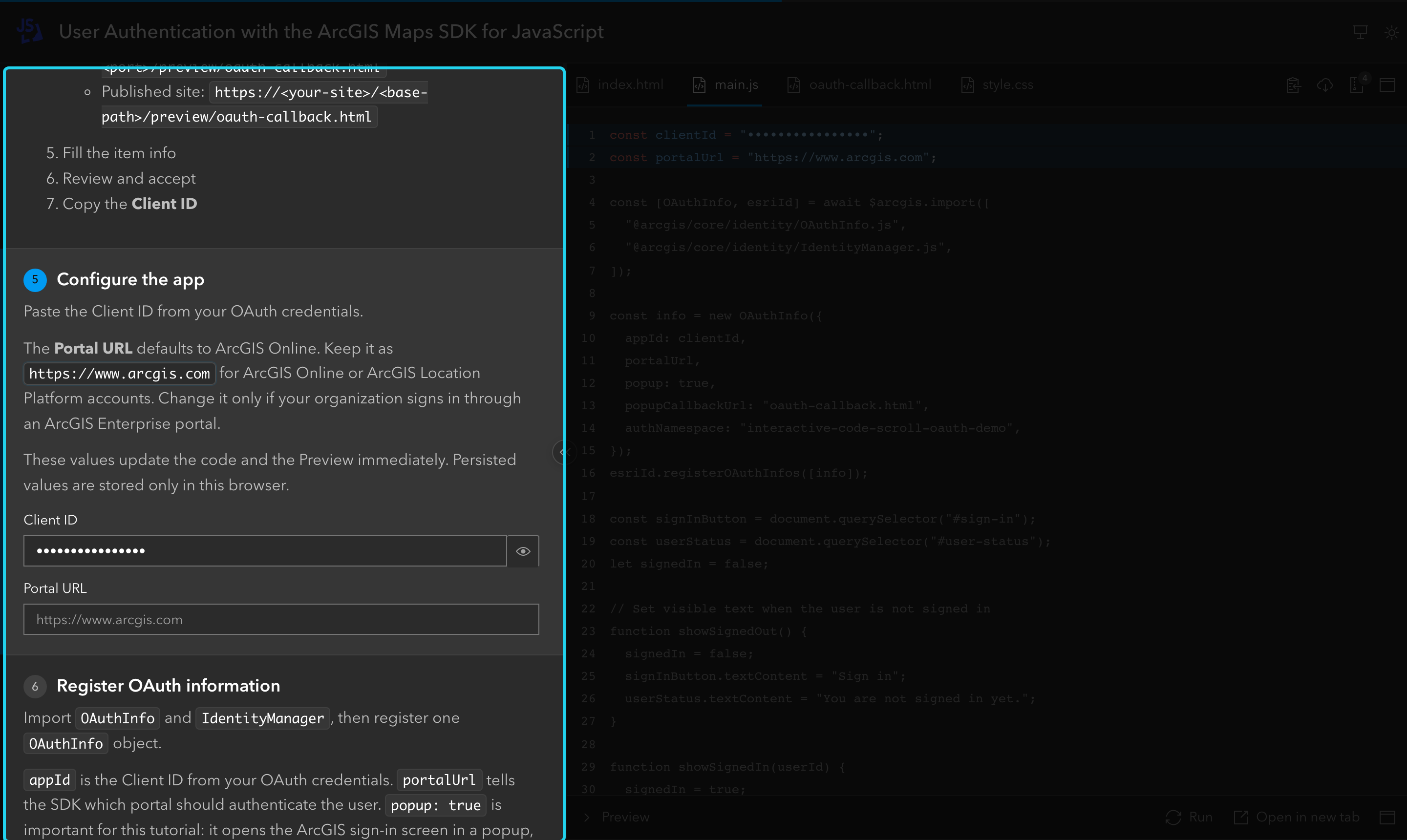
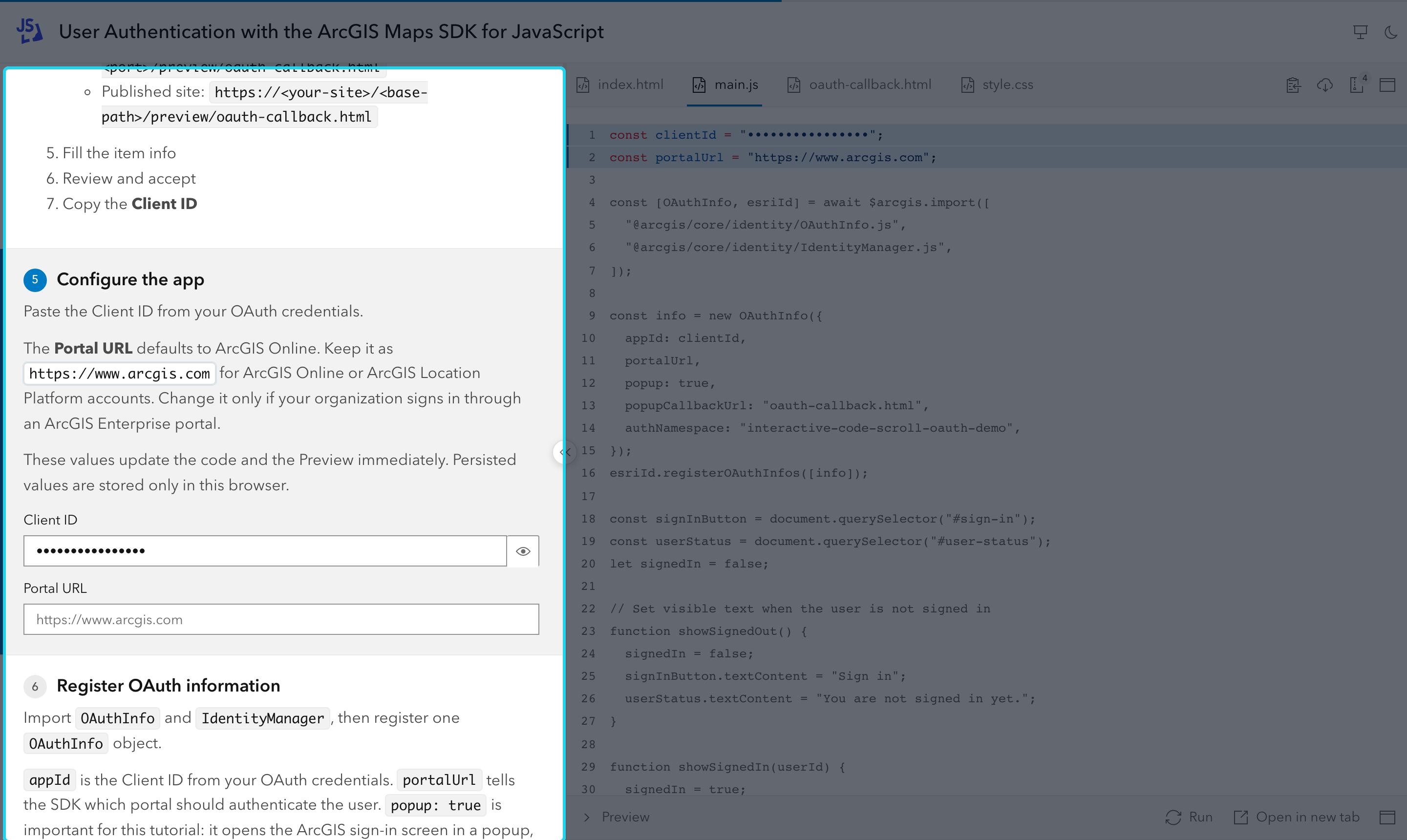
Components render the explanations panel on the left: the tags you write in MDX.
| Component | Where | What it does |
|---|---|---|
<Intro> |
tutorial.mdx |
Content before the first step: not numbered, no code focus. |
<Step> |
tutorial.mdx |
One step: its explanation and what the code panel shows. |
<VarField> |
tutorial.mdx, inside a step |
A form field that edits a value in the code. |
<Hint> |
tutorial.mdx, inline |
A short popover for a side note. |
<TutorialList> |
tutorials/index.mdx |
A section of tutorial cards on a series index. |
<TutorialFilter> |
tutorials/index.mdx |
The tag filter of a series index. |
Build errors name the file, line and column: tutorial/tutorial.mdx:12:1 <Step> region "config" not found in code/main.js. See Validation for the common ones.
<Intro>
Section titled “<Intro>”
Optional content before the first step. It is not numbered, does not count as a step and does not activate code focus.
<Intro>
## Before you start
Install the prerequisites and keep this page open.
</Intro>
<Step>
Section titled “<Step>”
The main tutorial block: a heading, the explanation, and what the code panel and the pane under it show while the step is active.
<Step id="configure" file="main.js" region="config" preview="collapsed">
## Configure the app
Explain the change here.
</Step>| Prop | Values | Default | Description |
|---|---|---|---|
id |
lowercase letters, digits, - |
required | Unique per tutorial. The step’s URL is #id (deep links). |
file |
path | current file | File to show, relative to code/ (to the variant folder with variants). |
region |
region id | none: no highlight | Region to highlight in file. With variants, region alone is enough: it names one file per variant. |
images |
{["a.png", "b.png"]} |
none | Images in images/ shown as a carousel instead of code. Must be a static array. |
output |
file name in output/ |
none | Captured result shown in the Result pane, e.g. output="geocode.json". |
request |
request names | none | Space-separated # @names from requests/, e.g. request="geocode-get geocode-post"; the first is the default. |
preview |
expanded, collapsed, keep |
keep |
Expands or collapses the Preview (or the Result pane) when the step activates. |
maximize |
code, preview, none |
keeps the current state | Maximizes the code area (code or images) or the pane under it (Preview or Result pane); none restores the layout. |
only |
variant ids | all variants | With variants: space-separated ids the step applies to, e.g. only="python curl". |
A text-only step keeps the current file visible and clears any previous region focus.
Step examples
Section titled “Step examples”Highlight a code block
Section titled “Highlight a code block”<Step id="config" file="main.js" region="config">Without region, the whole file shows with no highlight. Without file, the step keeps the file on screen.
Show images instead of code
Section titled “Show images instead of code”<Step id="register-app" images={["1-create-item.png", "2-copy-client-id.png"]}>Paths are relative to images/. Step keys page through the images before moving to the next step; clicking one opens a full-screen viewer. The value must be a JSX array written in place (images={[…]}), not a string or a variable.
Show a saved result
Section titled “Show a saved result”<Step id="results" region="results" output="candidates.txt">The file lives in output/ (or output/<variant id>/ for one language). See Result Pane.
Let readers run a request
Section titled “Let readers run a request”<Step id="request" region="request" output="geocode.json" request="geocode-get">Adds a Run request button that sends # @name geocode-get from requests/. The captured output is shown until the reader runs it, and again if the network fails. See HTTP Requests.
Make a result fill the screen
Section titled “Make a result fill the screen”<Step id="run-it" output="geocode.json" maximize="preview">…</Step><Step id="back" maximize="none">…</Step>See Maximize from a step.
Apply a step to some languages only
Section titled “Apply a step to some languages only”<Step id="install" file="requirements.txt" only="python"><VarField>
Section titled “<VarField>”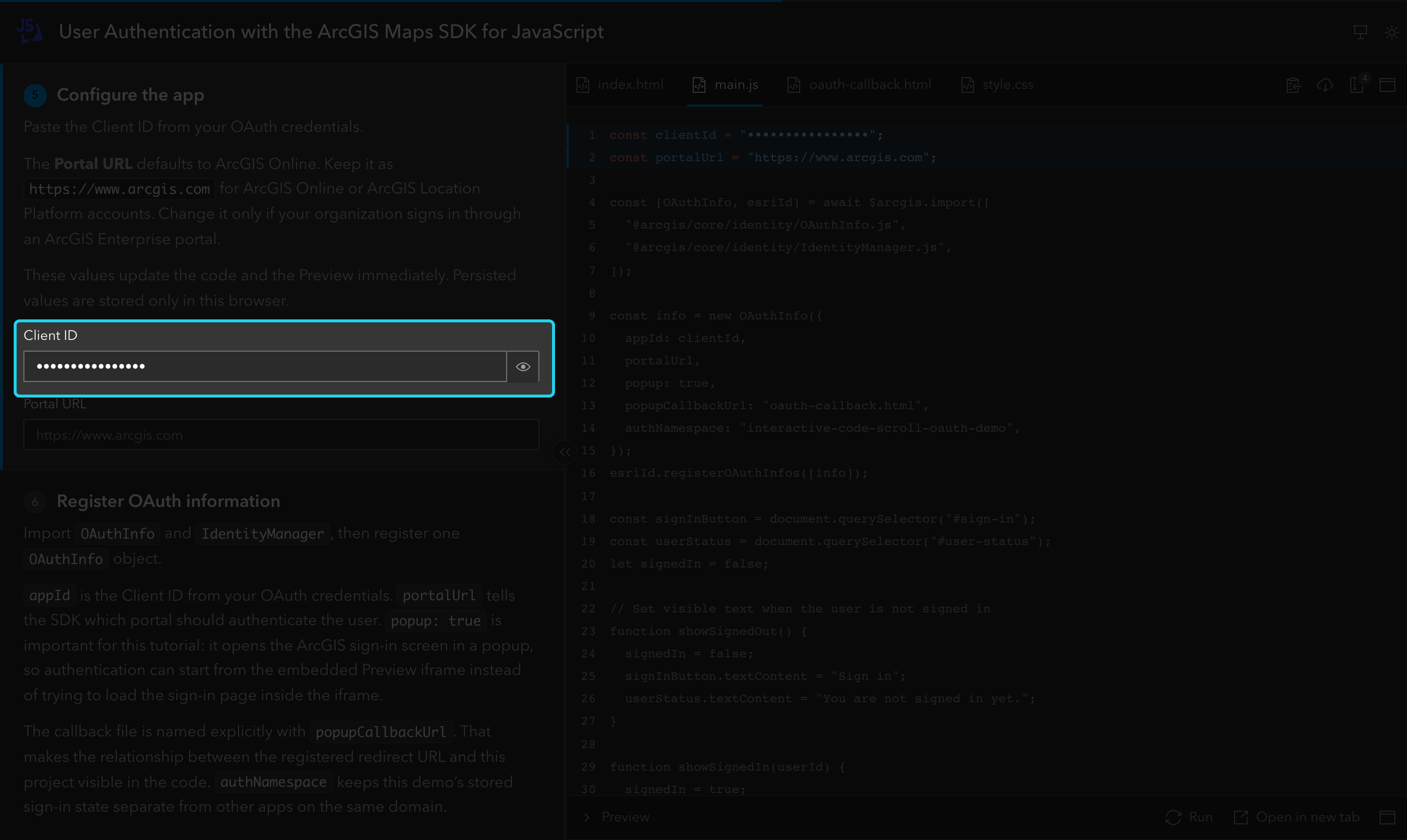
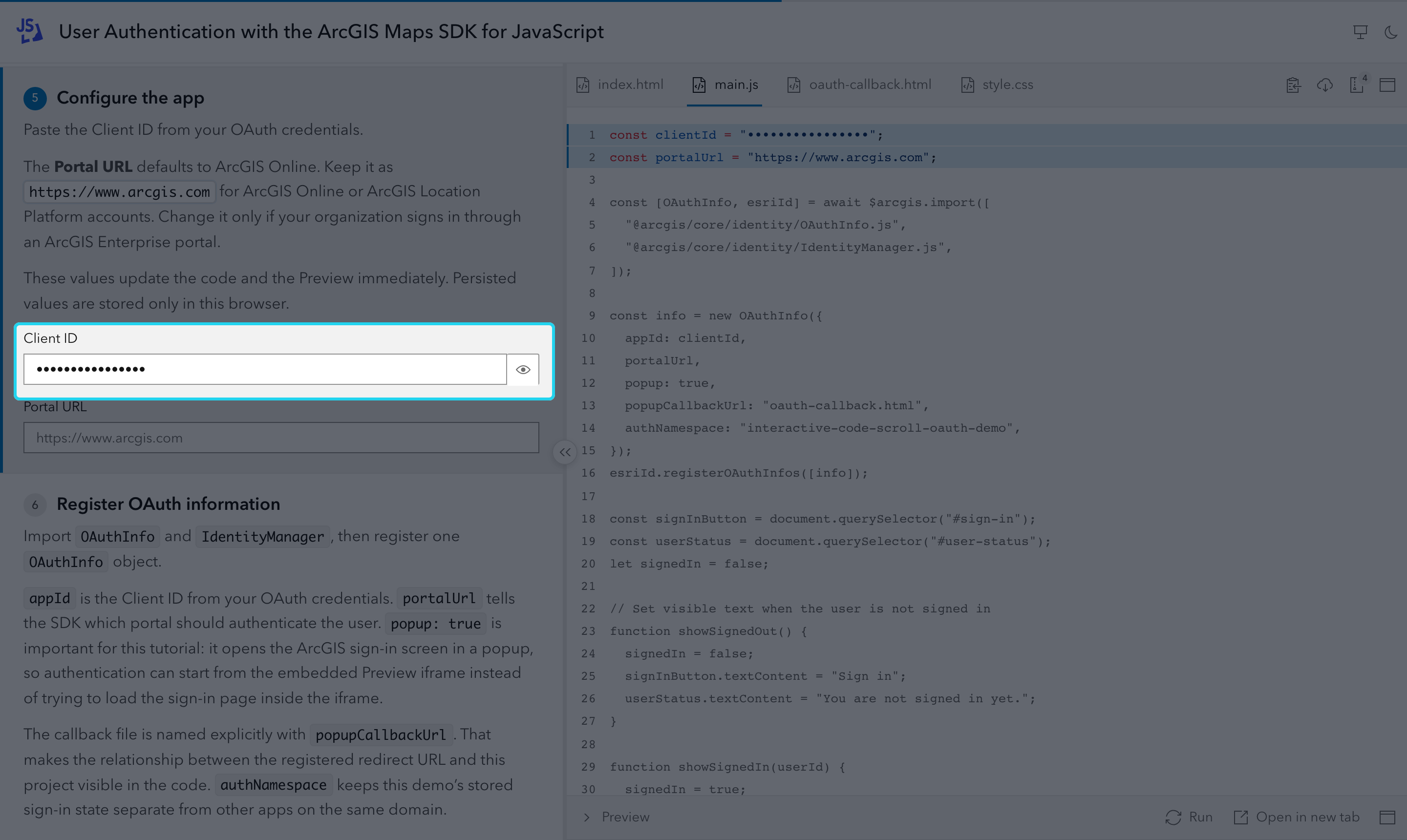
A form field linked to an @var marker in code. What the reader types replaces the marked literal in the code panel, the Preview, the ZIP and the requests; an empty field restores the literal, which is the default value.
<VarField name="clientId" label="Client ID" secret persist /><VarField name="portalUrl" label="Portal URL" placeholder="https://example.com" persist />| Prop | Values | Default | Description |
|---|---|---|---|
name |
variable name | required | An @var name in a code file, or a file variable in a .http file. |
label |
string | required | Visible field label. |
placeholder |
string | none | Input hint. Does not change the code default. |
secret |
flag | off | Masks the input, the value in the code and the request line until the reader reveals it. |
persist |
flag, or "tutorial" |
off | Stores the value in localStorage. persist shares it with every tutorial of a series site (a key is entered once per site); persist="tutorial" keeps it to this tutorial. On a single-tutorial site both behave the same. |
<Hint>
Section titled “<Hint>”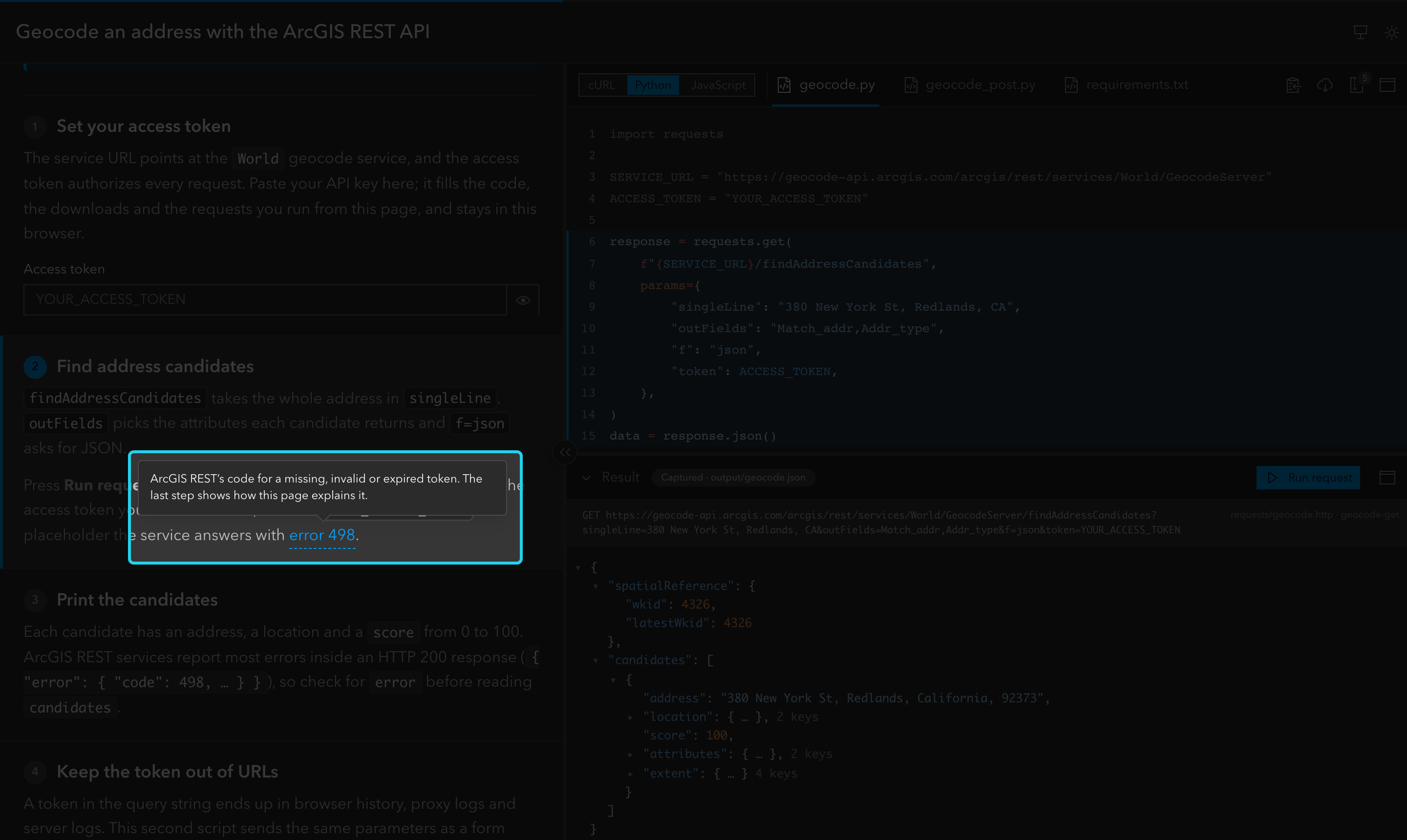
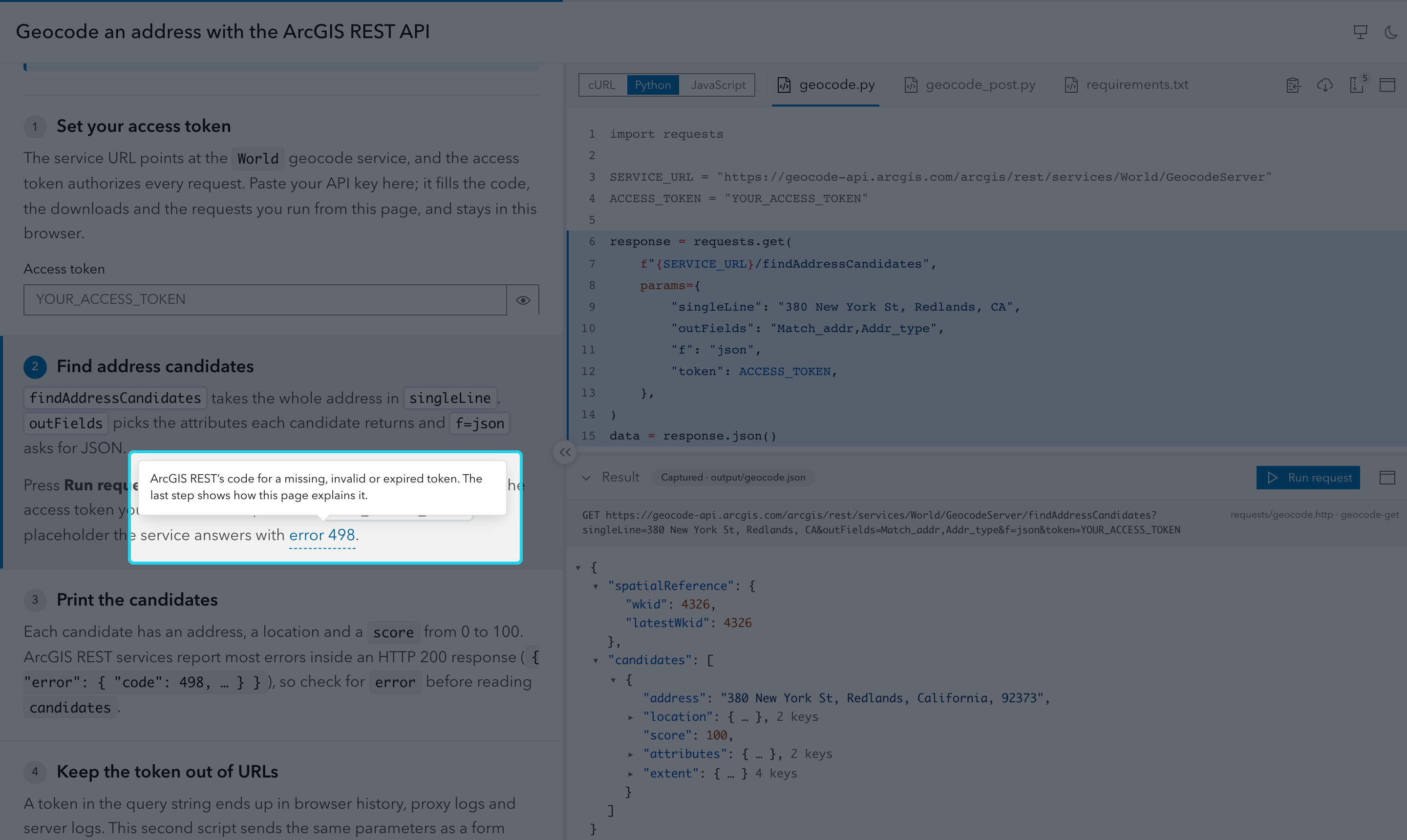
A short inline clarification with a hover/focus popover.
The Preview runs from a <Hint id="same-origin" label="same-origin page">A real URL under the generated site.</Hint>.| Prop | Values | Default | Description |
|---|---|---|---|
id |
lowercase letters, digits, - |
required | Unique per tutorial. |
label |
string | required | The underlined text in the sentence. |
The content between the tags is the popover. Use hints for brief side notes; use regular prose or <details> for essential or longer content.
Code Markers
Section titled “Code Markers”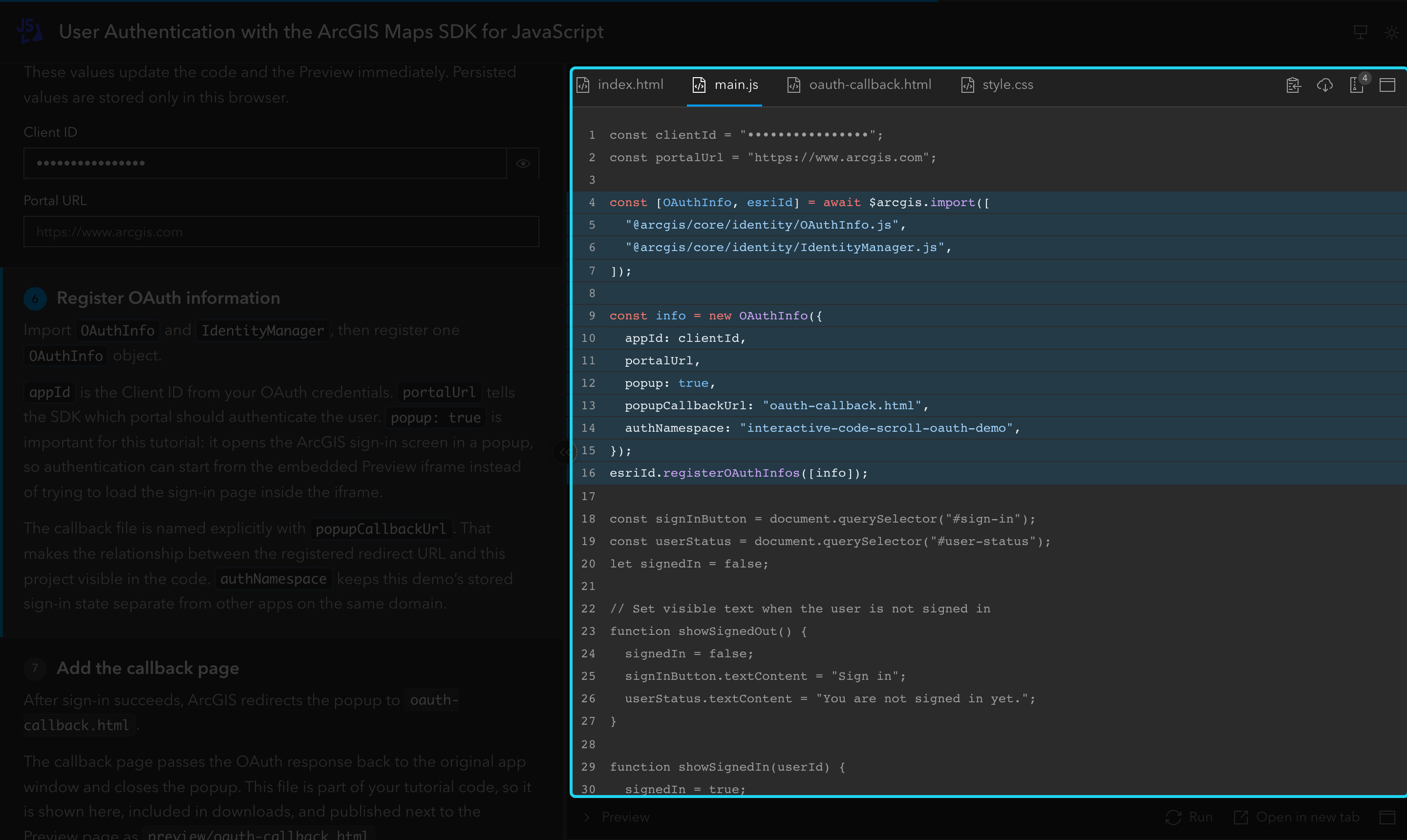
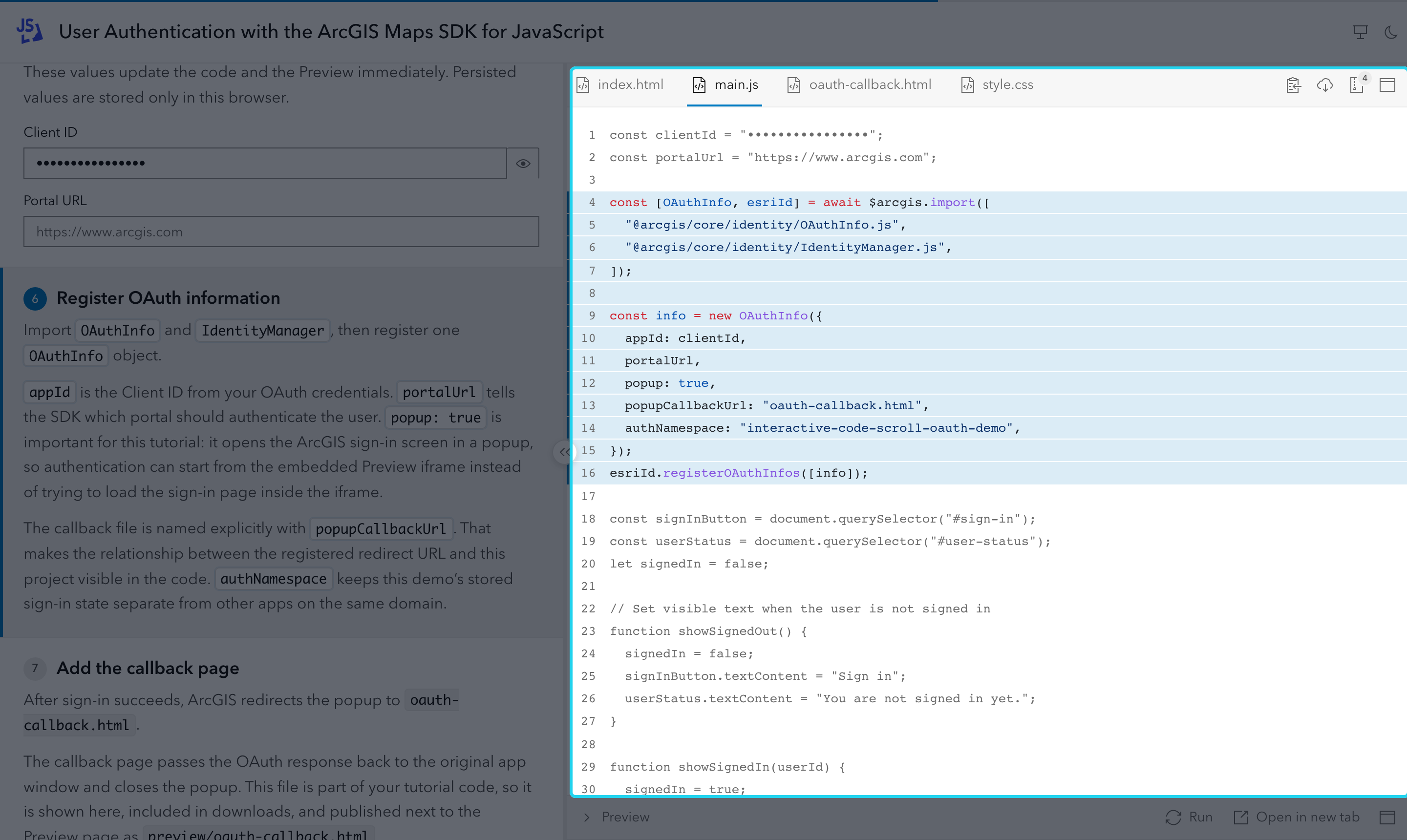
The code panel on the right shows your files. Markers are comments in those files that tell it what to highlight and what readers can edit; they never reach the reader or the downloads.
Regions
Section titled “Regions”Wrap the lines a step highlights in #region <id> and #endregion <id> comments:
// #region configconst title = "Checkout";// #endregion configUse the comment syntax of the file:
<!-- #region app --><main id="app"></main><!-- #endregion app -->/* #region layout */main { display: grid;}/* #endregion layout */# #region setupnpm init -ynpm install -D astro interactive-code-scroll# #endregion setup# #region frontmattertitle: My Tutorialpreview: tab# #endregion frontmatterA few languages also accept their own region style. Each one works only in its own file type, so the same text in any other file stays an ordinary comment:
| Files | Style |
|---|---|
.cs |
C# #region id / #endregion |
.py |
# region id / # endregion (VS Code folding style) |
.sql, .lua |
-- #region id / -- #endregion |
# region geocoderesponse = requests.get(url, params=params)# endregion geocodeRules:
- Region ids are unique per file.
- Regions may nest.
- Empty regions are errors.
- A closing id, when present, must match the opened region.
Variables
Section titled “Variables”Put @var <name> in a comment on the same line as a string literal. The literal is the default value; a <VarField> with the same name lets readers change it.
const tutorialTitle = "InteractiveCodeScroll"; // @var tutorialTitleRules:
@vartargets the first string literal on its line.- Use one
@varper line. - Variable names are unique per file.
- The same variable may appear in several files (for example a token in
main.pyandMainActivity.kt); one form field then fills all of them. Every occurrence must use the same default literal, or the build fails and lists each file. - SQL and Lua files also accept
-- @var namecomments.
Values are escaped for the file type and quote style, so whatever the reader types keeps the code valid:
| Files | Escaping |
|---|---|
| JS/TS, JSON, CSS, Python, Swift, Java, C#, C++, QML, YAML/TOML double quotes | Backslash escapes (\", \\, \n) |
| Kotlin, Dart, Gradle/Groovy | Backslash escapes plus \$, so values never start a string template |
Shell (.sh, .bash) |
Double quotes escape \ " $ and backticks; single quotes use '\'' |
PowerShell (.ps1) |
Double quotes use backtick escapes; single quotes double the quote |
| SQL, YAML single quotes | The quote is doubled ('') |
HTML/XML/XAML (<!-- @var -->) |
Attribute entities (", &, <) |
Literals that cannot hold an arbitrary value are build errors: Python f-strings, raw strings and triple-quoted strings, and TOML literal strings ('...'). Use a plain string instead.
.http file variables
Section titled “.http file variables”In .http files (VS Code REST Client / JetBrains HTTP Client syntax), every file variable line is a variable with the rest of the line as its default. No @var marker is needed. This applies to .http files in code/ and in requests/; a <VarField> can target either, and a var used in both needs the same default:
@accessToken = YOUR_ACCESS_TOKEN
GET https://example.com/search?token={{accessToken}}
Values are inserted as typed, with line breaks removed.
Preview
Section titled “Preview”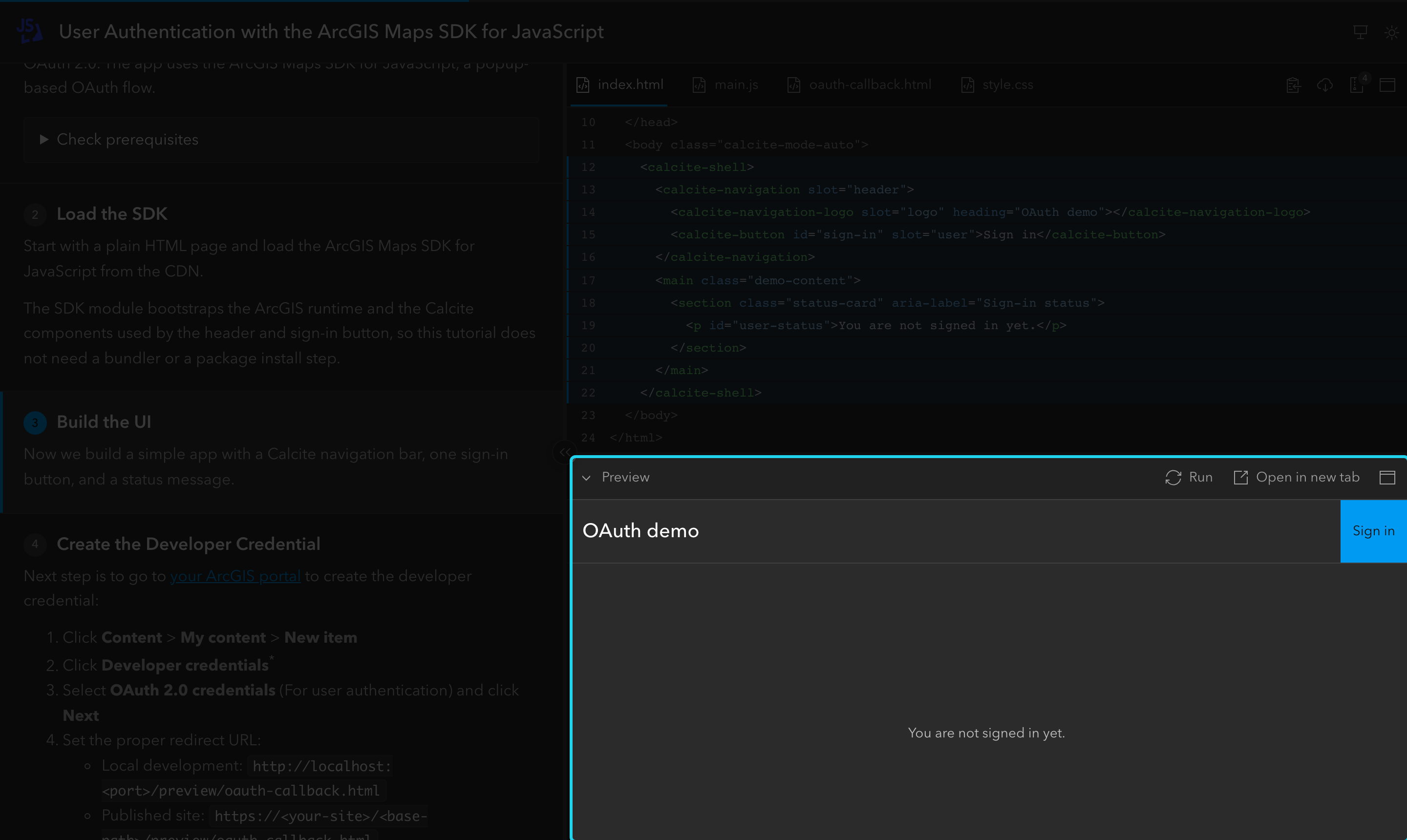
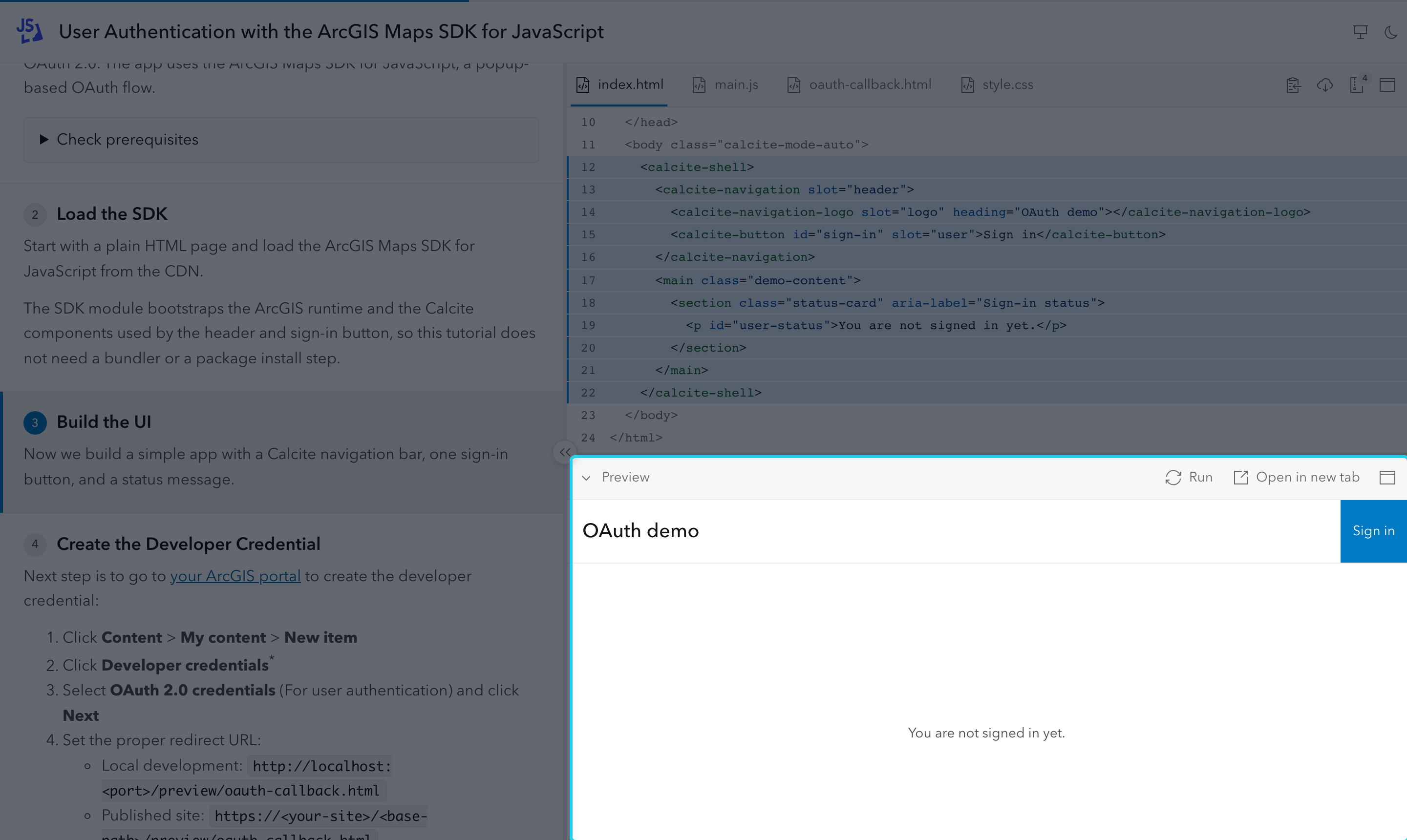
Web code runs in a live Preview under the code panel. It needs code/index.html (with code variants, see Preview and downloads). The generated site publishes every file under code/ next to the Preview page, with markers stripped, so relative links such as ./main.js or ./oauth-callback.html keep working.
The preview frontmatter field picks the mode:
| Value | Reader gets |
|---|---|
both (default) |
The embedded Preview and an open-in-tab button |
iframe |
The embedded Preview only |
tab |
The open-in-tab button only |
off |
No Preview; code/index.html is not required |
Form changes refresh the Preview after a short debounce; the Run button refreshes it manually. A step’s preview prop expands or collapses it.
Maximize from a step
Section titled “Maximize from a step”Readers can maximize the code panel, the iframe Preview or the Result pane from their headers (see Maximized panes). A step can do it for a talk, for example to show a big result and restore the layout on the next step:
<Step id="run-it" maximize="preview">…</Step><Step id="back" maximize="none">…</Step>Build errors: maximize="preview" together with preview="collapsed", and maximize="preview" in a tutorial with no pane to maximize (preview: off or tab and no step with output= or request=).
To show a tutorial in a talk or workshop (presentation mode, clickers, zoom, offline fallback), see Presenting a Tutorial.
Result Pane
Section titled “Result Pane”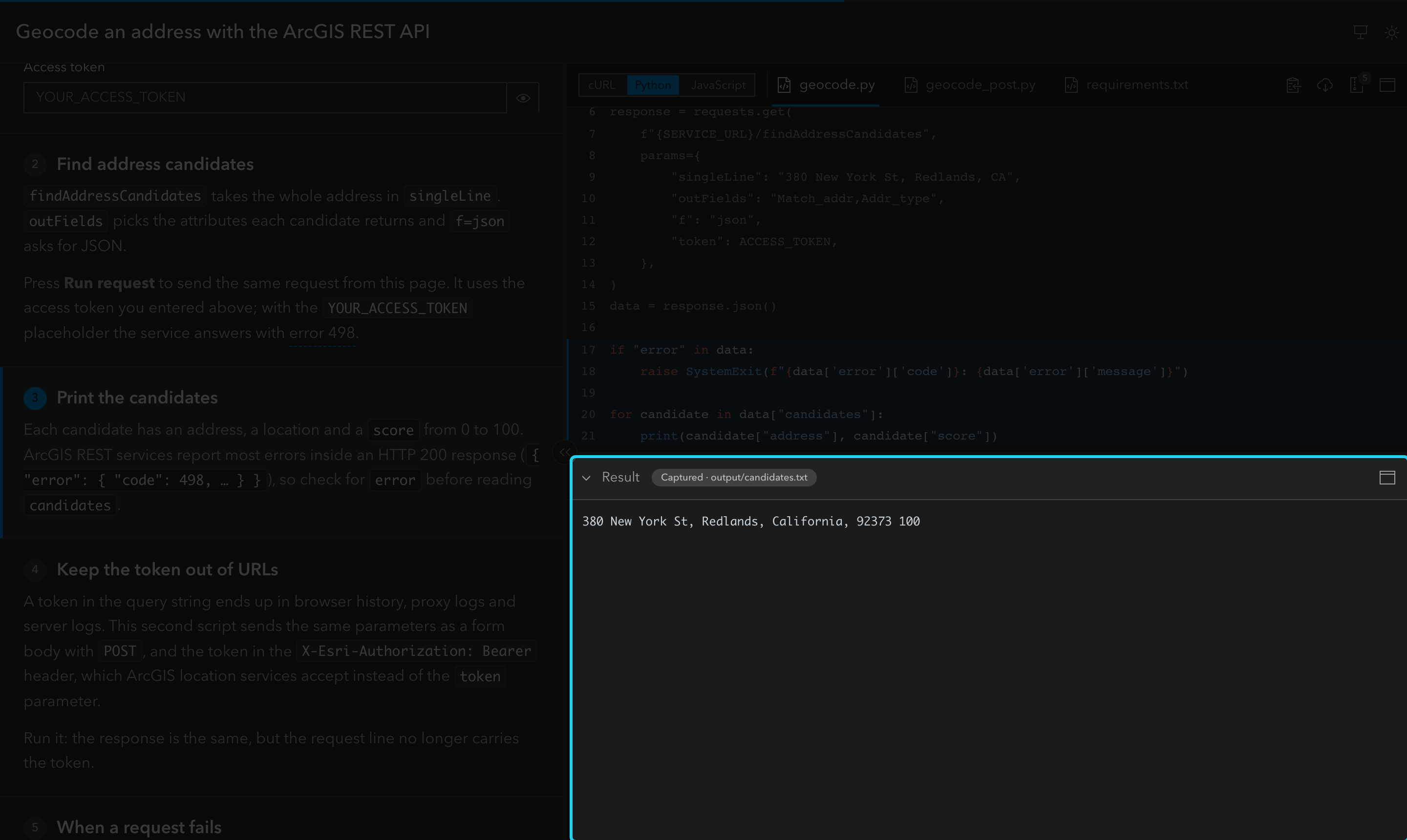
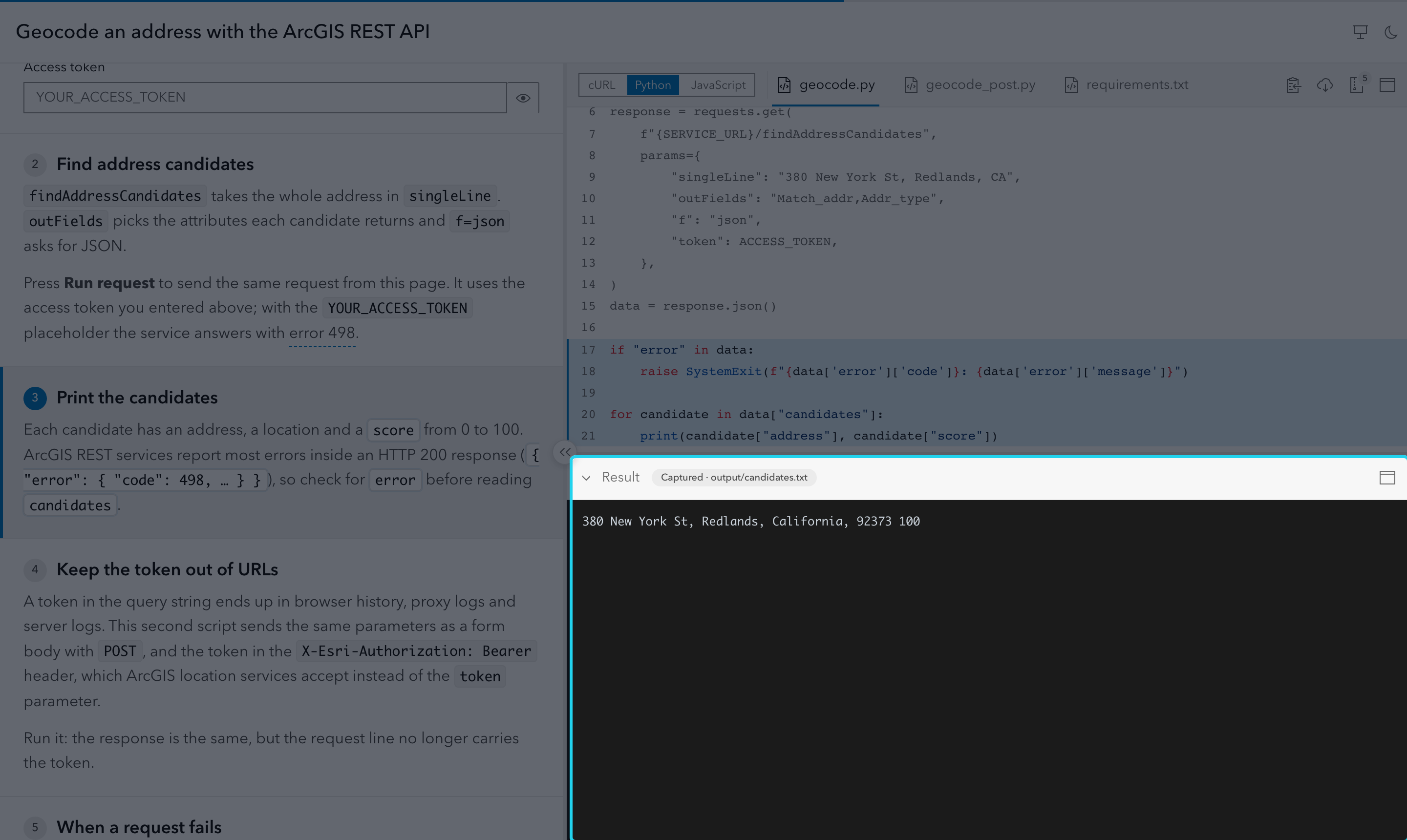
Code that cannot run in the browser (scripts, native apps, HTTP requests) shows its result in the Result pane, which takes the Preview’s place under the code. A tutorial without variants is web code when code/ has index.html; with variants, each variant with index.html shows the Preview and every other variant shows the Result pane. The pane appears only when some step has output= or request=.
<Step id="request" region="request" output="geocode.json">
## Send the request
</Step>- Where outputs live:
output="name"looks upoutput/<variant id>/namefirst (a per-variant override), thenoutput/name. It must resolve for every non-web variant the step covers. - File types:
.json: a collapsible, colored tree (large ids keep their exact digits; a file that does not parse shows as text)..txt,.log: terminal style. Prompt lines such as$ cmd,> cmd,>>> cmdorPS C:\> cmdare colored and ANSI color codes become colors..png,.jpg,.jpeg,.gif,.webp,.svg: an image.- Any other type is a build error.
- Steps without a result keep showing the result of the nearest earlier step that has one for the active variant, whether the reader scrolled, used step keys or opened a deep link. Before the first output the pane shows an empty state.
- Published, not embedded: outputs are published under
output/and fetched when shown, so the page stays small and works offline. They are rendered as text or images, never as HTML.output/is not part of the ZIP. - Credentials: outputs are committed and published. The build warns (without failing) when one looks like it holds a credential:
token=,"token":,apiKeyorAuthorization: Bearerfollowed by a value that is not a var default. Replace real values with the var’s default (the demo value in the code) before publishing. output=in web code is a build error: web code shows the Preview.
What readers can do in the pane (keyboard navigation of the JSON tree, collapsing, maximizing) is listed in Features.
HTTP Requests
Section titled “HTTP Requests”Requests live in .http files under requests/ (VS Code REST Client / JetBrains HTTP Client syntax), so they stay runnable in those tools. They are not code tabs or variants: they are the source of the Result pane’s request runner and are included in every ZIP as requests/, with form values applied. A .http file under code/ is an ordinary code file and is never run.
@serviceUrl = https://geocode-api.arcgis.com/arcgis/rest/services/World/GeocodeServer@accessToken = YOUR_ACCESS_TOKEN
# @name geocode-getGET {{serviceUrl}}/findAddressCandidates  ?singleLine=380 New York St, Redlands  &f=json  &token={{accessToken}}
###
# @name geocode-postPOST {{serviceUrl}}/findAddressCandidatesContent-Type: application/x-www-form-urlencodedX-Esri-Authorization: Bearer {{accessToken}}
singleLine=380 New York St, Redlands&f=json<Step id="geocode" region="geocode" request="geocode-get geocode-post">Supported syntax:
###separates requests.# @name xor// @name xnames the next request (letters, digits,_and-). Unnamed requests are allowed but cannot be bound byrequest=.- File variables
@x = valueanywhere in the file;{{x}}uses them within the same file. - A request line
METHOD URL(optionalHTTP/xsuffix) withGET,POST,PUT,PATCH,DELETE,HEADorOPTIONS, optionally continued by lines starting with?or&; then headers (Name: value), a blank line and the body. - Comments (
#,//) outside the body.
Not supported (build errors):
- Request variables (
{{name.response…}}) and system variables ({{$guid}}…). < filebodies, and pre-request or response handler scripts (< {% %},> {% %},>> file).{{x}}with no file variablex, and a request line without a supported method.- A request name defined twice across
requests/, or arequest=name that does not exist or is listed twice. request=on a step whose variants are all web code (or in a tutorial withcode/index.html).- Binary files in
requests/, and acode/requests/(orcode/<variant dir>/requests/) folder that would overwriterequests/in the ZIP.
Other text files in requests/ (for example a README) are zipped as is. requests/errors.json is the error rule.
Request runner
Section titled “Request runner”A step with request= gets a Run request button in the Result pane. Nothing is sent until the reader presses it: activating a step never sends a request. examples/rest-geocode is a complete example: a GET step (token in the query) and a POST step (token in a header), each running the request its code shows.
What to know as an author:
- Run as: when a step lists several requests, a picker labeled with each request’s method (or its name when two share a method) chooses which one to send. The first is the default each time the step is shown. Offer an alternative only when the step’s code shows it too: readers expect Run to send what they read.
- Values: every
{{x}}takes the reader’s<VarField>value, else the file variable’s default; file variables may use other file variables. Values substituted in the query string (after?) are URL-encoded; in the path, headers and body they are inserted as is. - Secrets: the request line above the result shows the method and URL; values of
secretvars are masked unless the reader presses Show secrets, which is off on every page load. Headers and body are not shown. - Failures: a request is aborted after 30 s. On a timeout or a network/CORS failure the pane says so and shows the step’s captured
outputinstead, so give request steps one. A request the browser cannot build (an invalid URL, a body onGET/HEAD) is reported and not sent. - CORS: requests are sent with
fetchfrom the reader’s browser without cookies, so the service must allow cross-origin requests; browsers drop headers they forbid (such asHostorCookie). - Service errors: errors reported inside a successful response need an error rule.
What readers see (status badge, Body and Headers tabs, Keep response, Show captured) is described in Features.
Service errors
Section titled “Service errors”Some APIs report errors inside a successful response: ArcGIS REST, for example, answers HTTP 200 with { "error": { "code": 498, "message": "Invalid token." } }. Declare how to recognize them in requests/errors.json:
{ "object": "error", "code": "error.code", "message": "error.message", "help": { "498": { "text": "The token is expired, revoked or mistyped.", "link": "https://…/error-codes#498" } }, "fallbackLink": "https://…/error-codes"}object,codeandmessage(required) are dot paths from the root of the response body. A JSON body whereobjectis an object is a service error, whatever the HTTP status.help(optional) maps codes to a shorttextand alink;fallbackLink(optional) is shown for codes without help. Links must behttp(s)URLs.- The pane shows the failure prominently: a red badge (
Error 498 · HTTP 200), a notice with the code, the message, the help text and its link, and the body below it. - The build validates the file (valid JSON, required paths, help entries, URLs, unknown keys) and reports errors as
requests/errors.json:<line>. It is not a request file and is zipped withrequests/.
Files Not Shown in Tabs
Section titled “Files Not Shown in Tabs”- Binary files (images, fonts, jars, archives, anything with a NUL byte) never get a tab. They are published under
preview/and added to the ZIP byte for byte. - With
filesset, text files that match no pattern are also left out of the code panel and the page, and still go into the ZIP. - Files not shown in tabs cannot contain
@varmarkers, and a<Step file>must point at a file shown in a tab. index.htmlis always available to the Preview, whether or not it is shown in a tab.
Code Variants
Section titled “Code Variants”Variants show the same tutorial in several programming languages, for example a REST call as cURL, Python and Node.js. The prose and the steps are shared; only the code changes. When the explanations themselves differ by language, write sibling tutorials instead.
Folder structure
Section titled “Folder structure”Each variant lives in its own folder under code/. With variants, every code file must belong to a variant folder.
tutorial/ tutorial.mdx code/ python/ request.py requirements.txt curl/ request.sh node/ index.mjs api.mjs---title: Call the items APIvariants: - { id: python, label: Python, dir: python, entry: request.py, files: ["request.py", "requirements.txt"] } - { id: curl, label: cURL, dir: curl, entry: request.sh } - { id: node, label: Node.js, dir: node, entry: index.mjs }---| Key | Values | Default | Description |
|---|---|---|---|
id |
lowercase letters, digits, - |
required | Used in ?variant= links and only=. |
label |
string | required | Shown in the language switcher. |
dir |
folder | required | Relative to code/. Folders must not overlap. |
entry |
file | required | File shown first, relative to dir. |
files |
list of paths/globs | all text files | Like the top-level files, relative to dir. The top-level files cannot be combined with variants. |
Steps across variants
Section titled “Steps across variants”Region ids are the contract between variants. Give the same region the same id in every variant, in whichever file it lives:
<Step id="request" region="request">
## Send the request
</Step>- Within a variant, a region id may appear in only one file, so
regionalone identifies the file. fileis relative to the variant folder and must exist in every variant the step covers.- Every step region must exist in every variant, unless the step sets
only:
<Step id="install" file="requirements.txt" only="python">
## Install dependencies
</Step>
otherVariantSteps decides what readers of other variants see for such a step:
notice(default): the step stays in place and keeps its number; the code panel keeps its file, clears the focus and shows “This step applies to Python” with an action to switch.hide: the step disappears from the explanations; numbering and progress count only the steps of the active variant. A#steplink to a hidden step switches to that step’s variant.
Reader experience
Section titled “Reader experience”- The language switcher sits at the start of the code header: a segmented control for up to four variants whose file tabs fit next to it, a dropdown otherwise. This is automatic.
- Switching keeps the current step and focuses the same region in the new variant’s file. A text-only step keeps the file with the same path when the new variant has it, else shows the new variant’s
entry. - The choice is remembered for the whole site and can be linked:
?variant=curl#request. An unknown id is ignored. - Form fields are shared: one
@varname fills every variant, and all its occurrences need the same default literal.
Preview and downloads
Section titled “Preview and downloads”- A variant is web code when its folder has
index.html. Only web variants show the Preview; other variants show the Result pane instead when the tutorial has captured outputs.previewin the frontmatter applies to the web variants, and a tutorial without any web variant needs noindex.html. - A web variant’s Preview runs from its own page,
preview/<dir>/index.html, with every file of the variant published next to it, so relative references such as./main.jsor an OAuth callback page resolve inside the variant folder. - The ZIP holds only the active variant: its folder becomes the root of the archive, named
<tutorial>-<variant id>.zip, plusrequests/when the tutorial has it. The ZIP badge and tooltip count those files.
Series Sites
Section titled “Series Sites”A repository can publish several tutorials as one site. Put each tutorial folder (the structure above) under a series folder:
tutorials/ display-map/ # published at /display-map/ tutorial.mdx code/ geocode/ # published at /geocode/ tutorial.mdx code/ _drafts/ # ignored: starts with "_"The CLI detects this structure on its own: with no tutorial/tutorial.mdx and no root tutorial.mdx, but at least one tutorials/<name>/tutorial.mdx, interactive-code-scroll dev serves the whole series. For another folder name, pass --tutorials <dir>; --tutorial tutorials/<name> still serves one tutorial on its own. To publish the series on GitHub Pages, use the workflow in the Deployment Guide: the same file works for one tutorial or a series, and every tutorial URL keeps the Pages base path (/<repo>/display-map/). In your own astro.config.mjs:
interactiveCodeScroll({ tutorials: "tutorials" })- The folder name is the tutorial’s URL, so it must use lowercase letters, digits and
-(build error otherwise). - Folders starting with
_or.are ignored; other folders withouttutorial.mdxare skipped with a warning. - Each tutorial’s Preview, published code and captured outputs live under its own URL. Its header gets an “All tutorials” link back to the index.
tutorialandtutorialscannot be combined.- Persisted
<VarField>values are shared by every tutorial on the site (enter a key once); usepersist="tutorial"for a value that belongs to one tutorial. A Preview never shows another tutorial’s code.
Index page
Section titled “Index page”/ lists every tutorial as a card: title, description, level, duration and tags from each tutorial’s frontmatter, ordered by order (lower first; tutorials without it follow, by title). When any tutorial has tags, a tag filter shows only the cards with any of the selected tags.
To customize the index, add tutorials/index.mdx:
---title: ArcGIS tutorialsdescription: Build apps with ArcGIS, from REST to native SDKs.logo: logo.svgtheme: auto---
Start with the REST tutorials if you are new to location services.
<TutorialFilter />
## Web apps
<TutorialList tags="JavaScript, Web" />
## Scripts
<TutorialList tags="Python" level="Beginner" />| Field | Values | Default | Description |
|---|---|---|---|
title |
string | Tutorials |
Header heading and page title. |
description |
string | none | Shown under the title in the header and as the page’s meta description (clipped on narrow screens). |
logo |
image path or https:// URL |
none | Relative to tutorials/images/ (that folder is never a tutorial), or an absolute https:// URL. |
theme |
auto, light, dark |
auto |
Author default. Viewer changes are remembered site-wide. |
The body is free MDX prose with two components; anything else is a build error.
| Component | Props | Description |
|---|---|---|
<TutorialList> |
tags="A, B", level="Beginner" |
A section of cards. tags (comma-separated, since a tag may contain spaces) keeps tutorials with any of those tags; level keeps that exact level; both combine. Without props it lists every tutorial. A tag or level no tutorial uses fails the build. |
<TutorialFilter> |
none | The tag filter, where you place it. It filters every list on the page and counts tutorials once even when they appear in several sections. At most one per page; leave it out to show no filter. |
Without index.mdx, the index is the filter plus one list of every tutorial.
Custom index page
Section titled “Custom index page”For full control, replace the index with your own Astro page. Keep it outside src/pages/ (Astro would also publish it as a route of its own). Pass it to the CLI:
interactive-code-scroll dev --index src/series-home.astroor set it in your own astro.config.mjs:
interactiveCodeScroll({ tutorials: "tutorials", index: "src/series-home.astro" })---import { tutorials, TutorialFilter, TutorialList } from "interactive-code-scroll/series";---<html lang="en"> <head> <meta charset="utf-8" /> <meta name="viewport" content="width=device-width, initial-scale=1" /> <title>My tutorials</title> </head> <body> <h1>{tutorials.length} tutorials</h1> <ul> {tutorials.map((t) => <li><a href={t.href}>{t.title}</a> {t.level}</li>)} </ul> <TutorialFilter /> <TutorialList tags="Python" /> </body></html>tutorialslists every tutorial in index order:slug,href(includes Astro’sbase),title,tags, anddescription,level,duration,orderwhen set.<TutorialList>and<TutorialFilter>work as inindex.mdxand bring their own styles and filter script. The page owns everything else (layout, header, theme). Include<meta charset="utf-8" />: Astro does not add it, and without it non-ASCII text (such as—or accents) renders garbled.indexmust be an.astrofile, needstutorials, and cannot be combined withtutorials/index.mdx(build error: the file would be ignored).
Sibling tutorials
Section titled “Sibling tutorials”When the explanations differ by language (for example the JavaScript SDK and the Python API), write one tutorial per language and link them with the same family. Use code variants instead when the steps and prose are shared.
family: display-mapfamilyLabel: JavaScriptfamily: display-mapfamilyLabel: Python- The header shows a “Tutorial for:
▾” menu after the title, with links to the family’s tutorials by order, thenfamilyLabel. - Choosing a sibling opens it on the step with the same id when it exists (give matching steps the same
id), else at its top. The reader’s code variant carries over when the sibling has a variant with that id. - Keep siblings and variants apart: a sibling’s
familyLabelshould not repeat a language that is already a code variant of another sibling (for example a “REST API” tutorial with a Python variant next to a “Python” sibling), or readers see two “Python” choices that do different things. familyandfamilyLabelgo together, and each label must be unique within its family (build errors). A family with one tutorial, orfamilyoutside a series site, only warns.- The index keeps one card per tutorial.
Validation
Section titled “Validation”The build checks every reference before it writes the site: a wrong file, region, variable, image, output, request or frontmatter value fails it. Every error names the file, line and column, and frontmatter errors point at the offending key. In dev mode, validation re-runs whenever tutorial.mdx or a file under code/, images/, requests/ or output/ changes, and the error appears in the browser overlay at the first failing line.
Common build errors
Section titled “Common build errors”Errors start with the location, for example tutorial/tutorial.mdx:12:1 <Step> … or main.js:4: …. The message is the part after it:
| Message | Fix |
|---|---|
<Step> file "x" not found in code/ |
file is relative to code/ (to the variant folder with variants). Check the path and extension. |
<Step> region "x" not found in code/main.js |
Add #region x / #endregion x to that file, or fix the id. |
<Step> region "x" requires a "file" |
Without variants, a region needs file. |
<Step> region "x" not found in variant "y" (code/y/); add it or set "only" |
Every variant needs the region, unless the step sets only. |
<Step> file "x" is not shown in tabs; add it to frontmatter "files" |
The file is left out by files. |
<Step> "images" must be a static array of strings, e.g. images={["a.png"]} |
Write the array in place, in braces: images={["a.png"]}. |
<Step> image "x" not found in images/ |
Paths are relative to images/. |
<Step> output "x" not found in output/ |
Add the file to output/ (or output/<variant id>/). |
<Step> output "x" has no effect: code/index.html makes the tutorial web code, which shows the Preview |
Web code has no Result pane: remove output or index.html. |
<Step> request "x" not found in requests/ (# @name x) |
Name the request with # @name x in a .http file under requests/. |
<Step> maximize="preview" has no pane to maximize: … |
Enable the iframe Preview or give some step a result. |
<Step> duplicate id "x" |
Step ids are unique per tutorial. |
<VarField> no "@var x" found in code/ |
Add // @var x next to the literal in the code, or fix the name. |
@var "x" must have the same default in every file: … |
Use the same literal in every file that marks x. |
code/x: @var "y" is in a file not shown in tabs; … |
Show the file in tabs or remove the marker. |
@var x has no string literal on its line |
Put the marker on the line of a plain string literal. |
#region "x" is empty · unclosed #region "x" · #endregion "a" closes #region "b" |
Fix the region markers in that file. |
frontmatter logo "x" not found in images/ (or use an https:// URL) |
Put the logo in images/ or use an https:// URL. |
code/x: file is outside every variant folder; move it into one of … |
With variants, every code file belongs to a variant folder. |