
Features
What InteractiveCodeScroll can do, in one page. Each section links to the reference that shows how to use it. For the file formats and every option, see Authoring Reference; for commands, see CLI Reference.
A tutorial is a folder with tutorial.mdx (the explanations), code/ (the final, runnable project) and images/. The build turns it into a static site: explanations on the left, code on the right, kept in sync as the reader moves through the steps.
Reading a tutorial
Section titled “Reading a tutorial”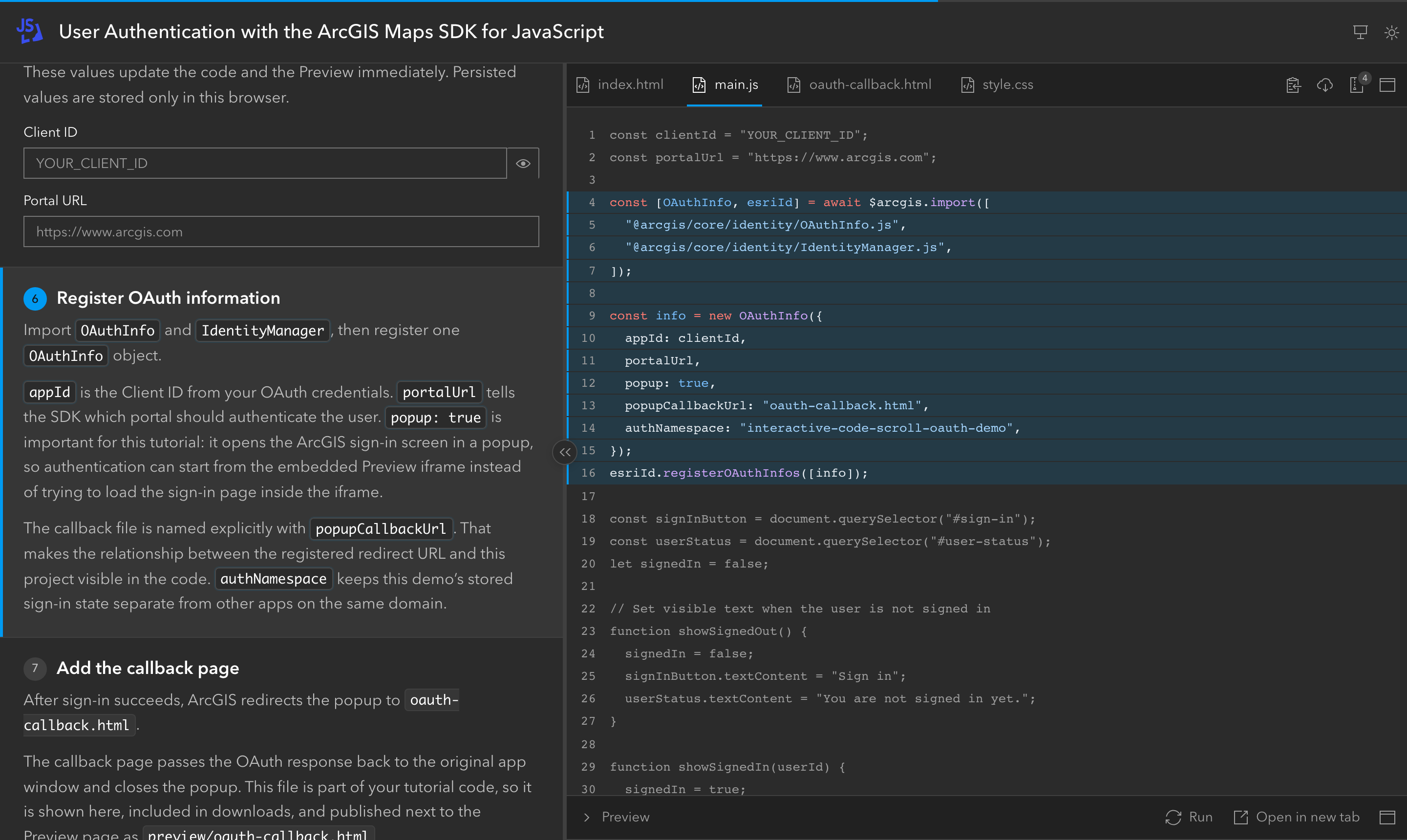
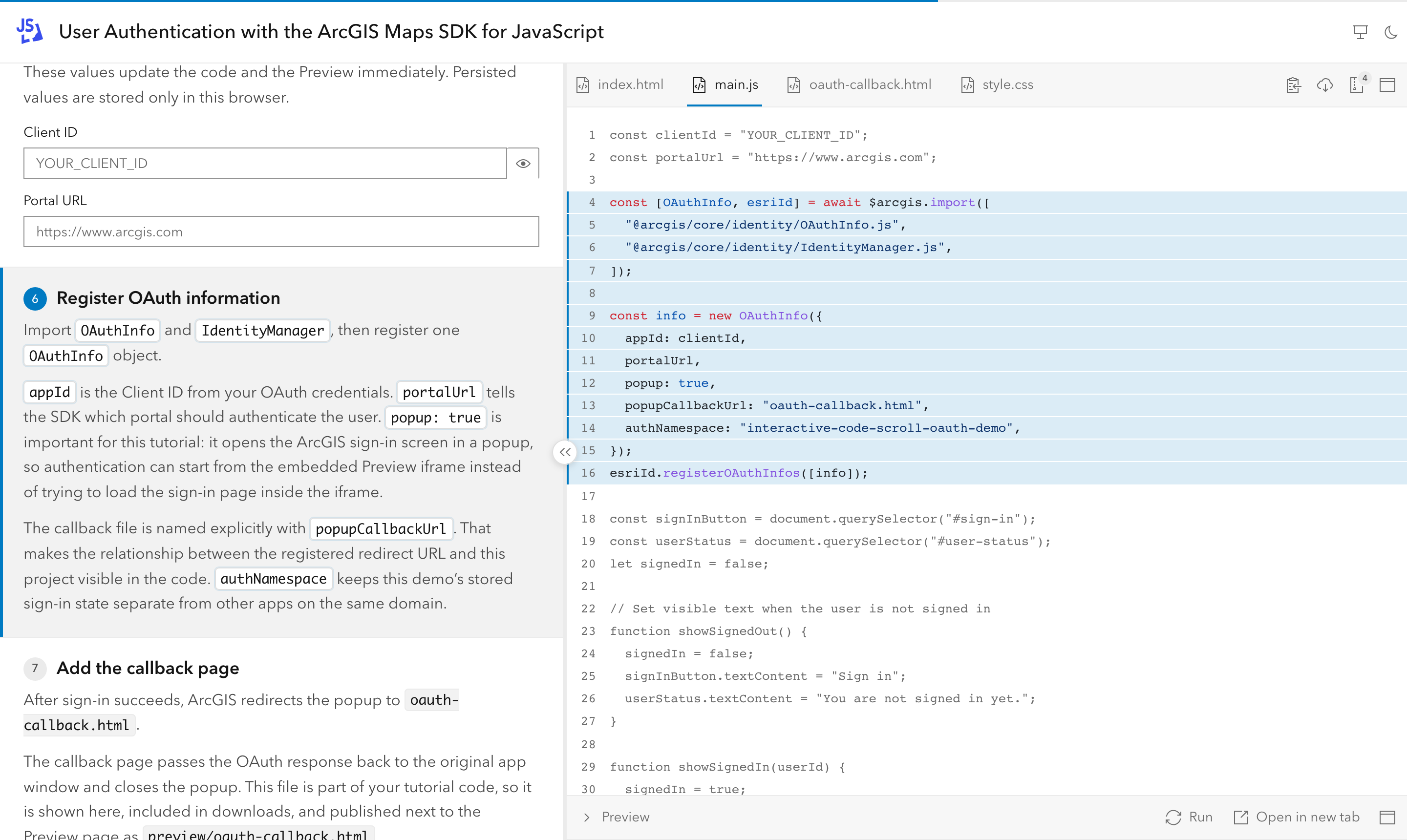
- Side-by-side layout: explanations on the left, code on the right. Both splitters (explanations/code, code/Preview) can be dragged, and their sizes are remembered. A handle on the splitter hides or shows the explanations.
- Steps drive the code panel: when a step becomes active, it can switch file, focus a region (the rest of the file turns gray and the region scrolls into view) or show images instead of code. A text-only step keeps the current file and clears the focus.
- Several ways to move: scrolling (the step crossing the middle of the panel becomes active), clicking a step, arrow keys and PageUp/PageDown (presentation clickers work too, even while the focus is in a field or the Result pane).
- Numbered steps, progress bar and deep links: every step heading carries its number;
#step-idlinks open the tutorial at that step. - Optional introduction: content before the first step that is not numbered and does not focus any code.
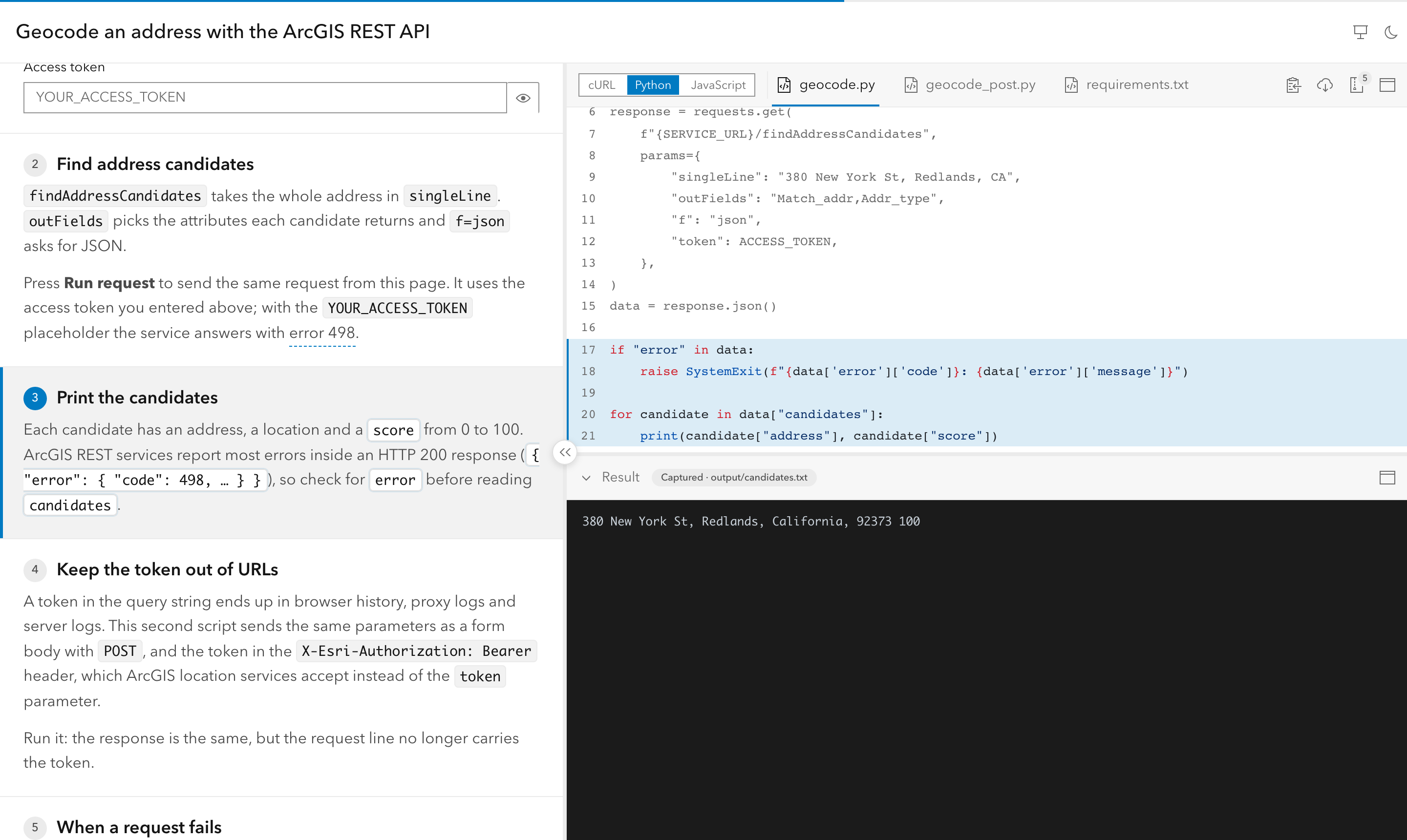
- Light and dark: follows the OS by default; the author can set a default and the reader’s toggle wins. The code panel and the Preview follow the page.
- Readable at high zoom, with line numbers and optional wrapping of long lines. The Result pane header turns long labels into icons instead of clipping them, and a short pane scrolls as a whole.
See Components.
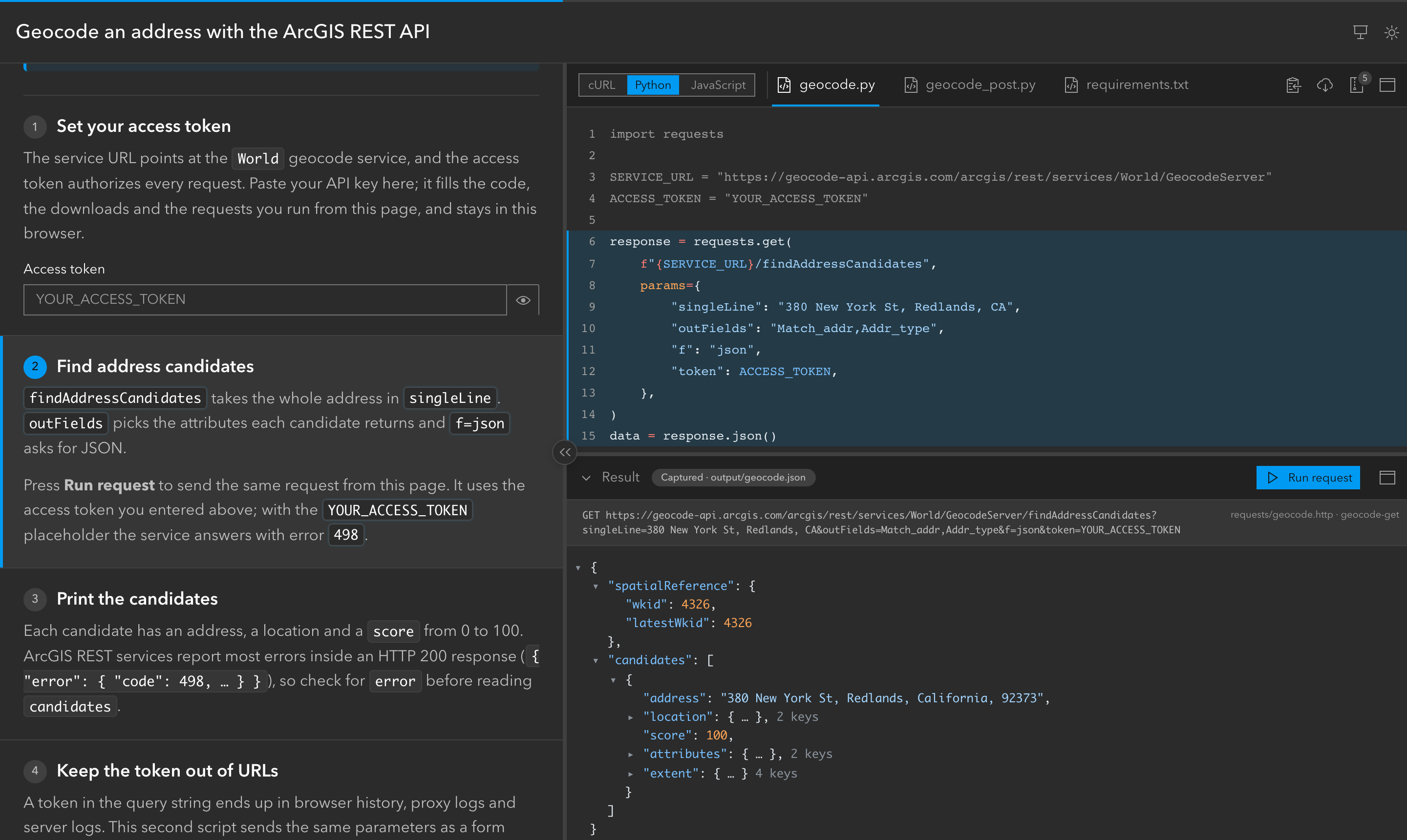
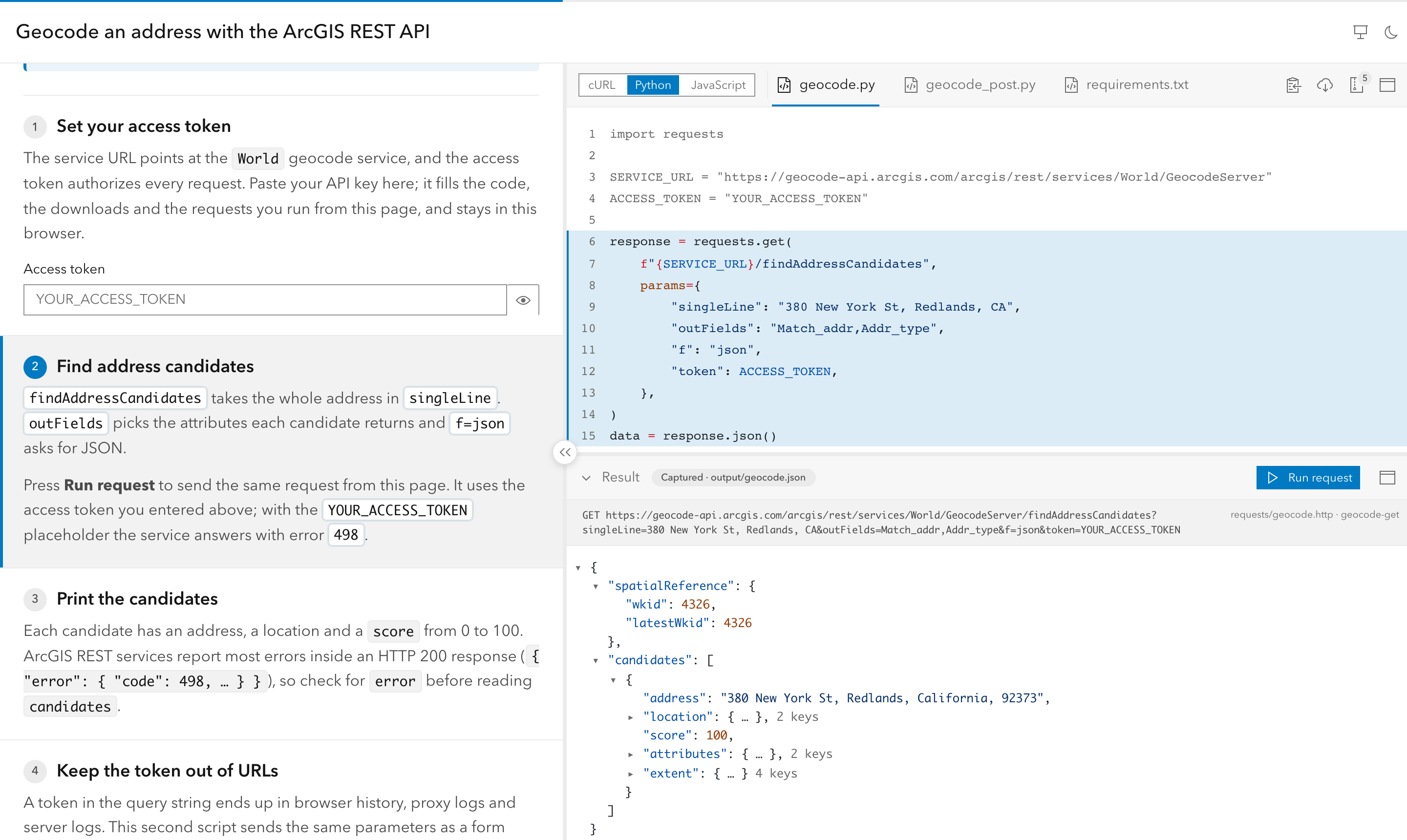
- Final code, highlighted: every file is shown in its final version; steps only focus parts of it. Highlighting happens at build time for JavaScript/TypeScript, HTML, CSS, JSON, Markdown, shell, YAML, Python, Kotlin, Swift, C#, Java, C++, Dart, SQL,
.httpand more, and can be overridden per extension. - Regions and variables as comments:
#region id/#endregionmarks what a step focuses;@var namemarks a literal a form field can change. The source stays valid and runnable; markers never reach the reader or the downloads. - Large projects: the
fileslist picks which files get tabs. Everything else, including binary files such as a Gradle wrapper jar, still goes into the ZIP. - Code variants: the same steps in several languages (for example cURL, Python and Node.js) with a language switcher, deep links such as
?variant=curl, steps that apply to only some languages, a Preview for web variants and a ZIP per variant. See Code Variants.
See Code Markers and Files Not Shown in Tabs.
Forms that edit the code
Section titled “Forms that edit the code”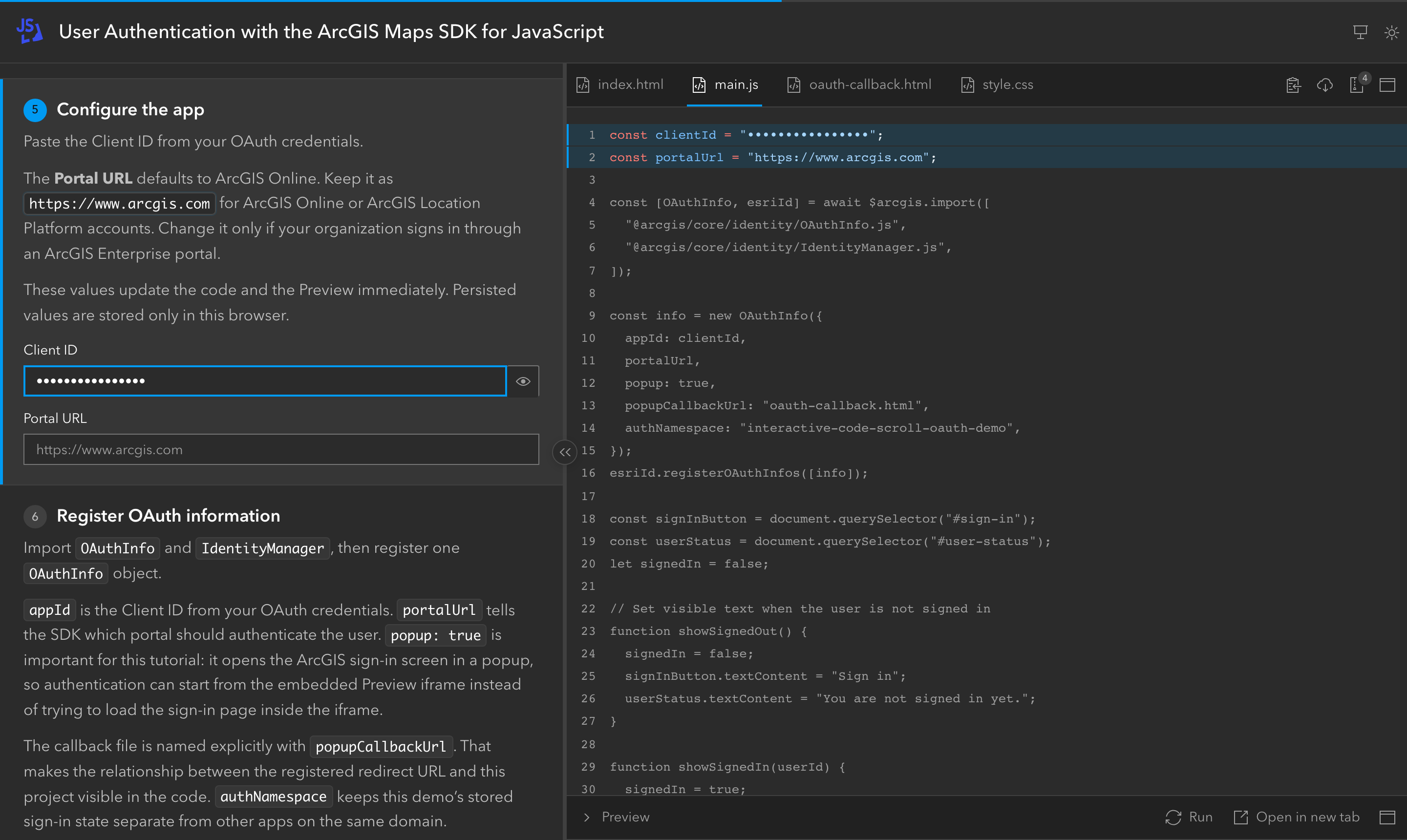
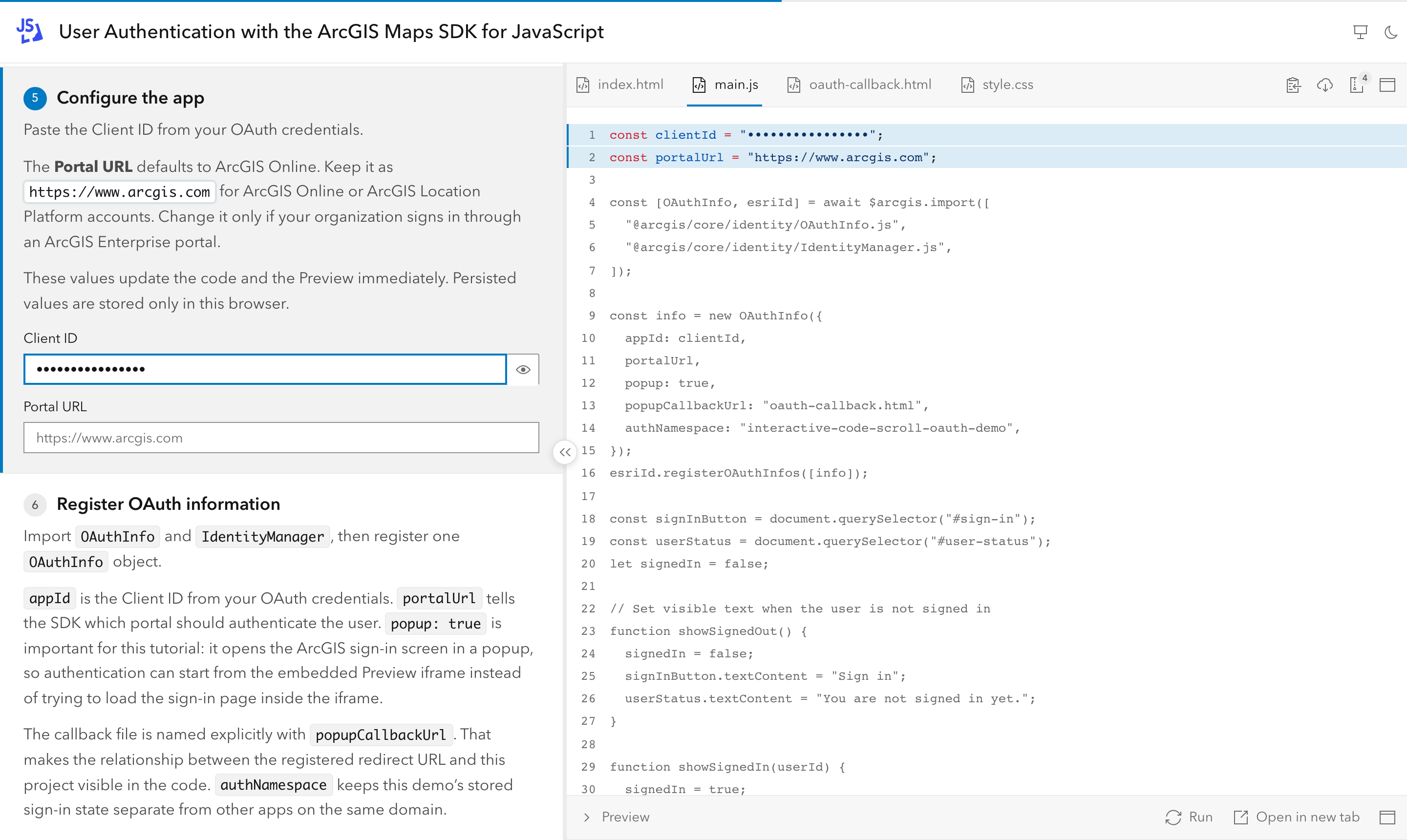
<VarField>inputs in the explanations update the code as the reader types (client ID, API key, portal URL…). The literal in the code is the default.- Secret fields are masked in the form and in the code, with a reveal toggle.
- Persisted fields are remembered per site, so a credential typed once fills every tutorial on the same site;
persist="tutorial"keeps a value to one tutorial. - Values are escaped for each language and quote style, and are included in Preview and downloads.
See <VarField> and Variables.
Preview
Section titled “Preview”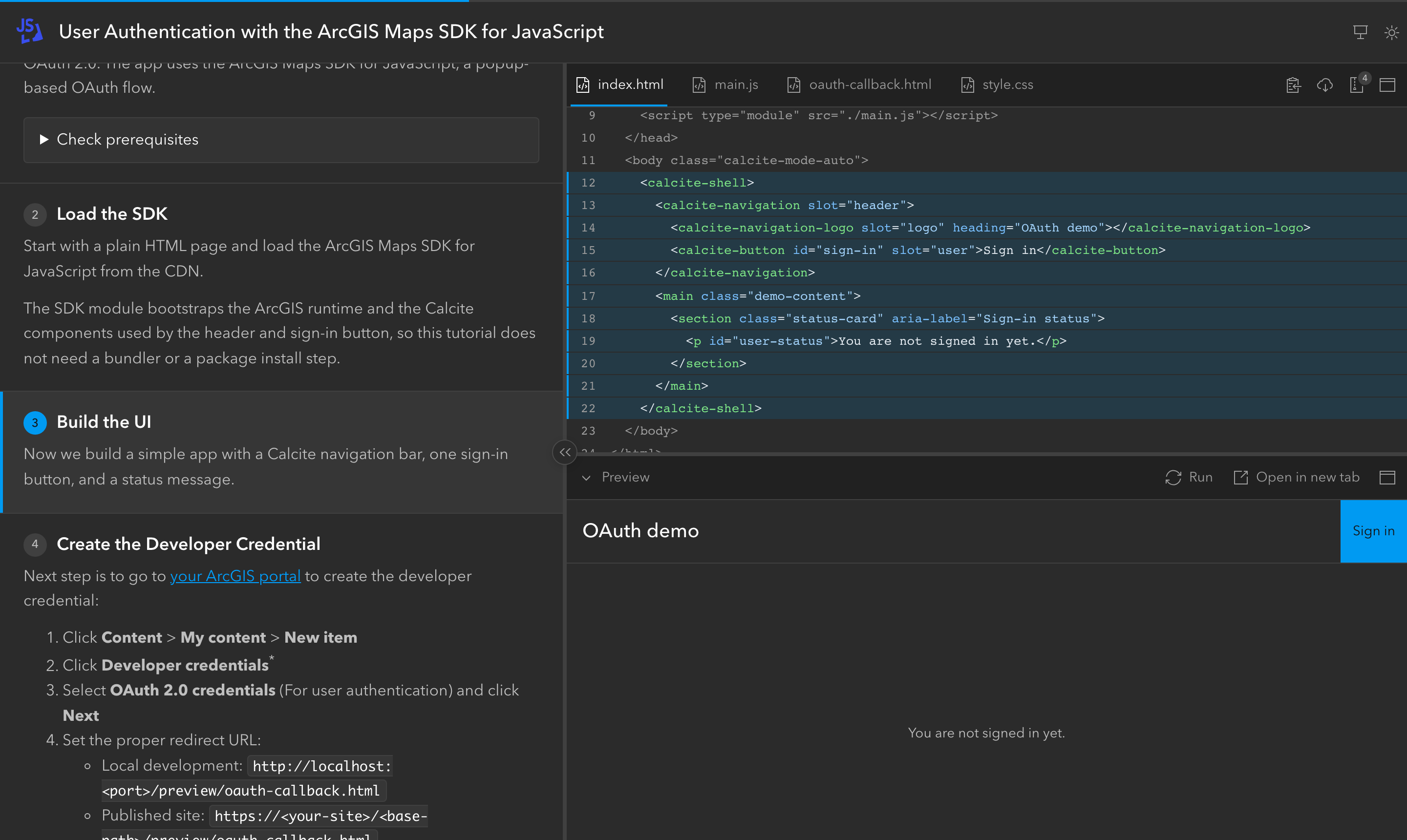
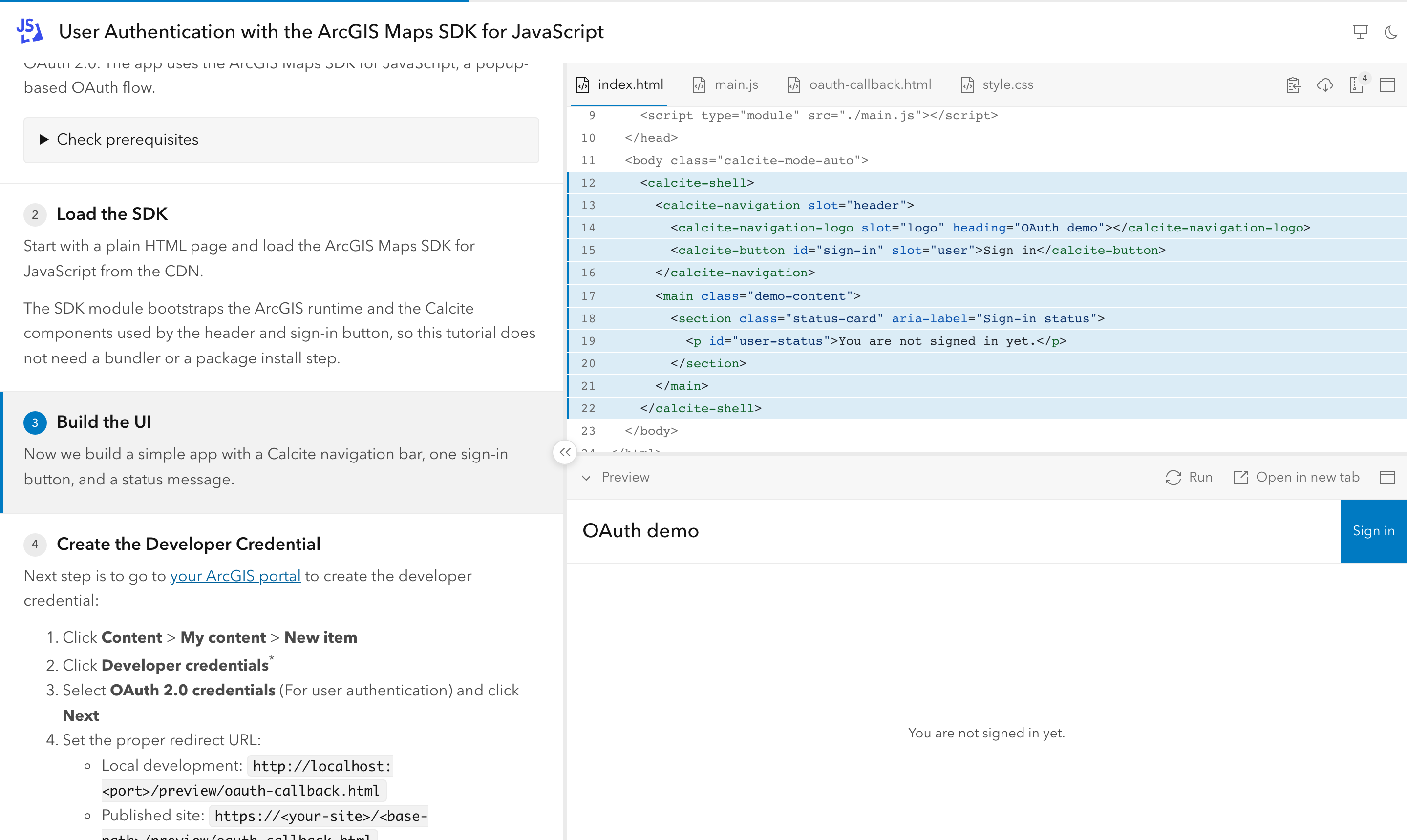
- Runs the tutorial’s web code (
code/index.html) from a real page of the site: embedded, in a new tab, or both. - Refreshes after form changes, or with Run. A step can expand or collapse it.
- OAuth sign-in works from the embedded Preview through a popup, and in the new tab through a normal redirect.
See Preview.
Result pane
Section titled “Result pane”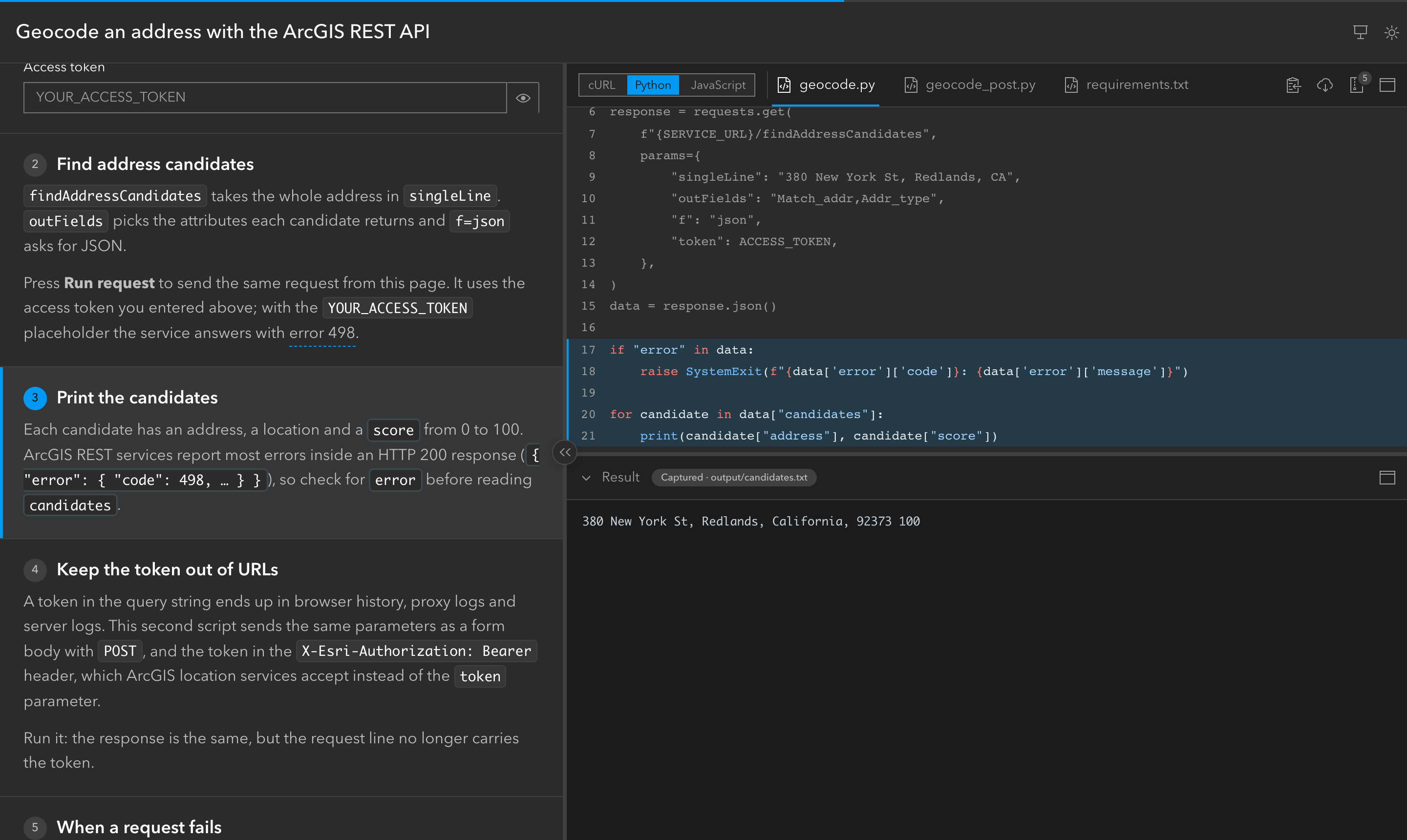
- Takes the Preview’s place for code that cannot run in the browser (scripts, native apps): a step with
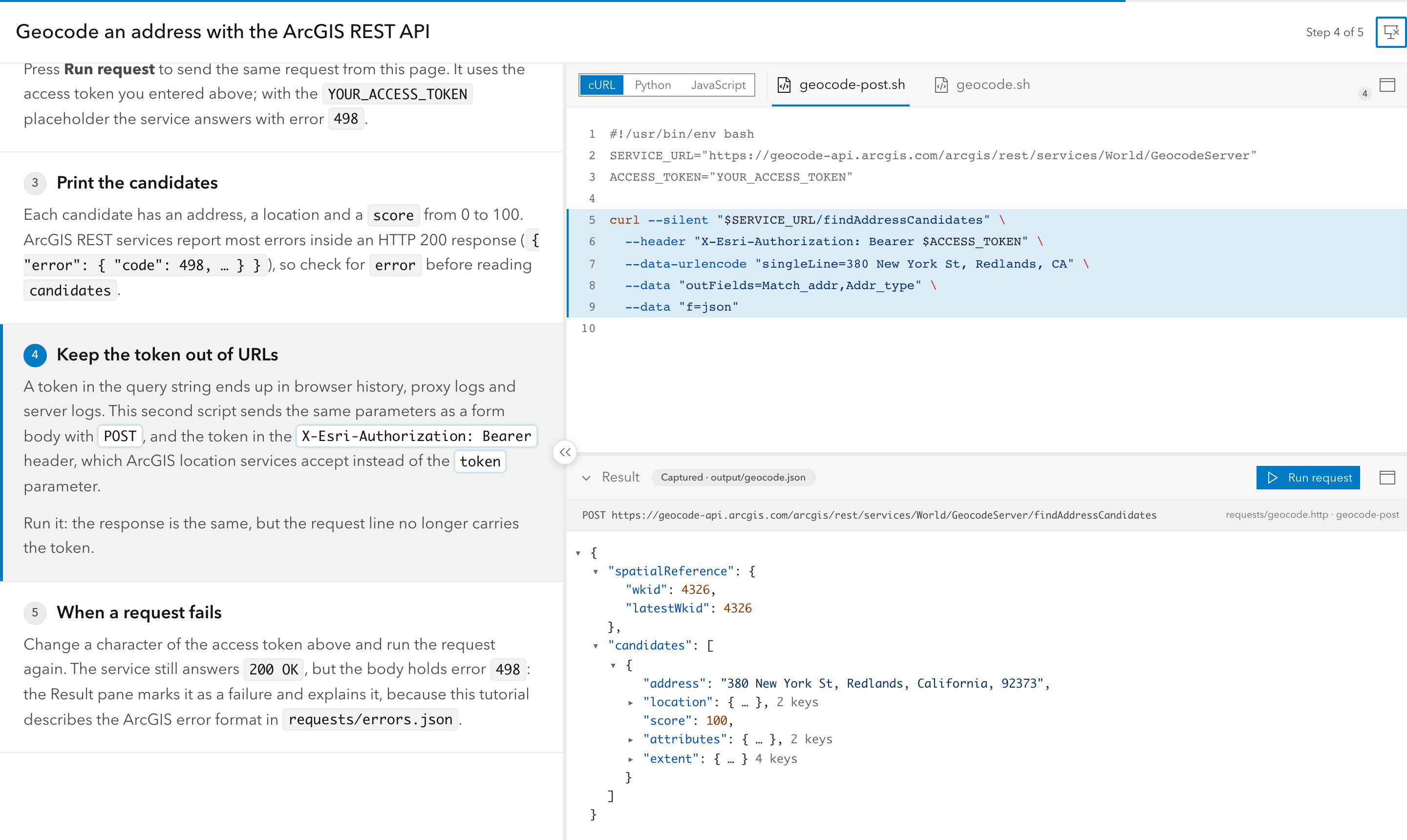
output="geocode.json"shows a captured result fromoutput/, with per-language overrides inoutput/<variant>/. - JSON is shown as a collapsible, colored tree (keyboard navigable, long lists paged by 100), text in terminal style (colored prompt lines and ANSI colors), images as images. Steps without an output keep the last result. Works offline.
- The build warns when a captured output looks like it contains a real credential.
- HTTP requests live in
.httpfiles underrequests/(VS Code REST Client / JetBrains syntax): steps bind them withrequest="geocode-get geocode-post", the build validates the supported syntax and names, and every ZIP includesrequests/with form values applied. - A Run request button sends the step’s request live from the browser with the reader’s form values (a “Run as” picker when the step offers several, e.g. GET and POST), shows the status, time and response body, masks secrets in the request line (with a “Show secrets” toggle), gives up after 30 s and falls back to the captured output when the network or CORS fails. Readers can keep a live response for the session; Show captured returns to the captured one.
- Live responses have Body and Headers tabs: JSON as a tree, images as images, long text cut at 200 KB with “Show all”; Headers lists what the server exposes through CORS.
- Service errors inside responses (e.g. ArcGIS REST answering HTTP 200 with an
errorobject) are shown as failures, with the code, message and a help link fromrequests/errors.json. - Example: examples/rest-geocode geocodes an address with the ArcGIS REST API in cURL, Python and JavaScript, with a GET step and a POST step (token in a header), captured outputs and the ArcGIS error rule.
See Result Pane.
Images
Section titled “Images”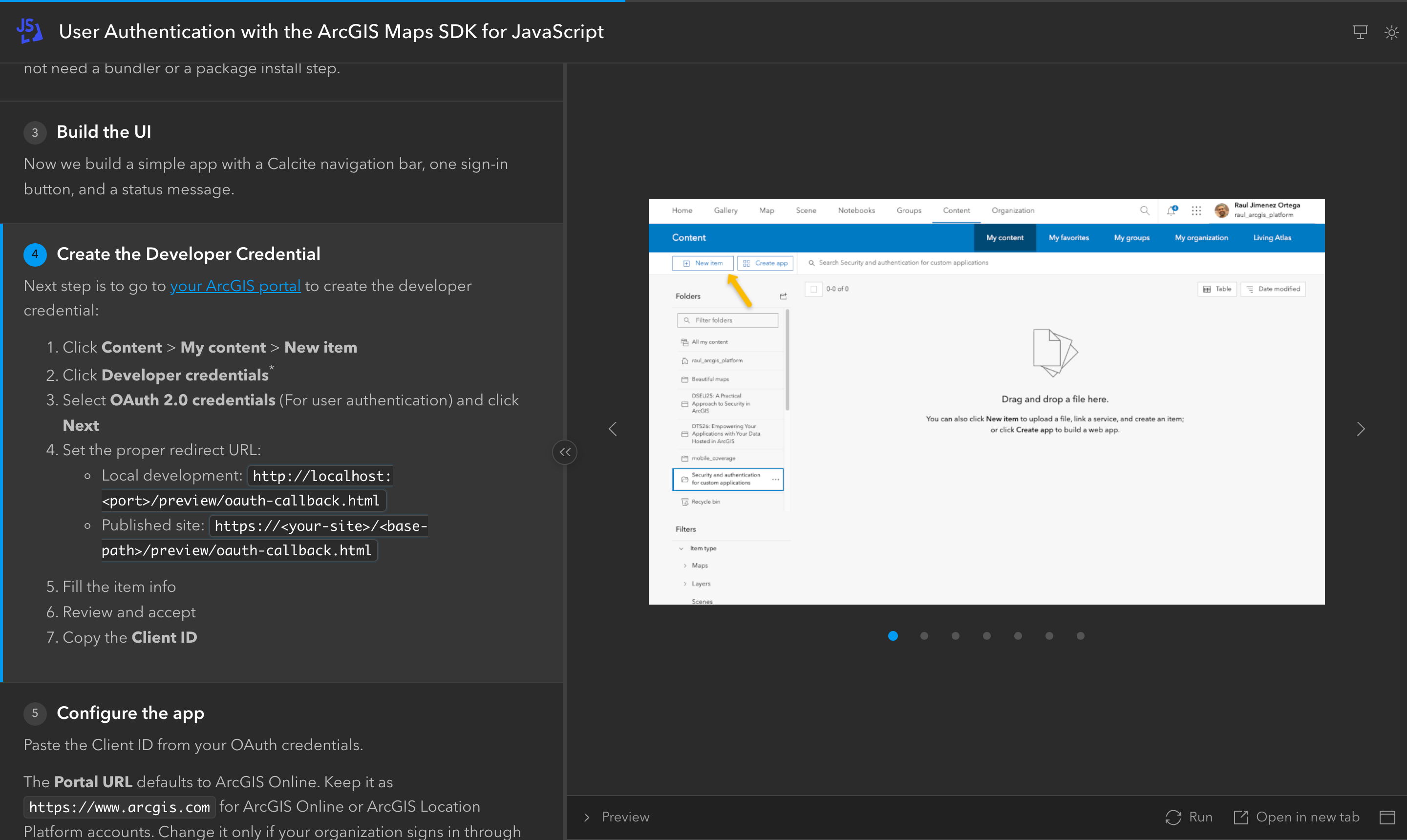
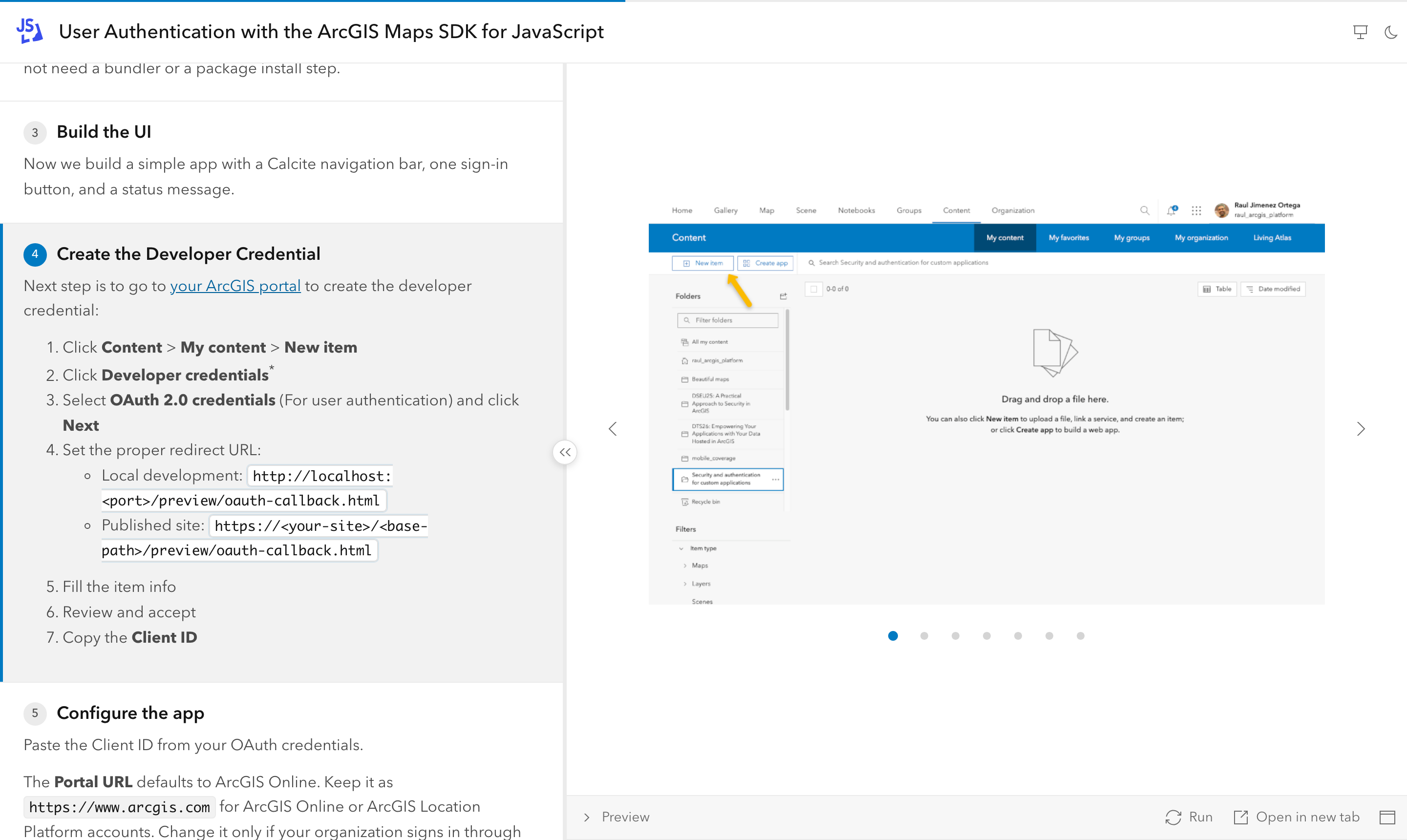
- A step can show one image or a carousel instead of code. Step keys page through the images first; clicking an image opens a full-screen viewer.
See <Step>.
Downloads
Section titled “Downloads”- Copy the current file, download it, or download the whole project as a ZIP with the reader’s form values applied, ready to run locally. The ZIP button shows how many files it contains.
Presenting
Section titled “Presenting”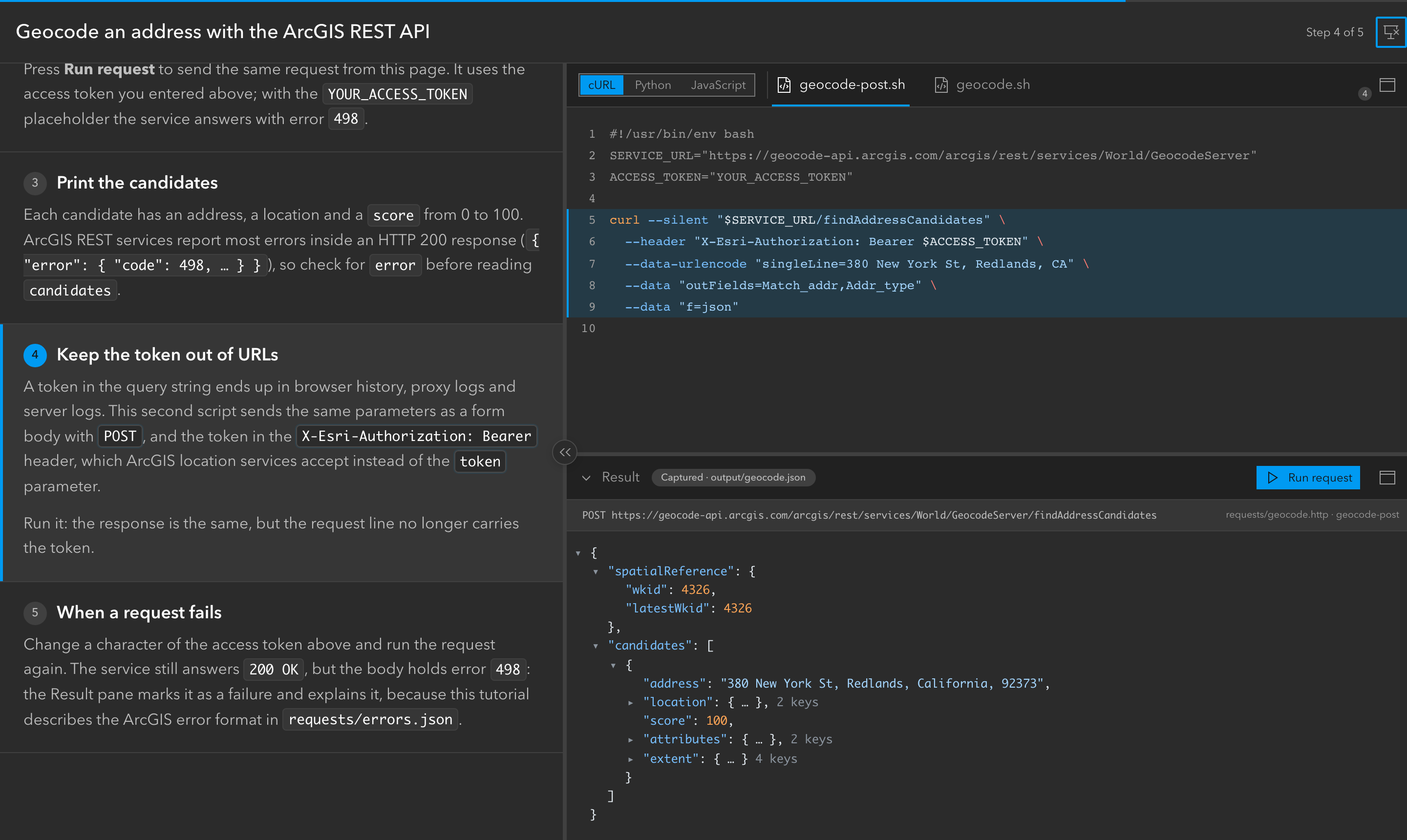
- Presentation mode hides the header; the explanations can be hidden too. Step keys and clickers keep working, including while the focus is inside the Preview, a form field or the Result pane.
- Maximize a pane: the code, the Preview or the Result pane fills the window from its header icon or from a step (
maximize=); the icon or Esc restores the layout. Step keys keep working. - Serve locally with the CLI when the venue’s network is unreliable.
Writing tutorials
Section titled “Writing tutorials”- Markdown notes (blockquotes) and
<Hint>popovers for short clarifications. - Strict validation: a wrong file, region, variable, image, variant or frontmatter value fails the build with the MDX file, line and column. In dev mode the error appears as a browser overlay and validation re-runs when code or images change.
- Project wizard:
npm create interactive-code-scroll@latestasks for one tutorial or a series, what each tutorial uses (web app, REST API, script or native app, in one or several languages, as code variants or sibling tutorials), the index page and a GitHub Pages workflow, then writes a working example to start from. See Create a Project. - Generic CLI:
dev,build,serve,doctorandinit-scriptsfor any tutorial folder or series site (--tutorials, or detected fromtutorials/;--indexfor a custom index page). - Series sites: several tutorials published as one site, each under its own URL, with an index of cards (description, level, duration, tags), a tag filter and an “All tutorials” link in each tutorial’s header. An optional
index.mdxadds a title, description, logo, prose and sections (<TutorialList tags=… level=…>) and places the filter (<TutorialFilter />); a custom Astro page (indexoption) can replace the index and reuse the tutorial list and components frominteractive-code-scroll/series. See Series Sites. - Publishing on GitHub Pages: a copy-paste workflow (npm or pnpm) builds a single tutorial or a whole series site on every push, checks pull requests without deploying, and picks the site URL and base path from the Pages settings (project site, user site or custom domain). See the Deployment Guide.
- Sibling tutorials: tutorials with the same
family(e.g. one per SDK language, with their own prose) get a “Tutorial for” menu in the header that opens the sibling on the same step and keeps the reader’s code variant when it can. See Sibling tutorials.
See Validation.
In progress
Section titled “In progress”These are specified and being built; see the specification and task list:
- Custom result views through renderer plugins (e.g. “Preview on map”, “Show as table”): write or install a renderer, register it, and choose per step in the MDX which views appear and with what label. A plugin guide will explain how to create, install and use them.