
Presenting a Tutorial
How to show a tutorial in a talk, a workshop or a screen share. For writing one, see Authoring Reference.
Before the talk
Section titled “Before the talk”- Link to the exact spot:
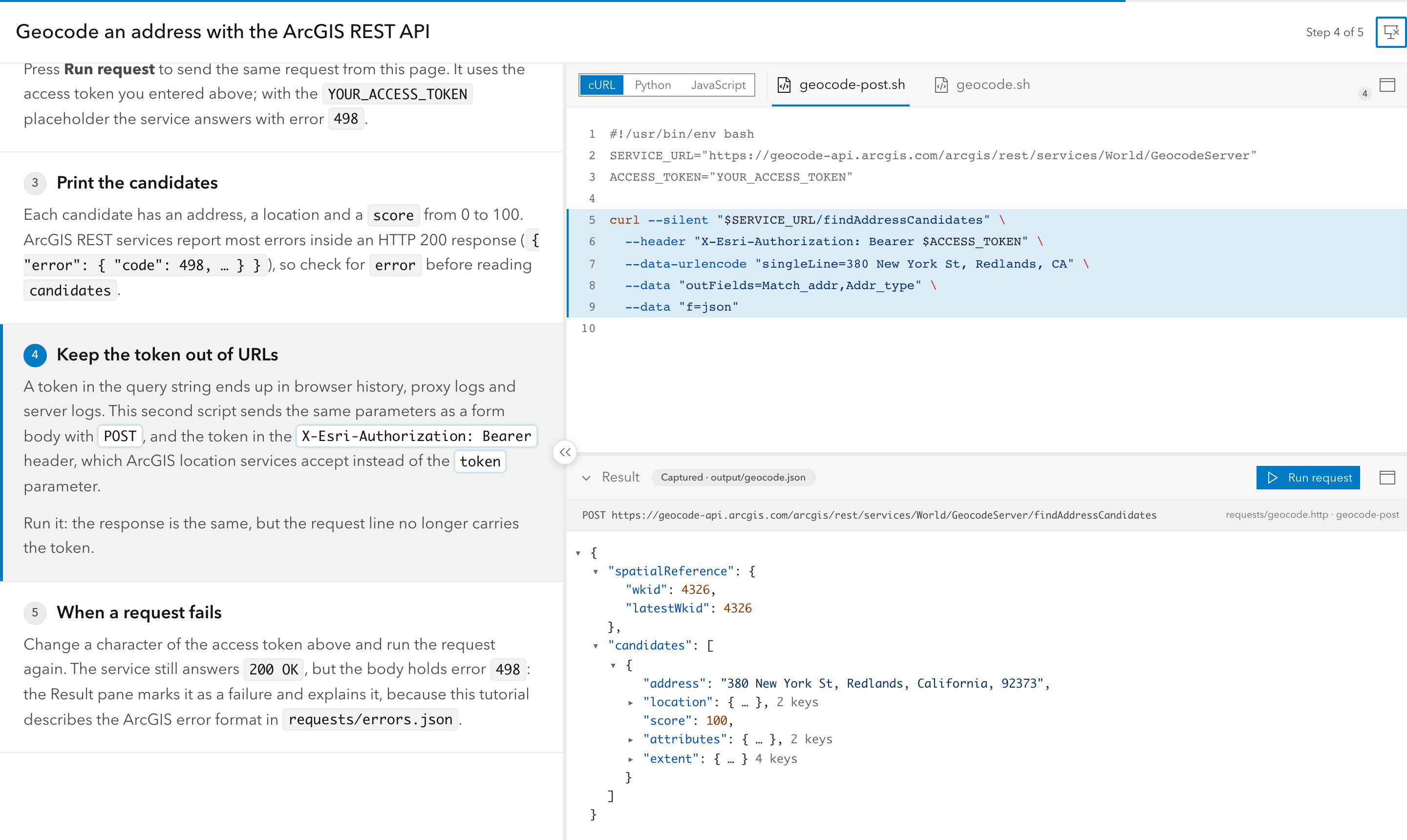
#step-idopens the tutorial at a step, and?variant=curl#requestalso picks the language. Keep one link per section of the talk. - Pick the theme for the room: the header toggle switches light and dark, and the choice is remembered for the whole site. Light usually reads better on projectors.
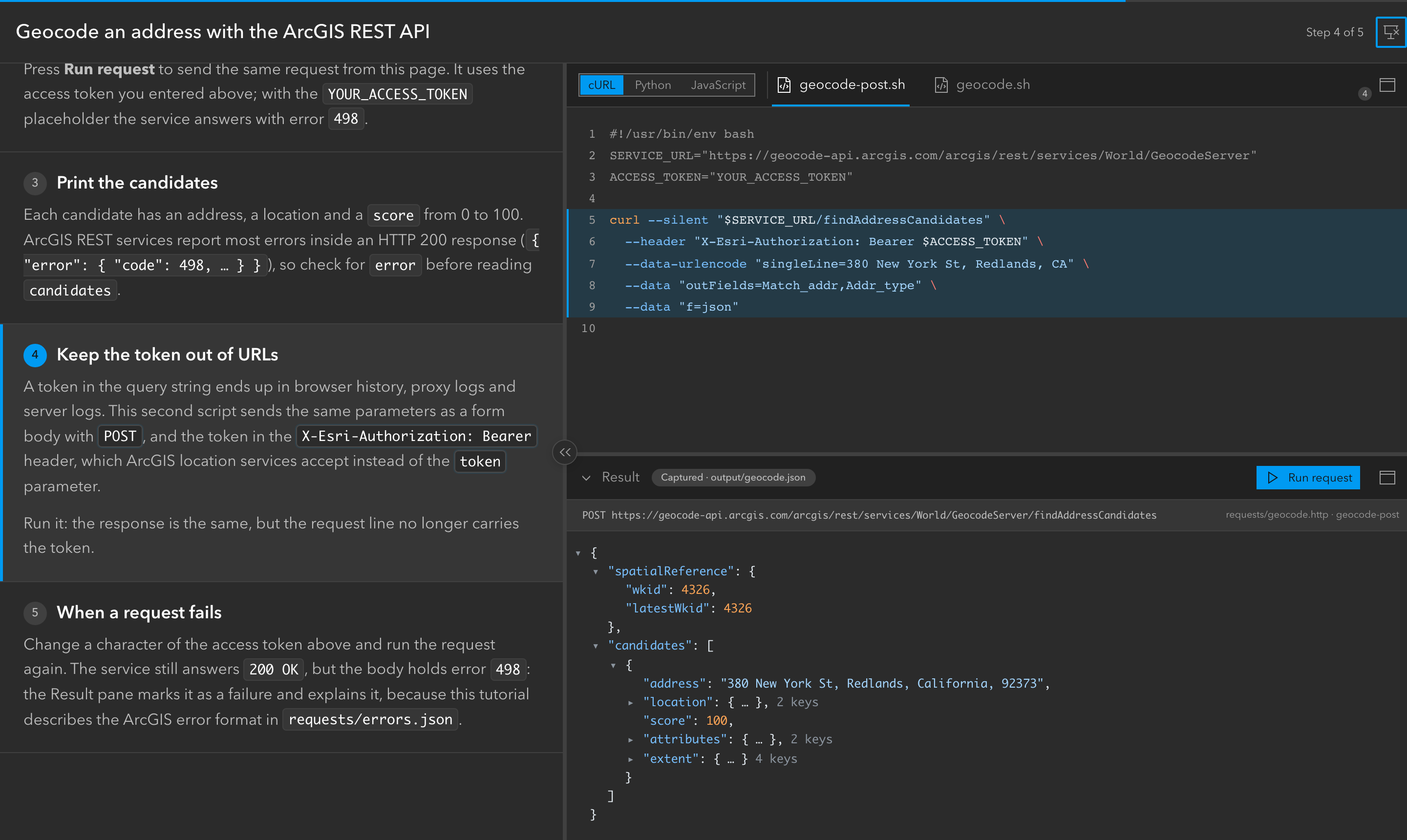
- Zoom until the back row can read the code (CMD/Ctrl + “+”). The layout stays usable at high zoom: the Result pane header turns “Keep response”, “Show captured” and then “Run request” into icons (their names show as tooltips), and a short Result pane scrolls as a whole: request line, notices and body. Long lines wrap when the author sets
codeWrap: true(Frontmatter). - Plan for a bad network: give request steps a captured
output=. If the venue’s network or CORS blocks a live request, the pane falls back to it and says so. Serve the site from your laptop with the CLI (serve, see Commands) when the network is unreliable. - Secrets on screen: secret fields and the request line stay masked; “Show secrets” is off on every page load. Persisted fields keep what you typed in the browser, so present from a browser profile without your real credentials.
During the talk
Section titled “During the talk”- Presentation mode: the header’s presentation icon enters browser full screen with a compact toolbar. The handle on the explanations splitter hides the explanations so the code gets the full width. Esc leaves.
- Clickers and keys: PageDown/PageUp move steps wherever the focus is: a form field, the JSON tree, the Result pane’s tabs and controls, or the Preview. Only multi-line text keeps them. Arrow keys also move steps, except inside fields and widgets that use them (JSON tree, Body/Headers tabs, “Run as”, splitters).
- Images: on a step with images, step keys page through them before moving to the next step; clicking an image opens a full-screen viewer.
- Splitters: drag them to give the code or the Preview more room. Their sizes are remembered.
Maximized panes
Section titled “Maximized panes”The code panel, the iframe Preview and the Result pane each have a maximize icon in their header. A maximized pane fills the browser window (the whole screen in presentation mode); its icon or Esc restores the layout with the same splitter sizes. One pane is maximized at a time, and step keys keep moving steps underneath. On a step with images, the maximized code area shows the carousel with a floating restore action. Maximizing a collapsed Preview or Result pane expands it; collapsing it restores the layout. The state is not remembered across reloads.
Authors can maximize a pane from a step, for example to show a big result and restore the layout on the next step: see maximize.
Leaving with Esc
Section titled “Leaving with Esc”Esc goes one level at a time: an open image viewer, then the maximized pane, then presentation mode. In browser full screen, the browser takes the first Esc to leave full screen (and presentation mode); the pane stays maximized until the next Esc.